QuickBooks invoice: how to create, customize and send one

Nnabuike Okoroafor ·
On this page · 12 sections
Disclosure: We make Charming Invoices, an invoicing app. This guide is neutral: every QuickBooks step, price and limit comes from Intuit’s own pricing, rates and help pages, read on 22 October 2026 and linked, and we say plainly where QuickBooks is the better choice. Where tax comes up, it is general information, not legal or tax advice.
You need to get an invoice out of QuickBooks. Intuit’s help centre covers each step in its own article: one for creating it, another for the design, another for payments, and more for corrections. Some features also depend on your plan.
This guide puts the whole QuickBooks invoice lifecycle on one page. It covers how to create an invoice in QuickBooks Online, customize the template, send it, get paid and mark it paid, and how to delete, void or write one off, with the plan each step needs and what the card fees come to on a real invoice. At the end there is a note on when an invoice-only tool may be enough instead. Quicken is a different product from QuickBooks; if Quicken is what you use, see how Quicken invoicing works.
QuickBooks invoicing in short#
- Every QuickBooks Online plan sends invoices. The Free plan caps you at 2 invoices a month unless you qualify for and turn on QuickBooks Payments. Paid plans start at $38 a month for Simple Start (US list prices, 22 October 2026).
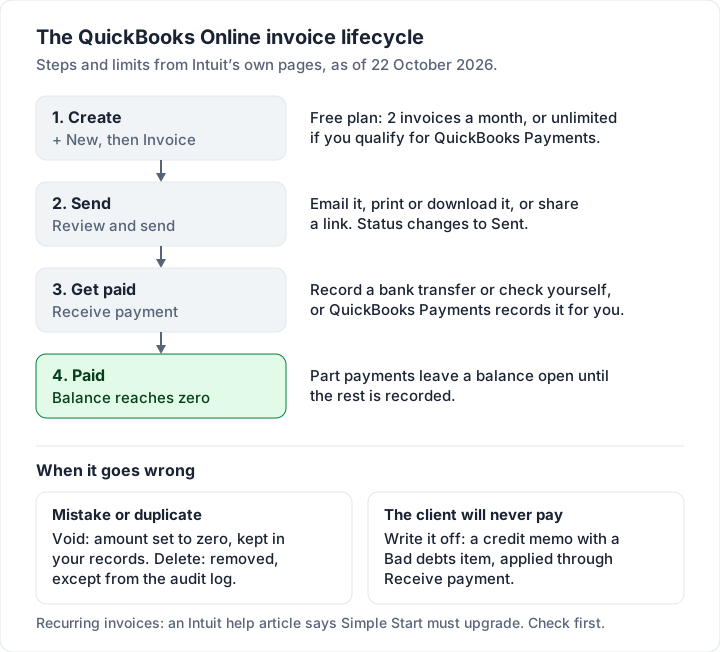
- Creating one takes six steps: + New, Invoice, pick the customer, check the dates and terms, add your products or services, then Review and send.
- Recurring invoices may need more than Simple Start. One Intuit help article says Simple Start users must upgrade to create them; the US pricing page does not say, so confirm with Intuit.
- Online payments carry a fee. QuickBooks Payments charges 2.99% for a card paid through an invoice and 1% for an ACH bank payment, per its rates page “accurate as of 09/18/2026”. On a $1,200.00 invoice that is $35.88 or $12.00.
- Mistakes and bad debts have their own tools. Void keeps a zeroed record, delete removes the invoice except from the audit log, and a write-off uses a credit memo against a Bad debts item.
- If you only need invoices, compare an accounting plan with an invoice-only tool. An invoice-only tool may be enough, as long as you do not need the books.
Which QuickBooks plans include invoicing#
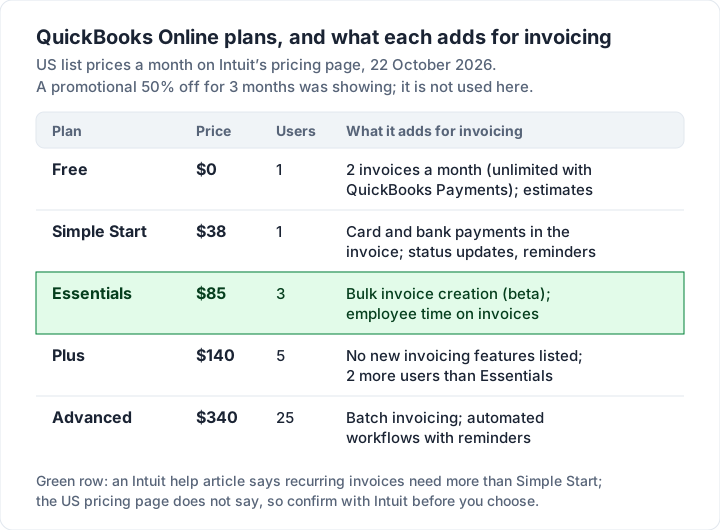
All five QuickBooks Online plans on Intuit’s pricing page can create and send invoices. They differ in how many you can send, who can pay online and what automation you get. Here they are at US list prices on 22 October 2026. The page was also showing a promotion of 50% off for 3 months and a 30-day free trial; the table uses the regular prices because a budget runs on those.
| Plan | List price | Users | What it adds for invoicing |
|---|---|---|---|
| Free | $0 | 1 | “Customize and send up to two invoices a month”, or unlimited if you qualify for and enable QuickBooks Payments; estimates you can convert to invoices |
| Simple Start | $38 a month | 1 | Card and bank-transfer payments in the invoice through QuickBooks Payments, with status updates and reminders |
| Essentials | $85 a month | 3 | Bulk invoice creation (marked beta) and employee time on invoices; recurring invoices, per a help article (see below) |
| Plus | $140 a month | 5 | No new invoicing features listed on the pricing page |
| Advanced | $340 a month | 25 | Batch invoicing and automated workflows with reminders |
Two notes the table cannot hold:
- Recurring invoices are not on the pricing page at all. Intuit’s help article on creating invoices says “If you're using QuickBooks Online Simple Start and want to create recurring invoices, you'll need to upgrade your plan.” That article does not say which country’s edition it covers, and the US recurring transactions article names no plan, so if recurring invoices matter to you, confirm with Intuit which plan includes them before you buy. If the help article applies, Essentials is the cheapest plan in the table that sends them.
- The Free plan’s invoice cap lifts only with Payments. If your clients pay by bank transfer to your own account and you do not want card processing, Free stays at 2 invoices a month.
How to create an invoice in QuickBooks Online#
These steps follow Intuit’s help article Create an invoice in QuickBooks Online, as it read on 22 October 2026. Intuit changes its screens from time to time, so a label or two may differ in yours.
- Open a new invoice. Select + New (or + Create), then Invoice. You can also go to All apps, then Sales & Get Paid, then Invoices.
- Choose the customer. Pick them from the Add Customer dropdown, or select + Add New to create one. Check the email address: it is where the invoice goes.
- Check the dates and terms. Review the Invoice date, Due date and Terms. In Terms, “Net” is the number of days until payment is due, so Net 30 means 30 days after the invoice date.
- Add your lines. For each line, choose a product or service, then enter the Qty and Rate. Select Add product or service for more lines.
- Set the options. Select Manage (the gear icon) to choose the design, scheduling (including recurring and automatic reminders) and which online payment methods to offer. Intuit notes these settings apply to all existing and future invoices.
- Send or save. Select Review and send to email it now, or Save and close to send it later. Once it is emailed, the status shows Sent.
A few practical points the help article leaves out:
- Invoice numbers are automatic unless you turn on custom numbers (see the questions and fixes section below). If you are moving from another tool, set the number before your first invoice so your sequence carries on. Our guide to how to number invoices explains why a continuous sequence matters. Switching invoicing apps without breaking invoice numbers has a checklist for the move.
- Set up your products and services once. Then pick them from the dropdown on each invoice instead of retyping descriptions and rates.
- Estimates can become invoices. If you quoted first, open the estimate and convert it rather than retyping the lines.
QuickBooks Desktop is different. This guide covers QuickBooks Online, the browser version on the pricing page. QuickBooks Desktop has its own screens and help articles, which we did not check.
How to customize your QuickBooks invoice template#
QuickBooks gives you two kinds of invoice design, so start by checking which one you are using. The steps below are from Intuit’s help article Customize sales forms in QuickBooks Online, updated 4 August 2026.
| You want to change | Where to do it |
|---|---|
| Logo and company details | On the invoice, select Edit company, or go to Settings, then Account and settings |
| Font and colour (Modernized template) | Manage, then Design: pick a font and a colour |
| Column names and widths | Settings, then Custom form styles, edit a style, then Content, then Edit labels and widths |
| Which fields show (ship to, service date, SKU) | Manage, then Customization, and toggle the fields |
| Default fields such as discount, deposit and custom transaction numbers | Settings, then Account and settings, then Sales, then Sales form content |
| Your own extra fields | Settings, then Custom fields, then Add custom field |
Two notes, in Intuit’s words:
- “You can’t edit the modernized template.” It is the default design, and you can only choose its font and colour. For layout changes such as moving your logo, you edit the standard template instead.
- “You can only set the standard template as default.” To make your edited standard design the default, open Manage, then Design, and select Remove default on the Modernized template.
If your invoice is part of how you present your business, check these design options against what you want before you commit. Our guide to customizing an invoice covers what to change on any invoice, in any tool.
How to send a QuickBooks invoice and let clients pay online#
When you select Review and send, QuickBooks emails your client a link to the invoice. According to Intuit’s help article on receiving payments (updated 2 September 2026), “Customers can pay using PayPal, Venmo, credit card, or ACH bank transfer” when you use QuickBooks Payments. You choose the methods for all invoices under Settings, Account and settings, Sales, Invoice payments, or per invoice under Manage, then Payment options. Payments you take this way are deposited to the bank account you chose when you signed up.
You can also print or download the invoice, or share a link to it, if you would rather send it yourself.
QuickBooks invoice fees, worked on a $1,200.00 invoice#
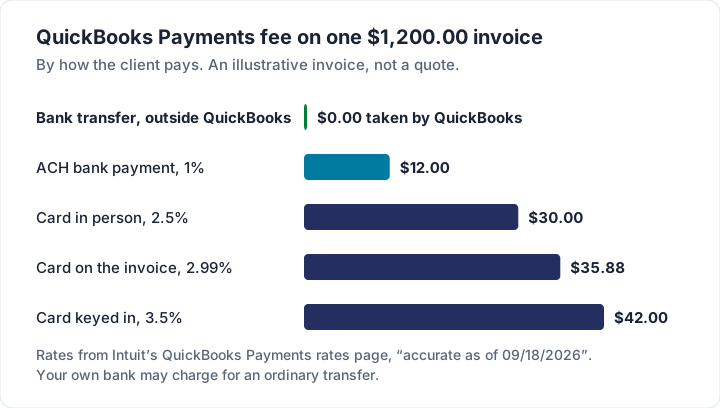
Intuit’s QuickBooks Payments rates page says its rates are “accurate as of 09/18/2026”. Here is what each rate takes from one illustrative $1,200.00 invoice.
| How your client pays | QuickBooks Payments rate | Fee on $1,200.00 | You receive |
|---|---|---|---|
| ACH bank transfer through the invoice | 1% | $12.00 | $1,188.00 |
| Card in person (reader or Tap to Pay) | 2.5% | $30.00 | $1,170.00 |
| Card, PayPal or Venmo through the invoice | 2.99% | $35.88 | $1,164.12 |
| Card keyed in by you | 3.5% | $42.00 | $1,158.00 |
| Bank transfer straight to your account, recorded by hand | No QuickBooks fee | $0.00 | $1,200.00 |
Instant deposit, if you want the money sooner, is a further 1.75% on the rates page. The rates page lists no ACH cap, so on large invoices the 1% grows with the amount: a $10,000.00 invoice paid by ACH costs $100.00.
None of this makes card payments a bad idea. Some clients will only pay by card, and for many businesses the convenience is worth 3%. If you want to compare QuickBooks’ rates with Square, PayPal and Stripe, our guide to invoice payment fees works through the same kind of example for each.
How to mark an invoice paid in QuickBooks#
If your client paid through QuickBooks Payments, you do nothing: Intuit says “If you use QuickBooks Payments to process payments, we automate these steps.” If they paid by bank transfer, check or cash outside QuickBooks, you record it yourself with Receive payment. These steps are from Intuit’s help article Record invoice payments, updated 3 August 2026.
- Select + Create, then Receive payment.
- Choose the Customer.
- Choose the Payment method (check, cash, bank transfer and so on).
- Choose the Deposit To account: your bank account, or Undeposited Funds if your bank will show several payments as one deposit.
- Enter the Amount received.
- Under Outstanding Transactions, tick the invoice or invoices this payment covers.
- For a part payment, change the amount in the Payment column. The rest stays open on the invoice.
- Select Record and close.
Always record the payment against the invoice, rather than only categorising the deposit when it arrives in your bank feed. If you do both separately, QuickBooks can count the same money twice: once as a sale and once as a deposit. If you are unsure how your books are set up, ask whoever reconciles them; our guide to invoice reconciliation shows how each deposit is matched to the invoice it pays.
To send a client a copy of the invoice once it is paid, open it and print or download it, or share its link. What that copy, or a short confirmation email, should say is covered in our guide to paid invoices.
How to delete, void or write off an invoice in QuickBooks#
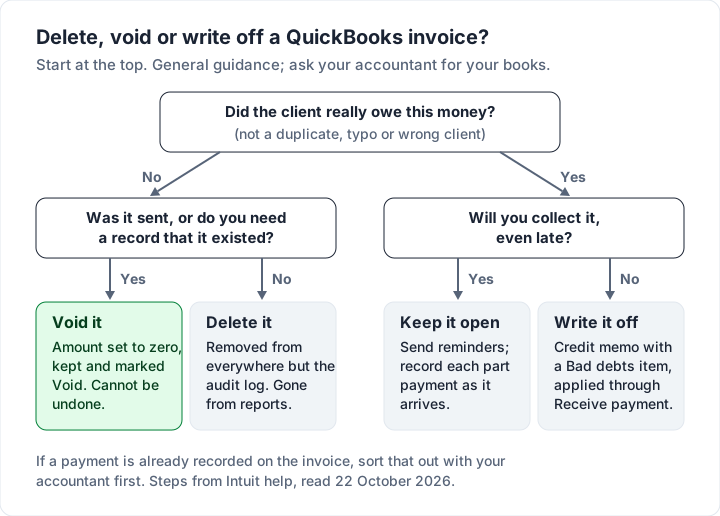
Three different tools, for three different situations. Pick the wrong one and the sales figures in your QuickBooks reports can be off.
| Action | What it does in QuickBooks | Use it when |
|---|---|---|
| Void | “Voided transactions are zero and show as void in your records.” The invoice stays on file | The invoice was sent but should not have been (wrong client, duplicate, wrong job), and you want a record that it existed |
| Delete | Removes the invoice from everywhere except the audit log | An invoice that was never sent and never mattered, such as a test or an accidental draft |
| Write off | A credit memo for a Bad debts item, applied to the invoice through Receive payment. The amount moves to a Bad debts expense | The client genuinely owed the money and you have given up collecting it |
The void and delete steps are from Intuit’s help article Void or delete transactions, updated 7 September 2026:
- Go to All apps, then Sales & Get Paid, then Sales transactions.
- Find the invoice.
- Open the More actions dropdown.
- Choose Void or Delete, and confirm.
Intuit warns: “You can’t undo a voided transaction.” If you void the wrong one, the fix is to delete it and create it again.
The write-off is longer. Intuit’s help article How to write off bad debt (updated 24 August 2026) sets out six steps:
- Review aging receivables in the Accounts Receivable Aging Detail report to decide what to write off.
- Create a Bad debts expense account in the chart of accounts.
- Create a Bad debts item (non-inventory) linked to that account.
- Create a credit memo for the customer, using the Bad debts item, for the amount to write off.
- Apply the credit memo to the invoice with Receive payment: tick the invoice under Outstanding Transactions and the credit memo under Credits.
- Check the Bad debts report to confirm the amount landed there.
Intuit adds: “We recommend consulting your accountant before writing off any debt.” The tax side is worth that conversation. In Topic 453, Bad debt deduction (checked 23 October 2026), the IRS says “You may deduct business bad debts, in full or in part, only if the amount you were owed is included in your gross income in the current or prior year”, and that if you are a cash method taxpayer you “generally can't take a bad debt deduction for unpaid salaries, wages, rents, fees, interests, dividends, and similar items of taxable income.” How either line applies to you is a question for your accountant.
Before you write anything off, make sure you have actually run out of road. Our guide to a client not paying an invoice covers the steps between a polite reminder and giving up. For the general difference between voiding and cancelling outside any one app, see how to void or cancel an invoice, and for correcting an invoice with a separate document, credit notes versus invoices.
Recurring and progress invoices in QuickBooks#
Recurring invoices live in a recurring template. Intuit’s help article Create recurring transactions (updated 5 August 2026) describes three types:
- Scheduled: QuickBooks creates the invoice on the schedule you set, and can email it automatically.
- Reminder: QuickBooks reminds you to create it, for bills that change each time.
- Unscheduled: a saved template you use when you need it.
You reach them from All apps, then Accounting, then Recurring transactions, or by opening an invoice, selecting Manage, then Scheduling, and making it recurring. Remember the plan note above: one Intuit help article says Simple Start users must upgrade first, so check your plan. If you are deciding between a recurring invoice and a card-on-file subscription, our guide to recurring invoices versus subscriptions sets out the difference.
Progress invoices bill a share of an estimate at a time, which suits contractors and long projects. Per Intuit’s help article Set up and send progress invoices (updated 24 August 2026):
- Go to Settings, then Account and settings, then Sales.
- In Progress Invoicing, select Edit and turn on “Create multiple partial invoices from a single estimate”, then Done.
- Open the accepted estimate and choose Convert to invoice, then bill the share you need.
QuickBooks will not let progress invoices add up to more than the estimate, and the estimate shows “Converted” once it is fully invoiced. The method itself, with worked percentages and retainage, is in our guide to progress invoicing.
Common QuickBooks invoice questions and fixes#
| What you see | Likely cause | Fix |
|---|---|---|
| You cannot change the invoice number | Custom transaction numbers are off | Settings, Account and settings, Sales, Sales form content: turn on Custom transaction numbers, then type the number in Invoice no. |
| The next number jumped or clashed | Invoices, sales receipts and credit memos share one custom number list | Intuit says they “share the same custom transaction number list”, so a sales receipt uses up a number too. Plan your sequence with that in mind |
| Your template changes do not show | You are on the Modernized template, which cannot be edited | Edit the standard template and set it as default (see the customizing section) |
| Clients cannot pay online | Payments not set up, or the method is switched off on that invoice | Check Manage, then Payment options on the invoice; Intuit notes you need to connect your bank account to see online payment options |
| The client says the email never came | Wrong address on the customer, or it landed in spam | Check the customer’s email, resend, or copy the invoice’s share link and send it yourself |
| The Free plan will not let you send more | You have used your 2 invoices for the month | Turn on QuickBooks Payments if you qualify, or move to a paid plan |
The custom-number steps are from Intuit’s help article Add custom transaction numbers to sales forms, updated 28 August 2026. For credit memos, invoice imports, batch invoicing and undelivered emails, see our guide to QuickBooks invoice fixes.
When an invoice-only tool may be enough#
QuickBooks Online is accounting software that also sends invoices. That is its strength: every invoice lands in the same books your accountant reconciles, with your bank feed, expenses and tax reports beside it. If you only send invoices, you may not need those features, and an invoice-only tool is worth comparing.
Here is how to tell which fits your situation.
| Your situation | QuickBooks Online | An invoice-only tool |
|---|---|---|
| Your accountant works in QuickBooks | Use it. This outranks everything else | Adds a step: someone moves the data across |
| You need bookkeeping, payroll, bills or inventory | Use it | Not built for this |
| Clients expect to pay by card from the invoice | Built in with QuickBooks Payments | Only some offer it |
| You only send invoices and track who has paid | Free plan lists 2 a month without Payments; otherwise from $38 a month | Many have free plans with no monthly cap |
| You want the invoice to look like your brand | Font and colour on the default template; layout changes through the standard template | Varies; design is the point of some tools |
For a wider shortlist by kind of business, see the best invoicing app for small business, and for trades, invoicing software for contractors. If you are weighing QuickBooks against Wave specifically, our guide to the Wave invoice covers Wave’s plans, fees and the countries it supports, and if your accountant prefers Xero, Xero invoicing explained sets out its plans, invoice caps and reminders. And if you are still deciding what you need at all, how to choose invoicing software is a checklist for that. If your accountant uses Sage instead, Sage invoicing covers which Sage product to invoice from and what it costs.
Where Charming fits, and where it does not#
Charming Invoices is one invoice-only option, so here is what it does and does not do, next to each other.
- Free with no invoice or client cap, for 1 business. Paid plans add unlimited businesses: Individual is $29 once, Team is $79 once with up to 5 teammates, and Pro is $12 a month or $99 a year. Lifetime plans are final sale. See the pricing page.
- Your brand on the invoice: 60 templates, your logo, any brand colour, 30 fonts and a letterhead, all on the free plan. Free invoices carry a small “Sent with Charming Invoices” line; paid plans hide it by default.
- You can carry your QuickBooks numbering on. A “Next invoice number” setting starts Charming from your last QuickBooks number; it can be raised, never lowered below the current value.
- Sharing and records: issue the invoice, then download the PDF, print it or copy its private link and send it however you like; overdue invoices are flagged, and there are client statements and a CSV export of your invoices for your bookkeeper.
- What it does not do: no bookkeeping, no bank feed, no QuickBooks sync or import, no card payments through Charming, no email sending or reminders, no estimates and no mobile app. Payment tracking is manual: your client pays you directly, by bank transfer or through a payment link you print on the invoice, and you mark it paid.
If your accountant needs your invoices inside QuickBooks, stay in QuickBooks. If you mainly send a handful of invoices a month, you can create a free invoice in Charming and compare the result before you change anything.
QuickBooks invoice questions#
Can I use QuickBooks just for invoices?#
Yes. The Free plan sends 2 invoices a month, or unlimited if you qualify for and turn on QuickBooks Payments, and every paid plan sends invoices without a stated cap. Each plan includes the accounting features listed on Intuit’s pricing page.
Is QuickBooks invoicing free?#
Partly. The QuickBooks Online Free plan is $0 for 1 user and lists 2 invoices a month unless you use QuickBooks Payments, which charges 2.99% per card payment and 1% per ACH payment through an invoice (rates accurate as of 18 September 2026). Paid plans start at $38 a month at list price.
Can I change the invoice number in QuickBooks?#
Yes. Turn on Custom transaction numbers under Settings, Account and settings, Sales, Sales form content, then type the number you want in the Invoice no. field. Invoices, sales receipts and credit memos share the same number list.
How do I change the invoice template in QuickBooks?#
For the default Modernized template, open Manage, then Design, and pick a font and colour. For layout changes, edit the standard template under Settings, Custom form styles, then remove the Modernized template as default so yours is used.
How do I mark an invoice paid in QuickBooks?#
Select + Create, then Receive payment, choose the customer, method and deposit account, enter the amount, tick the invoice and select Record and close. Payments taken through QuickBooks Payments are recorded for you.
Should I delete or void an unpaid QuickBooks invoice?#
Void it if it was sent: it stays in your records at zero, marked Void. Delete only a draft that never went to anyone. If the client really owed the money and will not pay, write it off as bad debt instead, after talking to your accountant.
The short version#
A QuickBooks invoice takes six steps to create and one to send. The things worth knowing are around it: the Free plan lists 2 invoices a month without Payments, recurring invoices may need more than Simple Start, design changes beyond font and colour go through the standard template, card payments cost 2.99% through an invoice, and void, delete and write-off each do something different to your books. If your accountant works in QuickBooks, it is the right tool. If you only need to send invoices and see who has paid, compare it with an invoice-only option too.