How to choose invoicing software

Nnabuike Okoroafor ·
On this page · 12 sections
You send clients invoices, and the way you do it now has started to creak: a word-processor template, a spreadsheet, or a free app you have outgrown. So you search for invoicing software and get a wall of "best of" lists.
This guide does not rank anything. It gives you the questions to ask any invoicing app, including ours, so you can judge for yourself. It is for someone who needs to send invoices and know who has paid, not run an accounting department.
General information, not legal or tax advice. Where record-keeping comes up, we quote the official pages and link them.
In short#
- Invoicing software does a few jobs: build, number, send, track and remind. Accounting and payments are different products.
- Judge a tool on eight things: pricing model, limits, branding, payment tracking, reminders, export, team access and support.
- The one people regret skipping is what happens to your invoices if the plan changes after you depend on it.
- Test before you commit: send yourself a real invoice, export everything, find the cancel button.
- A spreadsheet is a fair answer for a few invoices a month to a few clients.
What invoicing software actually does#
Strip away the marketing and an invoice app, like any invoicing system, does six jobs. It is worth knowing them, because they are also the jobs you would do by hand without one.
| Job | Without software | What an invoice app does |
|---|---|---|
| Build the invoice | Copy last month’s file, change the details | Fills in your details and the client’s, adds up the lines |
| Number it | Check the last number, add one, hope | Assigns the next number for you, with no duplicates |
| Make it look like you | Design a template once, keep it tidy | Applies your logo, colours and layout to every invoice |
| Send it | Export a PDF, attach it, write the email | Emails it, often with a link the client can open |
| Track what is owed | A list or a spreadsheet you update | A status per invoice: sent, part paid, paid, overdue |
| Remind people | You notice, you write the email | Sends reminders on a schedule, if you turn them on |
Two related products get sold under the same name:
- Accounting software records everything your business spends and earns, reconciles your bank account and produces tax reports. Invoicing is one feature inside it. If your accountant works in a particular package, that matters more than anything in this guide. If QuickBooks is yours, how to create, send and void a QuickBooks invoice shows where each step sits. If your accountant uses Sage, Sage invoicing explains which Sage product to invoice from and what each plan costs.
- Payment processing lets your client pay by card from the invoice. It is a separate service with its own fees, sometimes built into an invoice app and sometimes not.
If you need the six jobs in the table, you are shopping for invoicing software. If you need bank reconciliation and tax reports, you are shopping for accounting software, and the shortlist will look different. If you bill by the hour, a time tracker is a third related product; time tracking and invoicing software covers tools that do both. If you also want a client pipeline, CRM with invoicing compares CRMs that invoice, and if you bill the same amount every month, recurring invoice software sorts tools by what they actually automate.
What you can already do without an invoice app#
A word processor or spreadsheet can produce a perfectly good invoice. Your email can send it, your calendar can remind you to chase it, and your bank statement tells you who paid.
What those tools do not do is connect. The invoice number, the line in your tracking sheet and the reminder in your calendar are three things you keep in step by hand, which is where a reused number or a reminder to someone who already paid comes from. The honest case for invoicing software is that it keeps those pieces in one place, so you stop being the glue.
Before you compare: write down your own numbers#
Feature comparisons mean little until you know your own situation. Spend five minutes on this first.
| Question | Example answer (illustrative) |
|---|---|
| Invoices you send in a typical month | 12 |
| Active clients in a year | 25 |
| Businesses or brands you bill from | 2 (a design studio and a print shop) |
| Currencies you bill in | 2 (USD and EUR) |
| How clients usually pay | Bank transfer, a few by card |
| People who touch the invoices | You, plus a bookkeeper at year end |
| Repeat billing | One monthly retainer |
| Your accountant’s tool, if any | None |
Now read a pricing page with those numbers in hand. A free tier capped at five clients is not free for this person, and "unlimited invoices" on a plan that allows one business does not cover the print shop.
Eight criteria for choosing invoicing software#
These are the eight things worth checking in any invoicing software, roughly in the order people regret skipping them. Each ends with a question to put to the vendor.
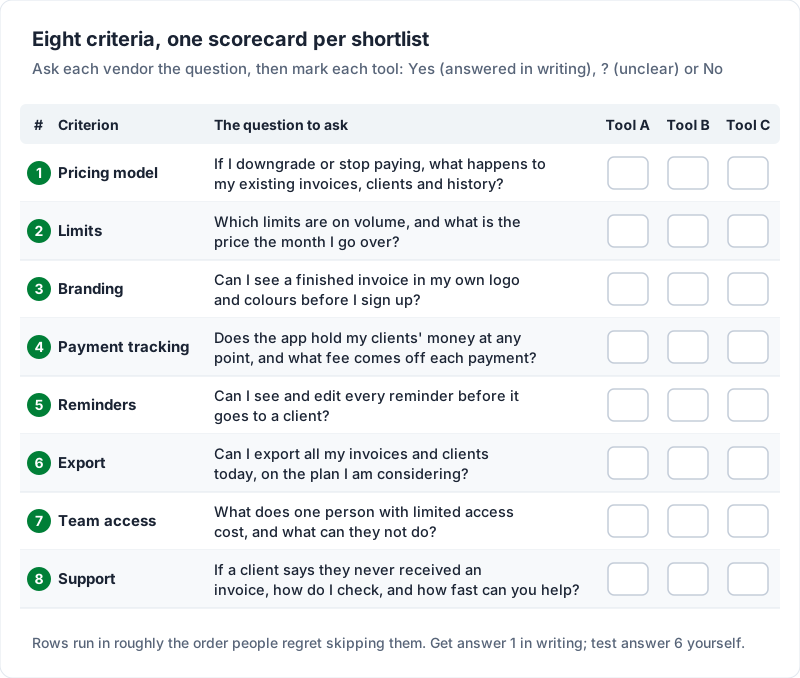
The scorecard puts all eight questions on one page, with a column for each tool on your shortlist, so you can mark the answers as they come in.
1. The pricing model, and what happens to your invoices if the plan changes#
There are three common shapes: a free tier paid for by something else (usually payment fees or upgrades), a subscription, and a one-time purchase. Each can be fair. What matters is what the terms say can change later, and how much notice you get.
A subscription price can change at renewal, so check what the terms say about notice. A free tier is paid for by upgrades or payment fees, and a one-time price by the purchase itself. Every pricing model is paid for somewhere; the useful question is which one matches how you work. Cheapest invoicing software: list prices compared puts numbers on each model over two and five years, and what a simple invoicing app should do helps you skip the features you will not use.
The question this guide adds is narrower: if the deal changes, what happens to the invoices you have already sent? Can you still open them, download the PDFs, or record a payment against an old invoice after a downgrade? The answer is in the terms of service, and it is worth reading before you have years of invoices in the tool.
Ask: "If I downgrade or stop paying, what happens to my existing invoices, clients and payment history?" Get the answer in writing, ideally in the terms of service.
2. Limits on invoices, clients and businesses#
Every plan has limits. The question is whether they are limits of scope (which features you get) or limits of volume (how much you can use the thing you came for).
Volume caps matter most, because they apply the month you get busy:
- Invoices per month. Check the cap against your busiest month, not your average.
- Clients. A cap on active clients counts every small job as a client.
- Businesses. If you invoice under two names, check whether each needs its own plan.
- Sending. Some free tiers let you build an invoice but not email it from the app.
Run your numbers against every cap, then add 50% and run them again. You are probably shopping because work is picking up.
Ask: "Which limits are on volume, and what is the price the month I go over?"
3. Branding control#
Your invoice is often the last thing a client sees after good work. If it looks like the software company’s form with your name typed in, that is the impression you leave. Check how much of the document is actually yours:
- Logo, colours and fonts: how large the logo can be, and whether you get your exact brand colour or a few presets.
- Layout: several genuinely different designs, or one design with a colour picker.
- Labels and sections: can you rename a label, hide a column you do not use, or add your terms?
- The vendor’s own branding: many free tiers add a line or logo of their own. Find out exactly what it says.
Ask: "Can I see a finished invoice in my own logo and colours before I sign up?" A sample PDF tells you more than a feature list.
4. Payment tracking, and who holds the money#
There are two very different designs here, and neither is wrong.
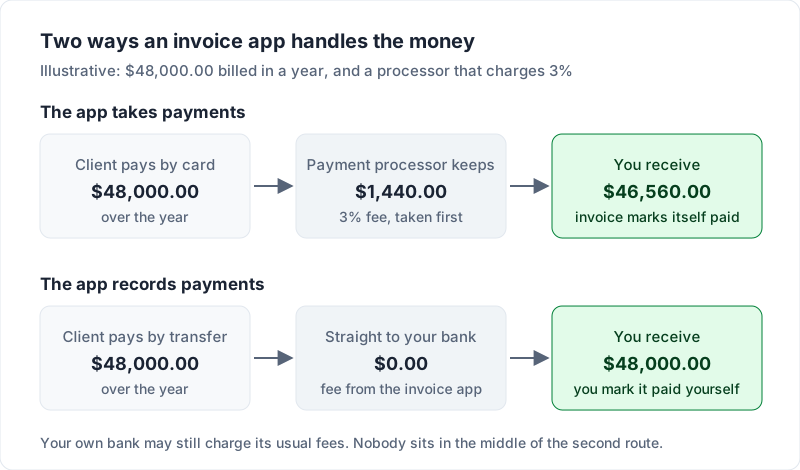
The app takes payments. Your client clicks a button and pays by card or bank debit, and the invoice marks itself paid. That is convenient. The cost is a processing fee on each payment, usually deducted before the money reaches you, and the fact that your money passes through a company that can hold it during a dispute.
The app records payments. Your bank details or your own payment link print on the invoice, the client pays you directly, and you record the payment yourself. There is no fee from the invoicing app, and nobody in the middle. The cost is that marking invoices paid is a manual step.
An illustrative example: if a processor charged you 3% and you billed $48,000.00 a year through it, the fees would be $1,440.00. If your clients pay by bank transfer anyway, the card button matters little. If they insist on cards, it may be worth every cent.
Either way, check that part payments (a deposit, then the balance) work without splitting the invoice in two.
Ask: "Does the app hold my clients’ money at any point, and what fee comes off each payment?"
5. Reminders#
Automatic reminders can save you an awkward email. Look at how they behave, not only whether they exist:
- Off or on by default? Reminders you did not know were on can upset a client who already paid.
- When they send: before the due date, on it, after it, and how often.
- What they say: can you edit the wording, or does the vendor’s tone go out under your name?
- When they stop: after payment, after a set period, or if the client asks.
No reminder system guarantees you get paid on time; it means you are not the one remembering to ask. For what a sensible sequence looks like in words, see the overdue invoice email, step by step.
Ask: "Can I see and edit every reminder before it goes to a client?"
6. Export and data ownership#
Check this early: it decides how easily you can move your records later.
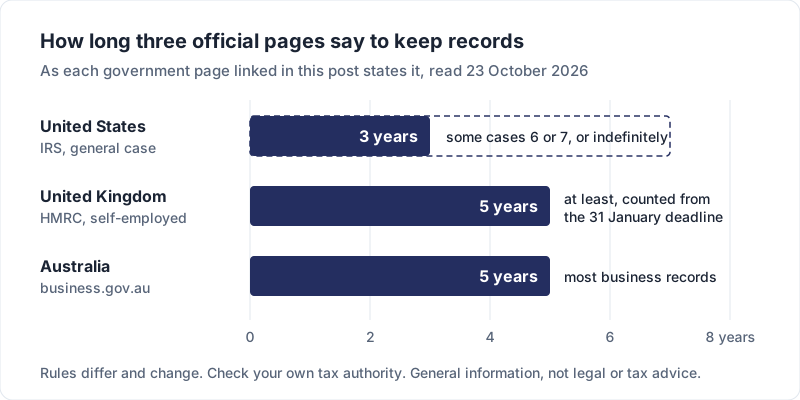
Business records often have to be kept for years, whatever tool you use. Three official pages, quoted as we read them on 23 October 2026:
- US: the IRS page How long should I keep records? says “Keep records for 3 years if situations (4), (5), and (6) below do not apply to you”, and lists longer periods for those situations, including 6 years, 7 years and “indefinitely”.
- UK: GOV.UK’s page for the self-employed, How long to keep your records, says: “You must keep your records for at least 5 years after the 31 January submission deadline of the relevant tax year.”
- Australia: business.gov.au’s record-keeping page says: “You need to keep most business records for 5 years.”
Each page has conditions and exceptions, and other countries have their own rules, so read the page for your situation or ask your accountant.
So your invoices may need to outlive your subscription. Check what you can take out:
- PDFs of every invoice, ideally in bulk.
- A spreadsheet file (CSV) of invoices with numbers, dates, amounts, payments and status.
- Your client list, with addresses and emails.
- Whether export is on every plan, or only paid ones.
Ask: "Can I export all my invoices and clients today, on the plan I am considering?" Then do it during your test, not after you have decided to leave. If you do move, switching invoicing apps without breaking invoice numbers covers the export step by step, and what to hand your accountant instead of a login covers sharing records without sharing a password.
7. Team access#
If you work alone, skip this. If a partner, assistant or bookkeeper touches your invoices, check two things.
First, roles. Someone who prepares invoices may not need to delete them or change your bank details. A shared password shares everything, including the ability to change where payments go.
Second, pricing. Per-user pricing is fine until your bookkeeper needs access for one week a year and you pay for a seat all twelve months.
Ask: "What does it cost to add one person with limited access, and what can they not do?"
8. Support#
You will not need support often, but when you do it will be about money. Test it before you need it.
- Send a pre-sales question and time the reply.
- Look for written help on the boring things: voiding an invoice, changing numbering, exporting your data.
- See whether better support is a paid extra, and whether that matters at your volume.
Ask: "If a client says they never received an invoice, how do I check what was sent, and how fast can you help?"
A checklist you can copy#
Copy this into your notes for each tool on your shortlist. Anything the pricing page and terms do not answer is a question for the vendor.
- I know how the tool makes money (subscription, one-time price, payment fees or upgrades)
- I know what happens to my existing invoices if I downgrade or stop paying
- My invoice and client numbers, plus 50%, fit inside every limit
- Every business or brand I bill from is covered by the plan
- I have seen a finished invoice in my own logo and colours, with any vendor branding on it
- I know whether the app holds my clients’ money, and the fee per payment
- Part payments and deposits work without splitting the invoice
- Reminders are off until I turn them on, and I can edit the wording
- I have exported my invoices and clients as a test, on this plan
- Anyone else who needs access can get a limited role, and I know the cost
- I have had a useful reply to a support question, and found the cancel path
A decision table: which kind of tool fits you#
Names change and plans change, so here is the decision by kind of tool rather than by brand. If you want named tools with dated prices, see the best free invoicing software and the best invoice apps for small business. If you are weighing a self-hosted tool, open source invoicing software, honestly compared checks the licences and what running one yourself costs. Find the row that sounds most like you.
| Your situation | Kind of tool that usually fits | Watch out for |
|---|---|---|
| A few invoices a month, few clients, clients pay by transfer | A spreadsheet or document template | Duplicate numbers, forgotten follow-ups |
| Regular invoicing, want it to look like your brand, clients pay by transfer | An invoicing-only app that records payments | Manual payment tracking; no card button |
| Clients expect to pay by card from the invoice | An invoicing app with built-in payment processing | A fee on every payment; money held during disputes |
| You need bank reconciliation, expenses and tax reports in one place | Accounting software with invoicing included | Subscription cost and setup time for features you may not use |
| Your accountant works in one particular package | Whatever they use, or a tool that exports cleanly to it | Being the only one who can read your records |
| Several brands or a small team billing together | A tool priced by scope, with separate businesses and roles | Per-business or per-user pricing that grows with you |
If you would rather answer questions than scan rows, the same decision runs top to bottom as a flow. Some professions have their own category of tool: a law firm that needs trust accounting or LEDES files should read lawyer invoicing software: legal tools vs simple apps.
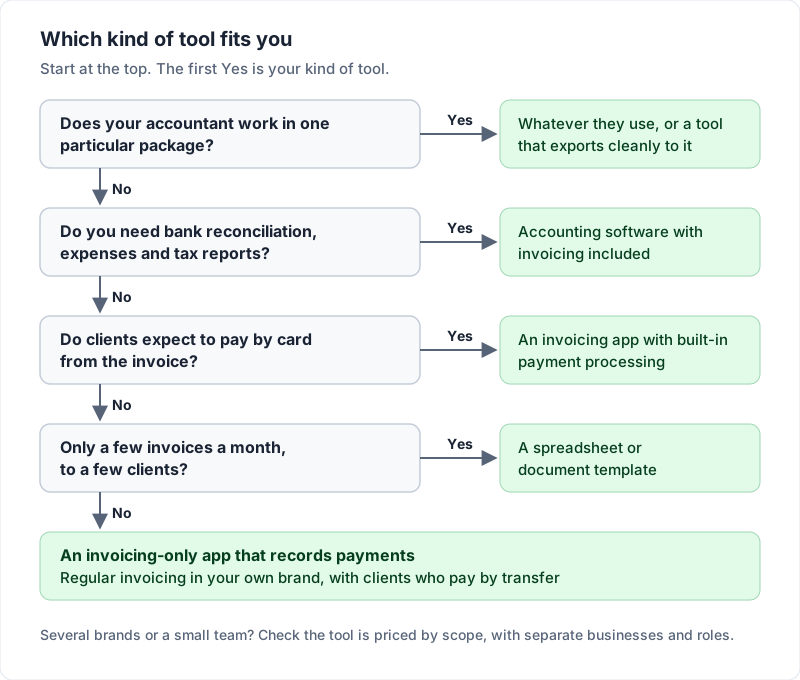
Many freelancers land in the second or third row, and what decides between them is how your clients actually pay.
Pricing and trial terms to read first#
These apply to any tool, ours included. Each is a reason to read the terms before you commit.
- A trial that needs a card up front and renews into a paid plan unless you cancel. Put the end date in your calendar the day you sign up.
- "Unlimited" with a footnote. Read the footnote. Unlimited invoices but a cap on clients, or on emails sent, is a cap.
- A price shown only as a monthly equivalent of a yearly bill. "$10 a month, billed annually" is $120 today.
- Which tier includes the basics. Check which plan includes sending by email, reminders and export.
- Access to old invoices after you stop paying. Check whether a lapsed account can still see and export its invoices.
- The cancel path. Find it during the trial, so you know where it is.
- Notice before a price change. Check the terms for how much warning you get.
How to test an invoicing app in one afternoon#
A feature list tells you what exists. A short test on the free plan or trial shows the one you will use:
- Set up your real business details, logo and colours, and time how long it takes.
- Create a real invoice with three or four of your actual line items, a discount and tax if you charge it.
- Send it to yourself at a different email address. Open it on your phone. Read it the way your client will.
- Record a part payment, then the balance, and check the invoice shows each state correctly.
- Turn on reminders and read every message the client would get.
- Export everything: the PDF, the invoice list as a spreadsheet, and the client list. Open each file.
- Find the downgrade or cancel path and read what it says will happen to your data.
If any step makes you wince, that is the information you came for.
When a spreadsheet is enough#
It often is. A spreadsheet is free, you control it, and there is nothing to renew. If you send a few invoices a month to a handful of regular clients and know at a glance who has paid, there is no prize for adding software.
The extra work grows with volume: copying the template, filling in details, exporting PDFs and emailing them one by one. The signs it is time to move on: you have reused an invoice number, chased a client who already paid, or cannot say in one minute how much you are owed. To stay with a spreadsheet for now, our guide on how to create an invoice with Excel covers the formulas and a numbering log that prevents duplicates. If you want a free program installed on your own computer instead, see free invoice software to download.
Where Charming fits, and where it does not#
Here are our own answers to the same questions, checked against the product today.
Charming Invoices is an invoicing-only app that records payments rather than taking them. The free plan has unlimited invoices and clients, all 60 templates with your own logo, colours and fonts, PDF download, print and a private link your client opens without an account, and payment tracking, with overdue invoices flagged. Every plan can export the invoice list as a CSV. Paid plans add unlimited businesses, recurring invoices, a saved line-item library and AI-assisted drafting. They are a one-time payment (Individual $29 once, Team $79 once with up to 5 teammates) or a subscription if you prefer one (Pro, $12 a month or $99 a year, with unlimited teammates). Our terms say that moving to a lower plan locks features but does not delete your invoices, clients or history, and that when Pro ends your account returns to any lifetime plan you bought, otherwise to Free. If we change Pro’s price, it applies from your next renewal and we email you first. The reasoning behind the pricing is in why we built a lifetime plan.
The catches, stated plainly:
- Free is 1 business, and free invoices carry a small “Sent with Charming Invoices” line. Paid plans hide it by default.
- No email sending or reminders. You issue the invoice, then send the PDF or private link from your own email. Charming does not send reminders, so set a calendar reminder for the due date.
- No card payments. Your client pays you directly using the details on the invoice, and you mark it paid. If your clients expect a card button, Charming is the wrong tool.
- No accounting integrations. It does not sync with accounting software. You export a CSV and hand it to whoever does your books.
- No estimates, quotes or mobile app, and no bank reconciliation or tax reports. It is invoicing only. If you quote as well, quote and invoice software compared covers nine tools that do both.
- Lifetime plans are final sale, with no refunds. "Lifetime" means for as long as Charming Invoices runs. If you are unsure, stay on the free plan.
- Pro payments are not refunded either. You can cancel any time; it takes effect at the end of the period you have paid for.
The full plan list is on the pricing page.
The short version#
The right invoicing software is the one whose pricing still makes sense the month you get busy, and whose exit you have already tried. If an invoicing-only app that records payments sounds like your row in the decision table, you can create a free invoice and run the one-afternoon test on us.