Let a bookkeeper or teammate invoice for you, safely

Nnabuike Okoroafor ·
On this page · 11 sections
Invoicing is one of the first jobs a busy owner hands to someone else, and one of the most awkward to hand over. The person needs enough access to raise, issue and follow up invoices. They do not need your password, your bank login or the power to change where your clients pay.
When the arrangement ends, the work can stall. In an older thread on a public freelancing forum, one freelancer (not a Charming customer) wrote:
“Until last month I had a bookkeeper who sent out invoices. While I have hired a new one to start in Dec, I have procrastinated all month on sending the Nov invoices. It freaks me out.”
This guide covers how to delegate invoicing so it keeps running when people come and go: which role to give, exactly what each role can do in Charming Invoices, what extra people cost in other tools, what to give your accountant instead of a login, and a five-minute exit plan.
Disclosure: We make Charming Invoices, and some tools named below are competitors. Their user limits and prices come from their own pricing and help pages, read on 28 October 2026 and linked.
Delegating invoicing in short#
- Give everyone their own login. Never share yours. Separate logins leave a record of who did what and can be removed in one step.
- Start with the smallest role that does the job. In Charming, that is Member: it can raise and issue invoices, record payments and manage clients, but cannot void invoices, change business settings or invite anyone.
- Give Admin only to someone you would trust with your bank details. Admins can change the bank details and payment link printed on every invoice.
- Plan the exit on day one. Know how to remove access, cancel unanswered invites and check what changed.
Why not just share your password?#
Sharing one login is the fastest way to delegate, and it causes three problems.
- No record of who did what. If an invoice is voided or a payment is recorded wrongly, every action looks like yours.
- No limits. Your login can do everything, including changing your bank details, your email settings and your plan.
- No clean exit. The only way to end access is to change your password, and then every device and person using it is locked out at once.
Separate logins with roles fix all three. Most invoicing and accounting tools offer them; the differences are in what each role can do and what extra people cost.
Owner, Admin and Member: what each can do#
Charming has three roles on each business. You are the Owner of a business you create. When you invite someone, you choose Admin or Member; ownership is never given by invite. The invite screen describes them like this:
- Member: “Can create and issue invoices, and manage clients.”
- Admin: “Everything a member can do, plus business settings and the team.”
Here is the detail, traced to how the app checks each action.
| Action | Member | Admin | Owner |
|---|---|---|---|
| See all invoices and clients of the business | Yes | Yes | Yes |
| Create, edit and delete drafts; issue invoices | Yes | Yes | Yes |
| Add, edit and archive clients | Yes | Yes | Yes |
| Mark an invoice paid; record a payment | Yes | Yes | Yes |
| Delete a recorded payment | Only their own | Any | Any |
| Mark an invoice unpaid; void an invoice | No | Yes | Yes |
| Export invoices to CSV | Yes | Yes | Yes |
| Change bank details, payment link, logo, letterhead and templates | No | Yes | Yes |
| Invite, change roles and remove teammates | No | Yes | Yes |
| Archive the business | No | Yes | Yes |
| Transfer ownership | No | No | Yes |
A few points behind that table:
- Issued invoices are never deleted. Only drafts can be deleted. An issued invoice is voided instead, and only an Admin or Owner can do that. Our guide on when to delete, void or cancel an invoice explains the difference.
- Members can see the business settings, but only owners and admins can save changes.
- There is no view-only role, no custom role and no way to limit a teammate to some clients. Every teammate sees every invoice and client of the business they are invited to. If you need per-client limits, Zoho Invoice has a role called “Staff (Assigned Customers Only)”.
- There is always an Owner. The last owner cannot be removed, and an owner’s role cannot be changed from the team screen. Ownership moves only by transfer, and the old owner becomes an Admin.
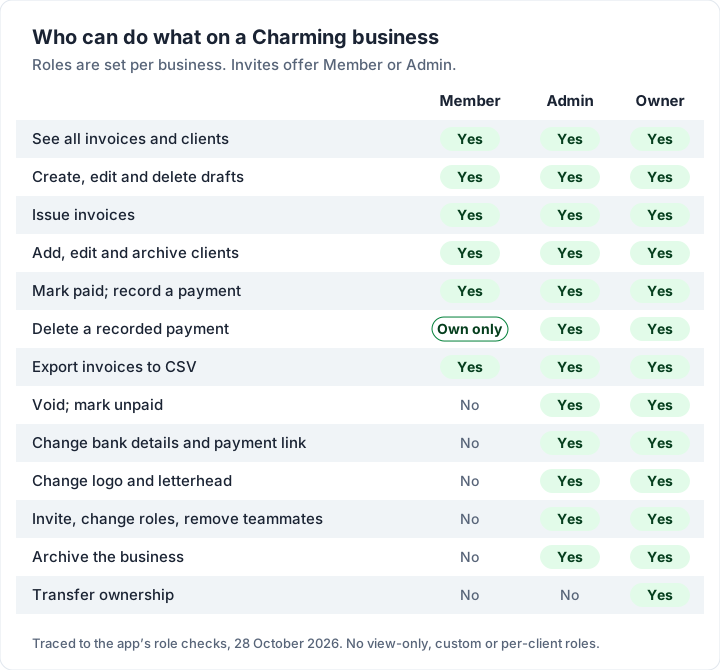
For a bookkeeper or assistant who issues and follows up invoices, Member is usually enough. For a business partner, Admin may fit.
Who can change where your clients pay#
The riskiest part of delegating invoicing is not who issues invoices. It is who can change the payment details on them.
In Charming, the bank details and payment link are business settings. When an invoice is saved, they are copied from the settings onto that invoice. A Member cannot type different bank details into an invoice’s payment section, because that section always comes from settings, which only Admins and Owners can change.
There is one gap to know about: Members can still edit an invoice’s notes and terms. Someone could write different payment instructions there. A quick look at what goes out, or at the PDF a client receives, closes that gap.
Changed payment details are a classic pattern in invoice fraud, from outside and occasionally from inside. Our guide to invoice scams lists the warning signs. Two habits help:
- Keep Admin to a short list of people you would trust with your bank details.
- After anyone leaves, check the bank details and payment link in Business settings before the next invoice goes out.
Charming does not email your clients. A teammate issues the invoice, then downloads the PDF or copies its private link and sends it. Agree which inbox they send from, ideally a shared business address rather than a personal one, so replies come back to you.
Setting it up: invite, accept, seats#
Inviting someone takes a minute. An Owner or Admin opens Team settings, enters the person’s email and picks Admin or Member. Charming emails them a link.
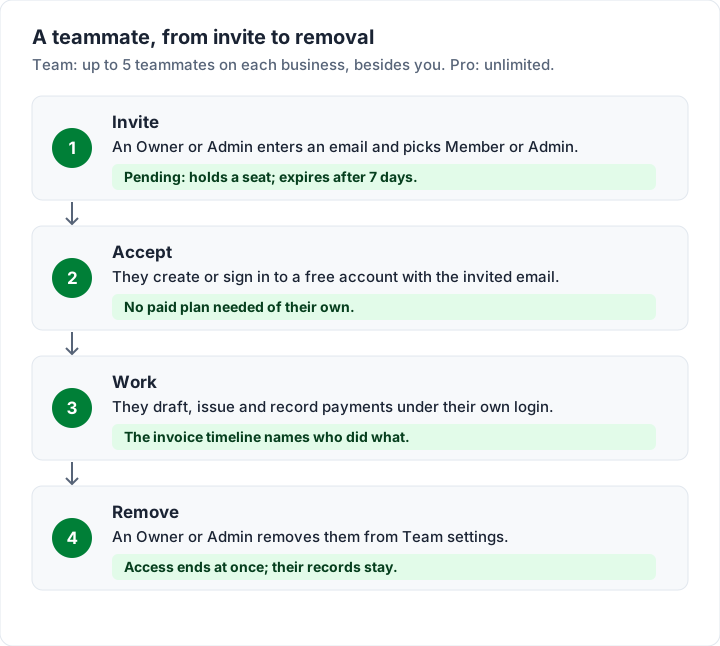
What to know about seats:
- Free and Individual allow 0 teammates. To invite anyone you need Team ($79 once) or Pro ($12 a month or $99 a year).
- Team allows up to 5 teammates on each business, besides you. Pro allows unlimited teammates.
- An unanswered invite holds a seat until it is accepted, it expires after 7 days, or an Admin revokes it. You cannot send a second invite to an address that already has a pending one.
- Your teammates need no paid plan of their own. The seat count and paid features follow the plan of whoever created the business. If ownership is later transferred, the plan stays with the person who created the business.
- If you downgrade, an existing team keeps working. Only new invites are blocked once you are over the cap.
The catches, as with every plan: Team and Individual are lifetime plans and final sale; Pro can be cancelled, taking effect at the end of the billing period. Charming takes no card payments, payment tracking is manual, and it has no integrations. See the pricing page for the full comparison.
A bookkeeper with several clients#
If your bookkeeper or virtual assistant works for several businesses that use Charming, they need only one login. Each business owner invites them separately, and they switch between businesses inside the app. Each owner controls their own invite and can remove them without affecting the others. Our guide on how multi-business works covers switching. For the bookkeeper’s own invoices to their clients, see the bookkeeping invoice template.
What other invoicing tools charge for extra people#
Most tools price extra people per seat, and some give accountants a free seat. Here is what each vendor’s own pages said on 28 October 2026.
| Tool | Extra people | What it costs |
|---|---|---|
| FreshBooks | Team members “at an additional cost”; “up to 10 accountants per business at no extra cost on Plus, Premium, and Select plans” | Team members $11 a month per user; Plus is $43 a month |
| QuickBooks Online (US) | Users by plan; “Accountant users invited this way don't count toward your user limit.” | Simple Start 1 user ($38 a month), Essentials 3 ($85), Plus 5 ($140) |
| Zoho Invoice | “An organization in Zoho Invoice can have upto two users.” | $0 |
| Invoice Ninja (hosted) | No additional account users on Free or Ninja Pro; Enterprise adds “Account Users (up to 100!)” | Enterprise from $18 a month for 1–2 users |
| Invoicely | Basic “Up to 2 Team Members”; Professional “Up to 10 Team Members” | $9.99 or $19.99 a month |
| Charming | Team up to 5 teammates on each business; Pro unlimited | $79 once, or $12 a month or $99 a year |
A worked example. An owner, an outside bookkeeper and two assistants who raise and send invoices (three people besides the owner), for two years at regular prices:
| Tool | How the seats work | Two-year cost |
|---|---|---|
| Charming Team | Owner plus 3 teammates (cap 5) | $79 once |
| Charming Pro | Unlimited teammates | $99 × 2 = $198 on yearly billing ($12 × 24 = $288 monthly) |
| Invoicely Professional | Up to 10 team members | $19.99 × 24 = $479.76 |
| FreshBooks Plus | Bookkeeper as a free accountant seat; 2 assistants at $11 a month | ($43 + $22) × 24 = $1,560; if the bookkeeper needs a paid team seat to send invoices, ($43 + $33) × 24 = $1,824 |
| QuickBooks Online Essentials | 3 users (owner and 2 assistants); bookkeeper as an accountant user | $85 × 24 = $2,040 |
| Zoho Invoice | Lists up to two users per organisation | Not priced here: the example needs 4 people |
| Invoice Ninja Enterprise | 3–5 users | Not priced here: we did not record that tier’s price |
The offers on the day sit outside those totals: QuickBooks showed “50% off for 3 months” with no end date, and FreshBooks “80% Off for 4 Months”.
This is a comparison of seats, not like for like. FreshBooks and QuickBooks include bookkeeping (FreshBooks Plus lists double-entry accounting reports and “Give your accountant access”) that Charming does not have. If your bookkeeper needs to keep your books in the same tool, they are the better fit. Charming fits when someone else needs to create and issue invoices. Our look at an invoicing CRM for small teams compares other team set-ups.
If Team fits your setup, start free and upgrade when you are ready to invite someone.
What to hand your accountant instead of a login#
Your accountant may not need a login at all. Ask your accountant what they need; many prefer a regular export to access.
General information, not legal or tax advice. What records you must keep, and for how long, depends on where you are: ask your accountant.
What Charming can give them, on every plan:
- A CSV export of your invoices, with 21 columns: invoice number, status, client and client email, PO number, issue and due dates, currency, subtotal, discount, tax rate and tax, invoice total, retainage, deposit received, paid from retainer, total, amount paid, balance due, and the dates issued and paid. It covers the current business only, up to 10,000 rows. Individual payments are not listed as separate rows.
- A statement PDF for each client, showing issued invoices that still have a balance, with ageing. See our statement of open invoices template for what one contains.
- An unbroken run of invoice numbers. Drafts never take a number, and issued invoices are voided rather than deleted, so the sequence has no holes to explain unless an Owner or Admin raises the next number in the business settings.
What Charming does not have: an accountant role, books, bank feeds, reconciliation or integrations with accounting software. Your accountant records your invoices in their own system. For the background, see how an invoice is recorded and how to match payments to invoices.
When they leave: a five-minute exit plan#
People move on. When a bookkeeper, assistant or partner leaves, an Owner or Admin can do this in about five minutes:
- Remove them from the team. In Team settings, remove the person. It takes effect at once: the business stops appearing for them. The invoices they issued and payments they recorded stay.
- Revoke any pending invites they sent that you do not want.
- Read the timeline on recent invoices. Each invoice’s timeline names who issued, voided, marked paid or unpaid, and recorded or deleted a payment. The “Draft created” entry carries no name, and views by your own team are not counted as client views.
- Check the bank details and payment link in Business settings.
- Check what is overdue. Look for invoices that need a follow-up the person had not sent yet. Our guide to the invoice reminder covers timing.
Then issue this month’s invoices yourself, or invite the next person. The work does not have to wait.
Questions about delegating invoicing#
Can my bookkeeper send invoices from my account?#
Yes, with their own login. Invite them as a Member and they can raise and issue invoices, download the PDF or copy its link, and record payments. Charming does not email the invoice, so they send it from whichever inbox you agree, such as a shared business address.
Can a teammate see my bank details?#
Any teammate can see the bank details printed on your invoices, as your clients can. Members can see the business settings, but only Owners and Admins can save changes to them, including bank details and the payment link.
Can I limit a teammate to some clients?#
Not in Charming. Every teammate sees every invoice and client of the business. If you need that, Zoho Invoice offers a “Staff (Assigned Customers Only)” role. Another option in Charming is to keep that work in a separate business, since teammates are invited per business.
What happens to invoices a removed teammate issued?#
They stay, along with any payments the person recorded. The timeline still names who took each action.
Does my bookkeeper need a paid plan?#
No. The seats and paid features come from the plan of whoever created the business. Your bookkeeper creates a free account with the email address the invite was sent to, confirms that address, and accepts the invite.
The short version#
Give each person their own login. Start with Member, which can issue invoices and record payments but cannot void invoices or change settings. Keep Admin, which can change your bank details, to people you would trust with them. In Charming, Team allows up to 5 teammates on each business for $79 once, and Pro allows unlimited teammates for $12 a month or $99 a year. When someone leaves, remove them, check the timeline and check your bank details.
Sources, all read 28 October 2026: FreshBooks: invite team members; FreshBooks pricing; QuickBooks: invite or remove an accountant; QuickBooks Online pricing; Zoho Invoice: users and roles; Invoice Ninja pricing; Invoicely pricing.