How to create an invoice with Excel

Nnabuike Okoroafor ·
On this page · 4 sections
You need to send an invoice, you already have Excel, and you would rather not sign up for anything to do it. That is a perfectly reasonable place to be. This guide shows you how to create an invoice with Excel from a blank sheet: the layout, the formulas that do the arithmetic, a numbering system that does not drift, and how to turn it into a PDF your client can open. If you searched for how to create an invoice from Excel or generate invoices from Excel, it is the same job: one spreadsheet that does the sums, and one PDF per invoice. (Producing a batch of invoices from a list, by mail merge or a macro, is a different project and is not covered here.)
Plenty of people bill this way for years. The routine is simple: build a template once, type in the numbers for each job, save a PDF and send it. The details below are what make it hold up.
Before you open Excel: what the invoice has to say#
A spreadsheet will happily let you leave out something important. Before you build anything, know what goes on the page: the word “Invoice”, your details, your client’s details, a unique invoice number, the issue date, the due date, the line items, the total and how to pay you. If you would rather work in a document than a spreadsheet, how to create an invoice in Word covers the same build with Word table formulas.
If you want the full list with the reasoning behind each field, what actually belongs on an invoice is the field-by-field checklist. If this is your very first invoice, your first invoice: what actually has to be on it is the gentler version. If you have not settled on Excel yet, how to make an invoice, step by step compares it with a template and an invoicing app.
How to create an invoice with Excel, step by step#
Five steps, in order: the layout, the formulas, the numbering, the protection, and the PDF. Build it once, then reuse it for every invoice after that. Together they make a simple invoicing system in Excel: a master copy you never type into, a log of every number, and formulas you cannot overwrite by accident.
Step 1: set up the layout#
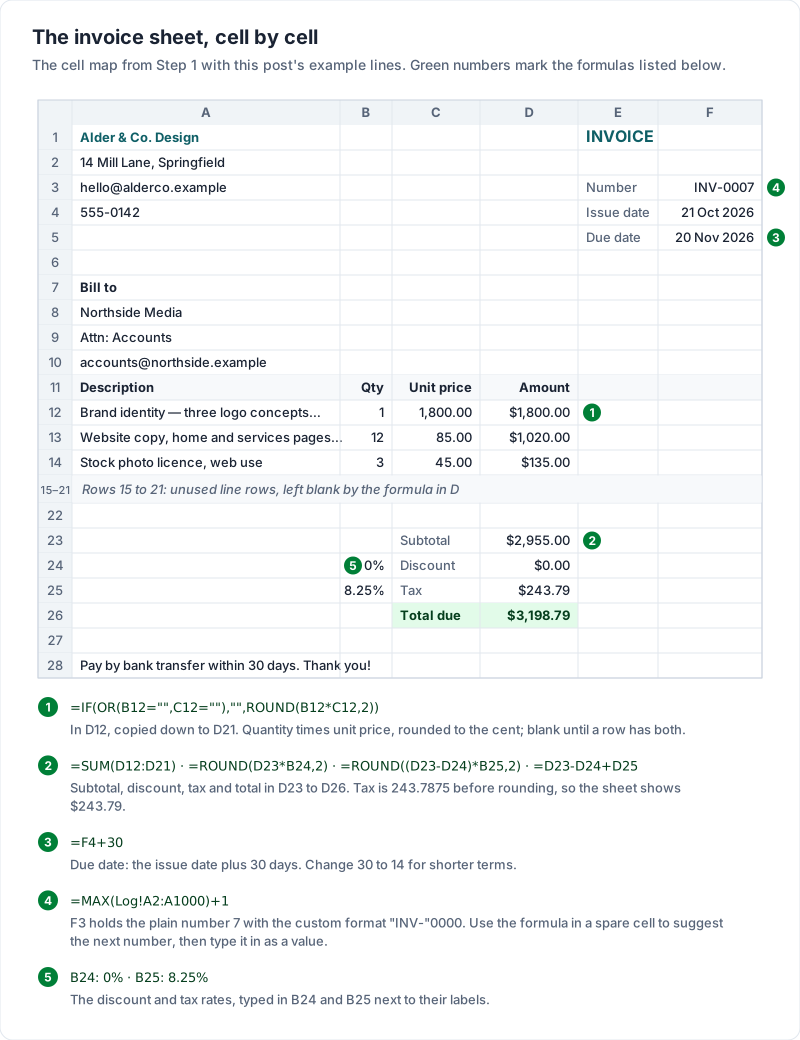
Open a blank workbook and rename the first sheet “Invoice”. Turn off gridlines (View, then untick Gridlines) so the printed page looks like a document rather than a grid. Then lay out the cells. The exact cells do not matter, but the formulas later in this post assume this map:
| Area | Cells | What goes there |
|---|---|---|
| Your details | A1 to A5 | Business name, address, email, phone, logo above or beside it |
| Invoice details | E1 to F5 | “Invoice” in E1; labels in E3 to E5 (Number, Issue date, Due date); values in F3 to F5 |
| Bill to | A7 to A10 | Client name, company, address, email |
| Line item headings | A11 to D11 | Description, Qty, Unit price, Amount |
| Line items | A12 to D21 | Ten rows for the work |
| Totals | C23 to D26 | Subtotal, Discount, Tax, Total due |
| Payment details | A28 onwards | Bank details or payment link, payment terms, a thank-you line |
Format column C and column D as Currency or Number with 2 decimal places (Home, then the Number group). Make the Total due row bold and a size or two larger than everything else. It is the one number your client is looking for.
Step 2: add the line items and the formulas#
Each line item is a description, a quantity, a unit price and an amount. You type the first three. Excel works out the fourth.
In D12, enter this and copy it down to D21:
=IF(OR(B12="",C12=""),"",ROUND(B12*C12,2))
It multiplies quantity by unit price, rounds the result to the cent, and leaves the cell blank until a row has both a quantity and a price, so an empty row does not print “0.00”.
Here is what that looks like with three example lines (sample figures, not real prices):
| Description | Qty | Unit price | Amount |
|---|---|---|---|
| Brand identity — three logo concepts, two revision rounds | 1 | 1,800.00 | $1,800.00 |
| Website copy, home and services pages (hours) | 12 | 85.00 | $1,020.00 |
| Stock photo licence, web use | 3 | 45.00 | $135.00 |
Excel invoice formulas for the totals
Put these in column D, next to their labels in column C. For the discount and tax, type the rate (such as 10% or 8.25%) in the cell to the left of the label, in B24 and B25. Our guide to discounts on an invoice covers how to word the discount line.
D23  Subtotal     =SUM(D12:D21)
D24  Discount     =ROUND(D23*B24,2)
D25  Tax          =ROUND((D23-D24)*B25,2)
D26  Total due    =D23-D24+D25
With the example lines, no discount and an example tax rate of 8.25%, the subtotal is $2,955.00, the tax works out to 243.7875 before rounding, and the invoice shows $243.79 tax and $3,198.79 total due.
Our free Invoice template for Excel uses a different convention on purpose, so do not copy one cell from each. It takes the discount as a fixed amount rather than a percentage, and the tax rate as a plain number (8.25, not 8.25%), because Excel stores 8.25% and 0.0825 as the same value; its How to use tab explains why. It also adds Amount paid and Balance due lines under the total, which is where a deposit or part-payment goes (see how a deposit invoice works). We checked its formulas by script.
Here is the whole sheet with those numbers in it, and every formula from this post marked where it lives:
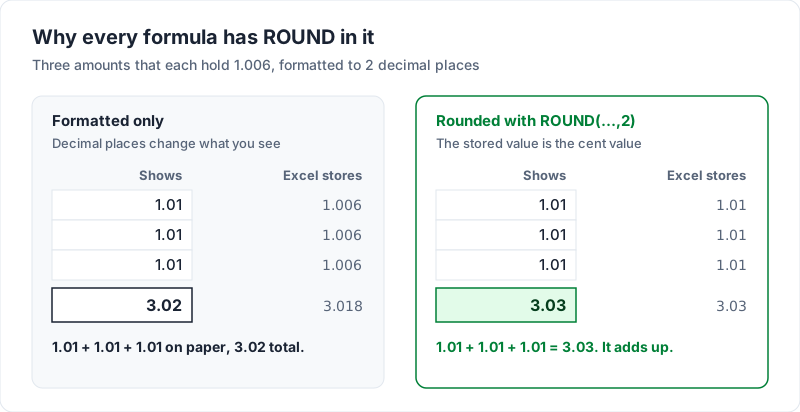
Why every formula has ROUND in it. Formatting a cell to 2 decimal places changes what you see, not what Excel stores. A cell can display 1.01 while holding 1.006. Add three of those and the column of figures on your invoice reads 1.01, 1.01, 1.01, while the total underneath says 3.02. Your client will notice the missing cent before you do. Microsoft’s own ROUND function page covers the syntax: the number, then how many digits to keep.
A word on tax. Only add a tax line if you charge sales tax, VAT or GST, and take the rate and wording from your tax authority’s guidance or your accountant. If you do not charge tax, delete the tax row rather than leaving it at zero. This is general information, not legal or tax advice.
The due date formula
Type the issue date in F4 as a real date (Excel will right-align it if it recognised it). Then, for payment due 30 days later:
=F4+30
Excel stores dates as numbers, so adding days works, as Microsoft’s guide to adding or subtracting dates explains. Change 30 to 14 for shorter terms. It also helps to print the terms next to the date, such as “Due 20 November 2026 (Net 30)”, so nobody has to count. To check a date without opening Excel, the free invoice due date calculator does the same sum.
Step 3: generate invoice numbers in Excel that never repeat#
This is the part of a spreadsheet invoice that is easiest to get wrong, so it deserves its own system. The goal is one number per invoice, in order, never reused. Excel can work out the next invoice number for you with one formula, as long as it has a list of the numbers you have already used.
The sturdiest way to do it in Excel is a log. Add a second sheet called “Log” with one row per invoice: number, date, client, total, status. Then:
- Store the number as a plain number (1, 2, 3), not as text like “INV-001”. A formula can find the highest number and add 1; it cannot do that with text.
- Show the prefix with formatting. Select F3, open Format Cells, choose Custom, and type a format such as "INV-"0000. The cell holds 7 and prints INV-0007.
- Suggest the next number with a formula in a spare cell:
=MAX(Log!A2:A1000)+1
- Freeze it once you send. Type the number into F3 as a value and add the row to the log. If F3 holds the live formula, the number on an old invoice changes the moment you log a new one.
That last step is the one people skip.
If you would rather not build the Log sheet, our free invoice numbering log is a ready-made one, and it works the other way round. You type the full number as text (INV-0042), with your prefix and the number of digits set once at the top. It works out the count after the prefix and shows the Next number in the same format, and it flags duplicate rows, gaps (“Missing: INV-0021 to INV-0022”) and numbers out of order. We checked its formulas by script. Both approaches work; just use one per workbook, so every number is stored the same way. Like any spreadsheet, the log does not number invoices for you: you still type each one in.
For prefixes, yearly resets and what to do about a mistake, see how to number invoices.
Step 4: lock the formulas so you cannot type over them#
Sooner or later you will type a price into the Amount column by accident and overwrite the formula. Excel can prevent that.
- Select the cells you will type into each time: the client details, the invoice details, and the Description, Qty and Unit price columns.
- Open Format Cells, go to the Protection tab, and untick Locked.
- On the Review tab, choose Protect Sheet.
Every cell you did not unlock is now read-only, including all your formulas. Microsoft’s page on locking cells recommends unlocking the cells you want to change before you protect the sheet, which is the order above.
Step 5: save it as a template, then as a PDF for each client#
Save the finished, empty workbook once as your master copy. For each new invoice:
- Open the master and save a copy straight away, named with the number and client, such as “INV-0007 Northside Media.xlsx”.
- Fill in the client, the dates and the line items. Leave the formulas alone.
- Check the total against what you agreed with the client.
- Set the print area to the invoice (Page Layout, Print Area, Set Print Area) and look at the print preview.
- Save it as a PDF: File, then Save As or Save a copy, and choose PDF as the file type, as Microsoft’s PDF guide shows. Menu names differ a little on a Mac and in Excel for the web.
- Add the invoice to your log, then email the PDF, not the spreadsheet.
Send the PDF because a spreadsheet can be edited, may show your formulas or log, and looks different on every screen. A PDF looks the same everywhere, and it is the version you both keep.
If you would rather not design the layout at all, download the free Invoice template for Excel or, for time-based work, the Hourly invoice template for Excel. Their totals, due date and balance calculate by formula, and our free Excel invoice template guide walks through both files. You can also browse invoice templates, which are designs inside our app rather than files.
What a spreadsheet invoice leaves to you#
None of this is a reason to give up on Excel. If you send two or three invoices a month to clients you know well, a good workbook is a sensible, free answer. On a phone, Numbers and Google Sheets can do the same job; free invoice apps for iPhone and Android compares them with dedicated apps, and the Google Docs and Sheets invoice template guide shows how to open the free Excel file in Google Sheets. If you would rather install a free invoicing program on your computer, free invoice software to download covers desktop options and how to download one safely. A spreadsheet does the arithmetic; the record-keeping around it is yours, and it grows with the number of invoices you send. Here is what to keep an eye on:
- Numbering mistakes. Two copies made from the same file on the same afternoon get the same number. A copy made from an old invoice instead of the master carries the wrong number forward. Nothing in Excel stops either; a log with a duplicate check only tells you afterwards.
- No payment tracking. The spreadsheet knows what you billed. It has no idea what you were paid. Every payment means updating the log by hand, and a partial payment means working out the balance yourself. The free Invoice tracker for Excel puts amounts paid, balances and days late in one sheet with formulas, and our invoice tracker guide explains how to use it.
- No reminders. Excel will not notice that an invoice is three days overdue, and it will not write to your client. You have to remember to check, and then write the follow-up.
- Version sprawl. After a year you have dozens of workbooks and PDFs with similar names. Finding “the final one” for a disputed invoice means opening several.
- Formula drift. Insert a row in the wrong place and the SUM range no longer covers every line. The total looks right until it is not.
If you are staying with Excel, each of these has a workaround. Each one is another habit to keep:
| What to watch | What it looks like | The Excel workaround |
|---|---|---|
| Numbering | Two invoices with the same number, or an old number carried forward | Take every number from the log, and type it into F3 as a value the moment you send |
| Payment tracking | The log says billed; nothing says paid, or how much is left | Add paid date and amount paid columns to the log, and update them by hand |
| Reminders | An overdue invoice nobody notices | Check the log once a week for unpaid rows past their due date, then write the follow-up |
| Version sprawl | Dozens of similar files and no obvious final copy | Name every file with the number and client, and keep the sent PDF next to it |
| Formula drift | A total that leaves out the last line | Insert new rows inside the line-item range, then check the SUM range covers them all |
If the tracking is the part that breaks first for you, Charming Invoices keeps a status on every invoice and flags an issued invoice as overdue once its due date passes. Note that it does not send reminders (you write the follow-up and send it from your own email), and you still record each payment and mark it paid yourself.
Is Excel enough for you?#
Learning how to make an invoice in Excel is an afternoon’s work. Keeping it up is the real cost. A rough way to decide:
- Excel is probably fine if you send a handful of invoices a month, your clients pay on time, and you are comfortable keeping the log up to date.
- An invoicing app may save you time if you have ever sent a duplicate number, lost track of who has paid, or spent an evening hunting for the right version of an invoice.
Either way, the invoice itself matters more than the tool. A clear invoice with a unique number, a due date and your payment details on it, sent today, does its job. If you decide the spreadsheet has had its run, you can create a free invoice and compare.
Free downloads
No sign-up and no email address. More on the free templates page.
- Download .xlsx: Invoice template for Excel
Invoice template for Excel
Excel .xlsxThe general-purpose invoice: products, services or a mix, priced by quantity and rate.
- Download .xlsx: Hourly invoice template for Excel
Hourly invoice template for Excel
Excel .xlsxFor time-based work: one line per day or task, billed by the hour.
- Download .xlsx: Invoice numbering log
Invoice numbering log
Excel .xlsxA record of every invoice number you issue, from any app or template, that flags duplicates and gaps and suggests the next number.
- Download .xlsx: Invoice tracker for Excel
Invoice tracker for Excel
Excel .xlsxEvery invoice you have sent on one sheet, with its balance, status and how many days late it is.