How to create an invoice in Word (and when to stop)

Nnabuike Okoroafor ·
On this page · 11 sections
You have a client to bill, Microsoft Word is already on your computer, and you would rather not learn a new tool today. Good news: you can create an invoice in Word in under an hour, and it can look as tidy as anything an app produces.
This guide covers both routes: starting from one of Microsoft's invoice templates (or our own free Word invoice template), or building your own from a blank page with a table. It also covers the part most guides skip. Word is a word processor, so it does not number your invoices, it only does arithmetic if you ask it to in a particular way, and it does not track who has paid. Each of those has a workaround, and they are all below.
In short#
- Fastest route: in Word for Windows, go to File, then New, type “invoice” in the Search for online templates box, pick one and select Create.
- Most control: start from a blank document and build the invoice around one table with four columns: Description, Qty, Rate and Amount.
- Make Word do the maths with table formulas on the Table Layout tab, then press F9 to update them after every change. Word for the web cannot add these formulas.
- Number every invoice from a simple log so no number is used twice.
- Send a PDF, never the .docx. Save a copy as PDF before it goes to the client.
Before you start: what the invoice needs#
Word will not warn you if something is missing, so decide what goes on the page before you open it. At minimum: the word “Invoice”, your business name and contact details, your client's name and address, a unique invoice number, the issue date, the due date, a description of each item with its amount, the total and how to pay you.
Some tax authorities publish what an invoice should include, and the rules vary by country. In the UK, for example, GOV.UK's page on what an invoice must include starts its list with “a unique identification number” (as of 23 October 2026). For the full list with the reasoning behind each field, see what actually belongs on an invoice. This is general information, not legal or tax advice.
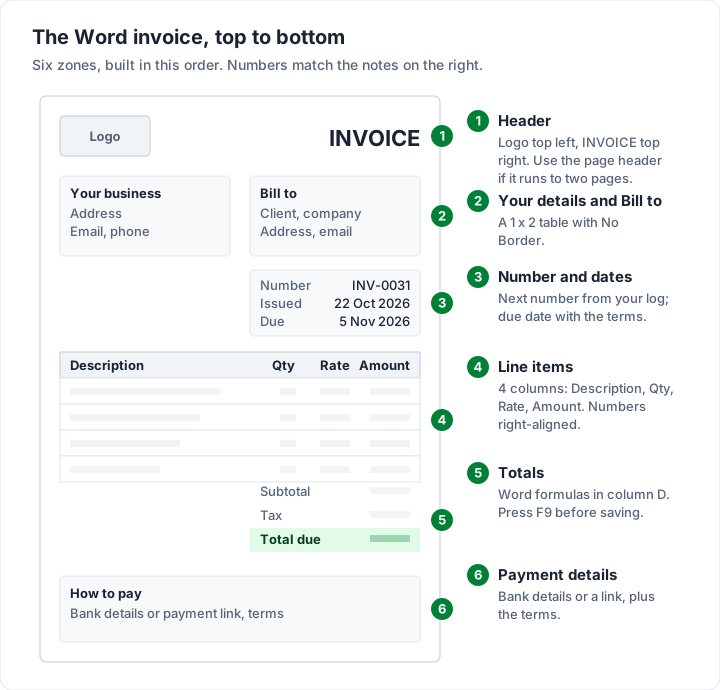
Here is the page you are aiming for. Every part of it is a paragraph or a table cell, which is why it survives being opened on someone else's computer:
How to create an invoice in Word from a template#
Microsoft publishes free invoice templates you can open straight from Word. Microsoft's own guide to creating a document gives these steps for Word on Windows:
- Open Word. If it is already open, select File, then New.
- In the Search for online templates box, type “invoice” and press Enter.
- Click a template to preview it. Use the arrows on the preview to look at others.
- Select Create. Word opens a new document based on the template.
Then replace every placeholder: your name and address, the client, the number, the dates and the lines. Delete any field you do not use rather than leaving it blank, so the page does not look half-finished.
Templates save time, but check three things before you rely on one:
- Is the total a formula or just text? Change a quantity, select the table and press F9. If the total does not move, it is typed text, and you will be adding it up yourself.
- Does the layout hold together when you type a long description? Some templates use floating text boxes that can move once a line wraps.
- Is there a place for payment details? If not, add one. A client cannot pay an invoice that does not say how.
| Microsoft template | Blank document | |
|---|---|---|
| Setup effort | Low: fill in the placeholders | Higher: you build the layout |
| Control over layout | Follows the template's design | Full |
| Totals | Varies; some are plain text | Formulas you add yourself |
| Check for | Placeholders and text boxes to replace | Forgetting a field |
| Best for | A one-off invoice, quickly | An invoice you will reuse for years |
How to create an invoice in Word from a blank page#
Building your own takes a little longer, and you end up with a document you understand completely. Open a blank document and work down the page.
Step 1: the header and your details#
Put your logo at the top left and the word “INVOICE” at the top right, in a larger size. If you want the logo on every page, put it in the header instead: Microsoft's guide to adding images to a header is Insert, then Header, then Blank, double-click the header, then Insert, then Pictures. For file types and sizes, see our guide to putting a logo on an invoice.
Under the logo, type your business name, address, email and phone number. Keep them as normal paragraphs.
Step 2: the client and the invoice details#
A two-column table with no borders is the easiest way to sit two blocks side by side. Insert a table of 1 row and 2 columns. In the left cell, type “Bill to” and the client's name, company, address and email. In the right cell, type:
- Invoice number: INV-0031
- Issue date: 22 October 2026
- Due date: 5 November 2026 (Net 14)
Then click anywhere in the table, and on the Table Design tab click the arrow next to Borders and choose No Border. Microsoft's help for removing table borders (written for Word for Mac) gives the same steps and warns to click Borders, not Border Styles. If you still see faint dotted gridlines on screen, those are only a guide; they do not print.
Step 3: the line-item table#
This is the heart of the invoice. Insert a table with 4 columns and enough rows for your lines, plus one header row and three rows for the totals:
| Column | Header text | What goes in it | Alignment |
|---|---|---|---|
| A | Description | What you did or supplied, specific enough to recognise | Left |
| B | Qty | Hours, days or units | Right |
| C | Rate | Price per unit | Right |
| D | Amount | Qty times rate, calculated | Right |
Make the Description column the widest. Right-align the three number columns so the decimal points line up. In the last three rows, type “Subtotal”, “Tax” and “Total due” in column C and leave column D for the formulas.
Step 4: payment details and terms#
Below the table, add how to pay you (bank details or a payment link), the payment terms and any note for the client. Invoice payment terms, in plain English explains what Net 14 or Net 30 actually commit you to, and how to list bank details on an invoice covers the payment options.
Making Word do the maths: table formulas#
Word tables can calculate. Microsoft's article on using a formula in a Word table explains that each formula is a field, and Word reads the table like a spreadsheet: columns are A, B, C and D from the left, and rows are 1, 2, 3 from the top. So the first line item's amount is cell D2.
To add one, click the cell, then on the Table Layout tab, in the Data group, select Formula. Type the formula after the equals sign, choose a number format if you want one, and select OK.
For a table with three line items in rows 2 to 4 and the totals in rows 5 to 7, these are the formulas:
| Cell | Formula | What it does |
|---|---|---|
| D2, D3, D4 | =B2C2 (then =B3C3, =B4*C4) | Quantity times rate for each line |
| D5 (Subtotal) | =SUM(D2:D4) | Adds the line amounts |
| D6 (Tax) | =ROUND(D5*0.07,2) | 7% of the subtotal, rounded to the cent (an example rate) |
| D7 (Total due) | =D5+D6 | Subtotal plus tax |
Word's formula box suggests =SUM(ABOVE) by default. It works for a simple column, but naming the cells is safer on an invoice, because ABOVE also picks up any number typed higher up the column. Microsoft also advises typing a zero in any empty cell a positional formula will include, to avoid errors.
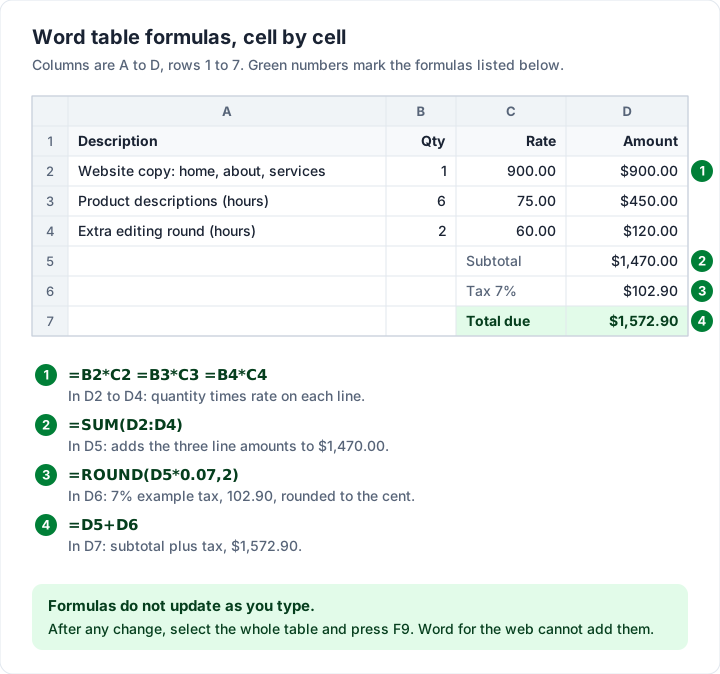
The step to remember: Word formulas do not update as you type. Microsoft says a formula updates when you insert it and when you open the document. If you change a quantity afterwards, the amount stays wrong until you select the whole table and press F9. Make F9 the last thing you do before saving the PDF, then check the total by hand once.
Two more limits worth knowing:
- Word for the web cannot add table formulas. Microsoft's SUM formula page says “Using a SUM formula in a table isn't currently possible in Word for the web.” Open the file in the desktop app to add them.
- The tax line is only for tax you charge. If you do not charge sales tax, VAT or GST, delete the tax row rather than leaving it at 0%. What makes an invoice a tax invoice links the official guidance on the extra fields.
If the arithmetic matters more to you than the layout, a spreadsheet is the better tool. How to create an invoice with Excel walks through the same invoice with formulas that update themselves.
Numbering, saving and sending as a PDF#
Number every invoice from a log#
Word does not keep track of your last invoice number. The usual failure is copying last month's invoice, changing the client and forgetting the number. Two invoices with the same number trip up your client's accounts team and your own records.
The fix is a log: a simple list (a table at the end of a separate Word file, or a spreadsheet) with one row per invoice: number, date, client, total and paid date. Before you start a new invoice, take the next number from the log and add the row straight away. How to number invoices covers formats, prefixes and what to do about a gap, and the free invoice number generator can suggest a format.
Save the master, then a copy per invoice#
Save the finished, empty layout once as your master. You can save it as a Word Template (.dotx), which opens as a new, untitled copy each time, but a plain master document works as long as you never type over it. For each invoice, open the master and immediately save a copy named with the number and client, such as “INV-0031 Northgate Studio.docx”.
Save it as a PDF#
Send the client a PDF, not the Word file. A .docx can be edited, may reflow on their computer and can carry tracked changes or comments you did not mean to share. A PDF looks the same everywhere.
Microsoft's guide to saving as PDF gives slightly different steps for each version of Word:
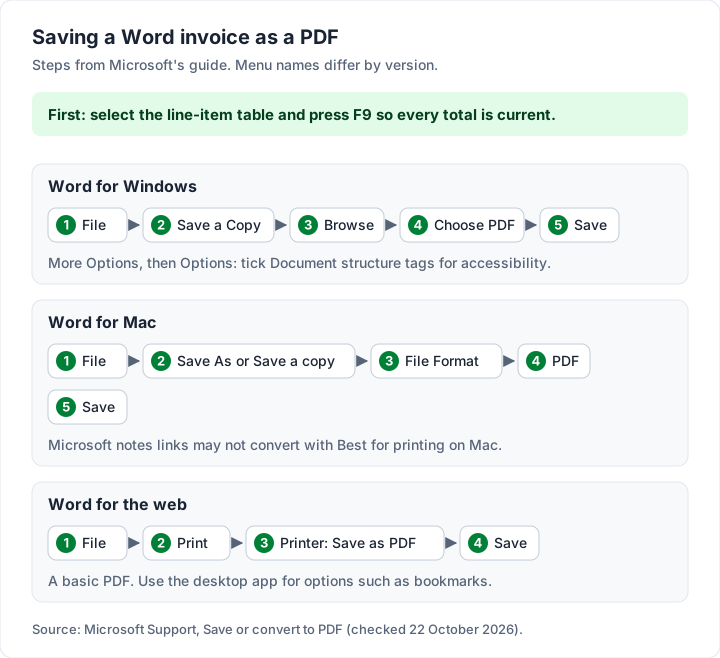
On Windows, it is worth ticking Document structure tags for accessibility under More Options, then Options. Microsoft describes it as making the document “easier for screen-reading software to read”, which helps any client who uses one.
Then attach the PDF to an email with the invoice number in the subject line. How to send invoices by email has subject lines and wording.
A worked example invoice#
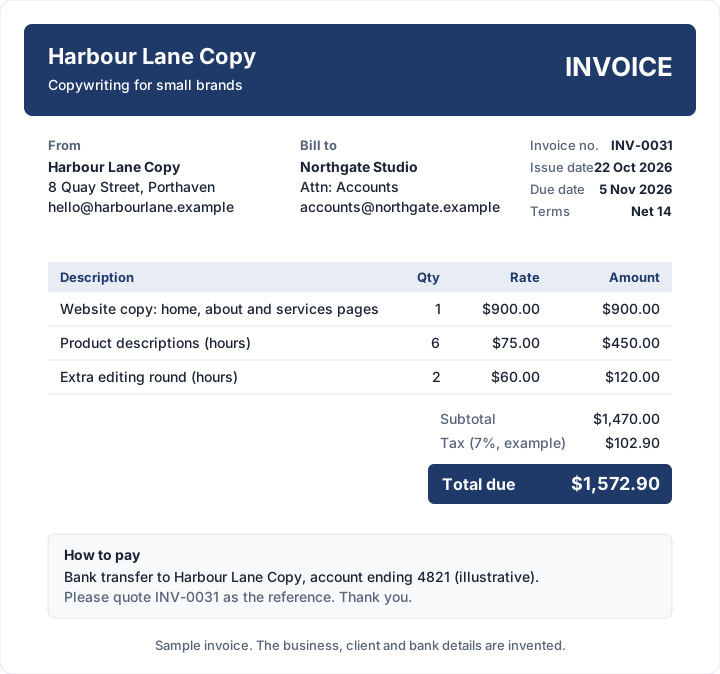
An invented copywriter, Harbour Lane Copy, bills an invented client, Northgate Studio. The 7% tax is an example rate.
| Description | Qty | Rate | Amount |
|---|---|---|---|
| Website copy: home, about and services pages | 1 | $900.00 | $900.00 |
| Product descriptions (hours) | 6 | $75.00 | $450.00 |
| Extra editing round (hours) | 2 | $60.00 | $120.00 |
| Subtotal | $1,470.00 | ||
| Tax (7%, example) | $102.90 | ||
| Total due | $1,572.90 |
Check the sums the way your client will: 900.00 + 450.00 + 120.00 is 1,470.00, and 7% of 1,470.00 is exactly 102.90, so the total due is 1,572.90. The invoice is INV-0031, issued Thursday 22 October 2026 and due Thursday 5 November 2026 on Net 14 terms.
What Word leaves to you#
Word is a sensible choice for a handful of invoices a month. It is a document editor, though, and invoicing is partly bookkeeping, so a few jobs stay with you. These are the slips to watch for:
- Stale totals. A changed quantity with no F9 means the amount and the total disagree.
- Repeated numbers. Nothing in Word stops two invoices sharing a number.
- No payment tracking. Word does not know who has paid, who is late or how much is left on a part-paid invoice. Your log has to.
- No reminders. Nothing tells you an invoice is overdue, or writes to the client about it.
- File sprawl. After a year, finding the version you actually sent means opening several similar files.
| Job | The Word workaround |
|---|---|
| Totals out of date | Select the table and press F9 before every PDF; check the total by hand |
| Duplicate numbers | Take each number from your log and add the row before you write the invoice |
| Who has paid | Add paid date and amount columns to the log and update them yourself |
| Overdue invoices | Check the log weekly for unpaid rows past their due date |
| Which version was sent | Keep the sent PDF next to the .docx, named with the number |
Word, Excel, Google Docs or an invoicing app?#
All four can produce a good-looking invoice. They differ in how much of the bookkeeping they do for you:
| Word | Excel | Google Docs | Invoicing app | |
|---|---|---|---|---|
| Layout control | High | Medium | Medium | Set by the app's templates |
| Maths | Formulas you update with F9 | Formulas update themselves | None in tables | Automatic |
| Invoice numbering | Manual | Manual, or a log formula | Manual | Usually automatic |
| Save a copy as PDF | Save as PDF | Download as PDF | Built in | |
| Payment tracking | Your own log | Your own log | Your own log | Usually built in |
| Cost | Part of Microsoft 365 or Office | Part of Microsoft 365 or Office | Free with a Google account | Free to paid |
If you live in Google's tools instead, how to make an invoice in Google Docs covers the same build there, including what to do about Docs tables not calculating.
What Charming does differently, and what it does not#
We make Charming Invoices, so here is the honest version. Here is how Charming handles those jobs:
- Numbers assign themselves when you issue an invoice, per business, with no gaps. If you are moving from Word, a “Next invoice number” setting lets you carry on from your last number (it can be raised, never lowered).
- Totals calculate to the cent, including one tax rate per invoice and a fixed-amount discount.
- Statuses show who owes what: Issued, Overdue (past the due date with money owed), Partially paid and Paid, once you record a payment.
- A PDF and a private link you send however you like, by your own email, a message or print.
- Your branding: 60 templates, 30 fonts, any brand colour and your logo.
The catches: the app does not open or export Word files; invoices are PDFs and a private link, nothing else. If you want a ready-made .docx instead of building one, our free Word invoice template is a separate download, and you fill in the totals yourself. Charming does not email invoices or send reminders, so set a calendar reminder for each due date. Clients pay you directly (Charming does not process card payments), so you record payments yourself. Free invoices carry a small “Sent with Charming Invoices” line; paid plans start at $29 once, and lifetime plans are final sale. If that fits, you can create a free invoice and compare it with your Word version.
Questions people ask about invoices in Word#
Does Word have a built-in invoice template?#
Yes. Microsoft offers invoice templates through File, then New: search for “invoice” in the Search for online templates box. You need an internet connection to search them.
Can Word calculate totals automatically?#
Partly. A table formula calculates when you insert it and when you open the document, but not as you type. Select the table and press F9 to update it. Word for the web cannot add new formulas.
Should I send my client the Word file?#
No. Send a PDF. It cannot be edited by accident, looks the same on every device, and does not carry comments or tracked changes.
How do I add my logo to a Word invoice?#
Insert it at the top of the page, or in the header if the invoice runs to more than one page. Use a PNG or JPG at least twice the size it will print. Logo on an invoice has the sizes and placement options.
The short version#
Creating an invoice in Word is straightforward: one table, a few formulas, a number from your log and a PDF at the end. The risk is not the layout. It is the stale total, the repeated number and the invoice nobody chased. Press F9, keep the log, send the PDF. If you are new to invoicing in general, how to make an invoice, step by step covers every field in more depth, and how to customize an invoice without breaking it covers the design side.