Logo on an invoice: size, placement and file type

Nnabuike Okoroafor ·
On this page · 10 sections
Your invoice is often the last thing a client sees from you, and the one they keep. Putting your logo on the invoice ties it to your website, your emails and your work. Getting it wrong is easy, though: a blurry logo, a white box around it on a coloured header, or a mark so small it looks like a smudge.
This guide gives you the numbers instead of “make it look professional”: where the logo goes, how many pixels it needs for the size it prints, which file type to use, how to add it in Word, Google Docs and Excel, and how to fix the common problems. If you would rather start from a file with a logo box already in place, our free Word invoice template has one.
In short#
- You do not need a logo for an invoice to be valid. You need your business name and contact details. A logo helps the client recognise you.
- Top left is the convention. Top centre suits a formal letterhead; top right works when the word “Invoice” sits on the left.
- Print size: roughly 30 to 50 mm wide (about 1.2 to 2 inches) for a wordmark, smaller for a square icon.
- Pixels: width in mm divided by 25.4, times 300, for sharp print. A 40 mm logo needs about 472 pixels.
- File type: a PNG with a transparent background, for almost every tool. Keep the SVG or PDF original for your designer.
Does an invoice need a logo?#
Not in the official lists we have read. GOV.UK's list of what an invoice must include, for example, includes “a unique identification number” and “your company name, address and contact information”, along with the customer's details, a description, dates, amounts and the total, and says nothing about a logo (as of 23 October 2026). This is general information, not legal or tax advice; rules differ by country, so check your tax authority's guidance.
What a logo does is practical. It helps your invoice stand out in a client's inbox or their accounts team's pile, and it matches the brand they already saw on your website and proposal. Without one, your business name set in your brand font and colour does the same job. If you are still working out what has to be on the page, what actually belongs on an invoice is the full checklist.
Where to put the logo on an invoice#
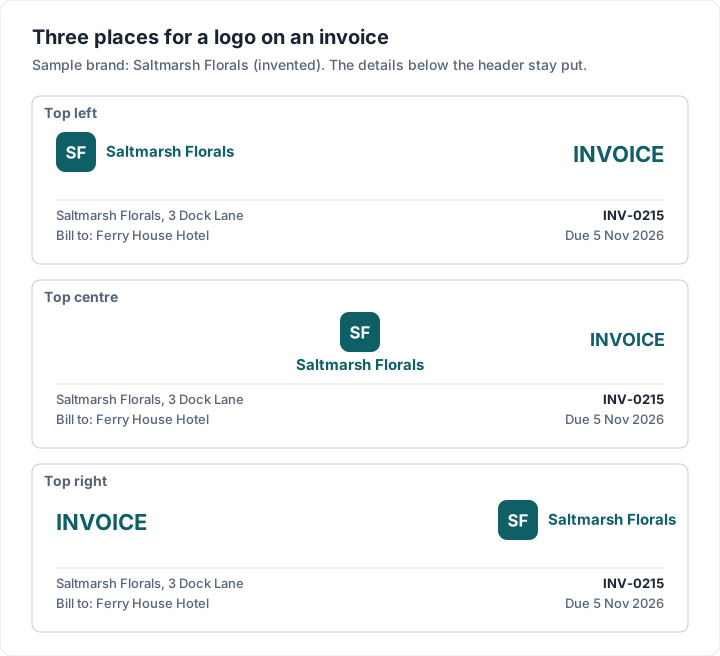
There are three common positions, and each works with a different layout:
| Position | When it works | Watch out for |
|---|---|---|
| Top left | Almost always: it is where the eye starts on the page | Leave space on the right for “Invoice”, the number and dates |
| Top centre | A letterhead look, formal services, a symmetrical logo | Pushes the business details down; uses more height |
| Top right | When the word “Invoice” or your name leads on the left | Can compete with the invoice number and dates, which often sit top right |
Top left is a convention rather than a rule, and it shows up even in casual design feedback. In the public online discussions we read while researching invoicing (the people quoted are not Charming customers), one reply to a beginner's practice invoice design said:
At the top of the left corner, if there was a logo, then it looks more professional.You should focus on alignment more
The second sentence matters as much as the first. Line the logo up with the same left margin as your business details and the line-item table, so the page has one clean edge.
Put the logo in the header once. Repeating it in the footer, as a background or beside the total adds noise without adding recognition.
What size the logo should be#
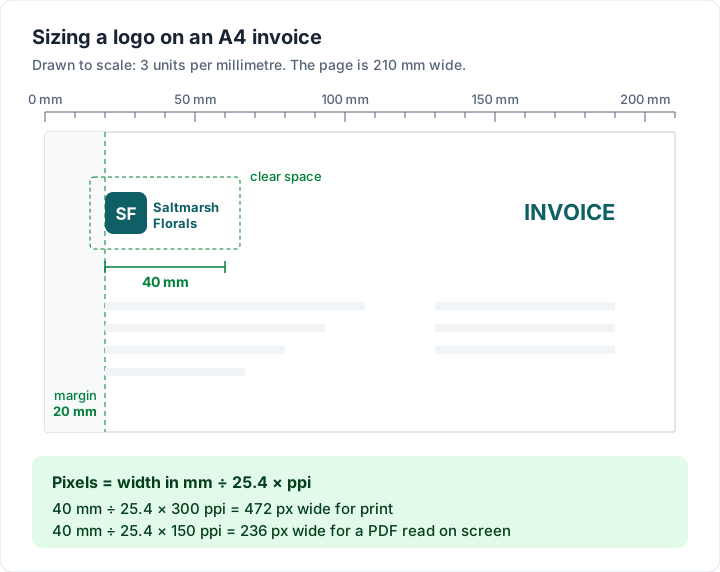
There is no official size. As a rule of thumb, a logo on an A4 or US Letter invoice reads well at about 30 to 50 mm wide (1.2 to 2 inches) for a wide wordmark, and about 15 to 25 mm (0.6 to 1 inch) tall for a square icon. Big enough to recognise, small enough that the invoice number and total are still the loudest things on the page.
Leave clear space around it: at least the height of a capital letter in your logo, so it does not touch the business details or the page edge.
How many pixels the logo needs#
The size on the page decides the pixels. Print looks sharp at about 300 pixels per inch (ppi); a PDF read on screen gets away with about half that. The formula is:
pixels = width in mm ÷ 25.4 × ppi
| Width on the page | Pixels for print (300 ppi) | Pixels for screen (150 ppi) |
|---|---|---|
| 30 mm (1.18 in) | 354 px | 177 px |
| 40 mm (1.57 in) | 472 px | 236 px |
| 50 mm (1.97 in) | 591 px | 295 px |
| 60 mm (2.36 in) | 709 px | 354 px |
So a 40 mm logo needs a file at least 472 pixels wide to print crisply. A 150-pixel logo copied from your website will print at 40 mm, but at under 100 ppi, and it will look soft.
Keep the file size small#
An invoice PDF is an email attachment. A logo exported at 600 to 1,000 pixels wide as a PNG is usually well under 200 KB. A 4,000-pixel PNG straight from a design tool can add several megabytes to every invoice you send for no visible gain. Export at the size you need, not the largest size you have.
Which file type to use#
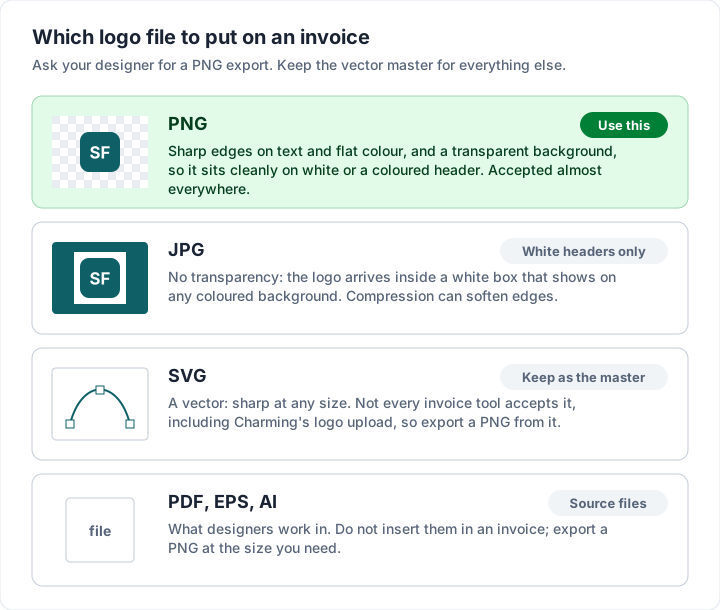
Your designer probably gave you several files. Here is which one goes on the invoice:
| Format | Transparent background | Use on an invoice? | Notes |
|---|---|---|---|
| PNG | Yes | Yes, the default | Sharp edges on text and flat colour; supported almost everywhere |
| JPG | No | Only on a white header | Compression blurs edges; a white box shows on any coloured background |
| SVG | Yes | If your tool accepts it | A vector, so it scales to any size without blurring; not every invoice tool accepts it, so keep a PNG export too |
| PDF, EPS, AI | Varies | No | Designer source files. Keep them and export PNGs from them |
| WebP | Yes | Rarely | Small files, but not every invoice or document tool accepts it |
If all you have is a JPG on a white background and your invoice header is white, it is fine. If you want a coloured header, ask your designer for a transparent PNG, or a reversed (white) version for dark backgrounds. If you are the designer, our graphic design invoice template shows how to bill a logo project, with usage licence wording.
Logo and brand colours together#
The logo sets the colour for the rest of the invoice. Pick one colour from it, usually the strongest, and use it for two or three things only: the header or title, the rules between sections and the total. Body text stays near-black on white, because that is what stays readable printed, photocopied or on a phone in sunlight. How to customize an invoice without breaking it goes further on colours and fonts.
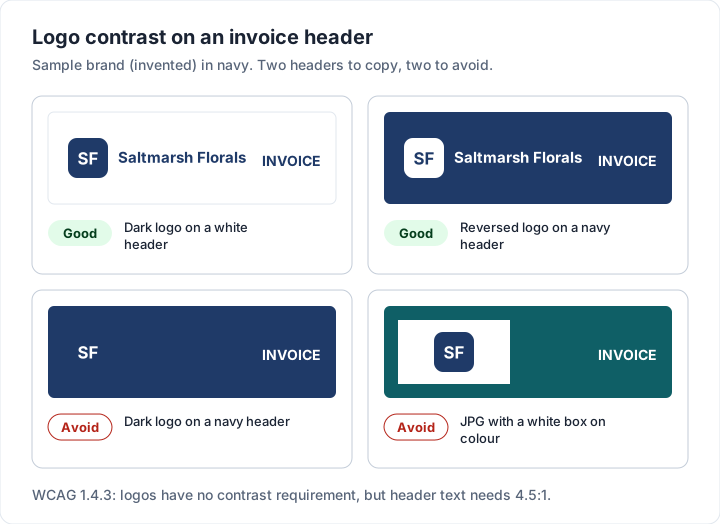
Contrast is where logos and headers go wrong. The W3C's contrast guidance (WCAG 2.1, criterion 1.4.3) asks for a contrast ratio of at least 4.5:1 for normal text, and 3:1 for large text. It also says “text that is part of a logo or brand name has no contrast requirement”, so your logo itself is exempt. The invoice text around it is not: header text on a brand-coloured band needs to clear 4.5:1. Invoice design: principles, layouts and examples takes colour and contrast across the rest of the page.
If you do not have a logo yet, do not rush one for the invoice. Set your business name in a distinctive font and your brand colour, and it does the same job. Your invoice looks like a tax form covers what else makes a plain invoice look designed.
How to add a logo to an invoice in Word, Docs and Excel#
The steps below follow each company's own help pages, checked on 22 October 2026. Menu names can shift a little between versions.
| Tool | Steps to add the logo | To repeat it on every page | Limits |
|---|---|---|---|
| Word (Windows) | Click top left, then Insert, then Pictures, then This Device | Insert, then Header, then Blank; double-click the header; Insert, then Pictures | Set the picture's layout to In Line with Text so it does not drift |
| Google Docs | Insert, then Image, then Upload from computer | Insert, then Page elements, then Header (pages format only) | Headers are unavailable in pageless format |
| Excel | Insert, then Illustrations, then Pictures; if the logo lands inside a cell, right-click it, then Picture in Cell, then Place over Cells | Use the page header in Page Layout view | The picture floats; check the print preview |
The sources: Microsoft's guide to images in a Word header, Google's guides to inserting an image and headers in Docs, and Microsoft's Place in Cell guide for Excel, which covers Insert, Illustrations, Pictures, and says to right-click an in-cell picture and choose “Picture in Cell”, then “Place over Cells”, to make it float. For a logo, place it over the cells.
For the full build in each tool, see how to create an invoice in Word, how to make an invoice in Google Docs and how to create an invoice with Excel.
On paper, a logo comes from the printer: a custom-printed carbonless book can carry it at the top of every page. How to fill out an invoice book covers using one.
Adding your logo in Charming (and its limits)#
We make Charming Invoices, so here is exactly how the logo works in it, checked in our code on 22 October 2026. All of it is on the free plan.
- Upload: in your business settings, an owner or admin uploads a PNG or JPG of up to 2 MB.
- Processing: Charming re-encodes the file as a PNG (transparency is kept) and scales it down to at most 512 pixels on its longest edge.
- Position: left, centre or right in the invoice header.
- Size: small, medium or large. On the PDF, each fits inside a box of about 32 × 11 mm, 49 × 17 mm or 67 × 24 mm (90 × 32, 140 × 48 or 190 × 68 points), keeping the logo's proportions.
- Frame: none, rounded, circle or square. The circle crops the logo to a circle, so use none or rounded for a wide wordmark.
- Letterhead: instead of, or as well as, a logo, a full-page background image (PNG or JPEG, up to 5 MB) on every page or the first page only. Invoice letterhead covers image sizes, margins and the Word and Google Docs versions.
- Brand colour: any hex colour, with header text that switches to a readable colour automatically if yours would not be.
- Brand import: give it your website address or up to 4 images (PNG, JPEG, WebP, GIF or SVG, up to 8 MB each), and it suggests three matching invoice designs using your logo and colours. An SVG logo is converted to a PNG on the way in.
The limits, plainly:
- No SVG in the normal logo upload. Export a PNG, or drop the SVG into brand import, which converts it.
- No free placement or exact sizing. Three positions and three sizes; you cannot drag the logo anywhere or set it in millimetres.
- 512 pixels is screen-and-office resolution. A wide wordmark filling the large box is 512 pixels across about 67 mm, roughly 194 ppi: fine in a PDF and on an office printer, below the 300 ppi a commercial printer asks for.
- Brand import's optional AI look has limits (8 an hour and 25 a day per person). After that, it matches colours from the image pixels alone.
- Free invoices carry a small “Sent with Charming Invoices” line. Paid plans, from $29 once, hide it by default; lifetime plans are final sale.
If those limits suit you, create a free invoice and upload your logo once; every invoice from that business uses it. To see how each design treats a logo before you sign up, browse the invoice templates.
Common logo problems and how to fix them#
| Problem | Why it happens | Fix |
|---|---|---|
| Blurry or pixelated logo | Too few pixels for the printed size, often a website or social media image | Export a PNG at least as wide as the pixel table above suggests |
| White box around the logo | A JPG, or a PNG saved without transparency | Export a PNG with a transparent background |
| Logo vanishes on a coloured header | Dark logo on a dark brand colour | Use a reversed (white) version, or a white header |
| Squashed or stretched logo | Resized by dragging one edge, or forced into a fixed box | Resize from a corner, or use a tool that keeps proportions |
| Huge PDF attachment | A full-resolution export inserted as is | Export at 600 to 1,000 pixels wide |
| Logo moves when you type | Word or Docs text wrapping set to float | Set it In Line with Text (Word) or In line (Docs) |
| Wide wordmark cut off | A circle or square crop meant for icons | Use no frame, or a square icon version of the logo |
When you compare invoicing tools, check how each one places and sizes your logo before you commit; what to check before choosing a free invoicing app and invoicing advice for designers both cover branding. For photographers, whose invoices are often judged as part of the work, the photographer's guide to invoicing covers the rest of the page.
The short version#
Put the logo top left, about 30 to 50 mm wide, as a transparent PNG with enough pixels for that size: width in mm ÷ 25.4 × 300. Use one colour from it on the rest of the invoice, keep body text dark on white, and never put a dark logo on a dark band. A logo is optional; a clear number, due date, total and payment details are not.