How to make an invoice in Google Docs that adds up

Nnabuike Okoroafor ·
On this page · 11 sections
You need to bill a client, you already live in Google Drive, and Google Docs is free and open in another tab. It is a perfectly good place to make an invoice. Three things need your attention there: the totals, the numbering and who can see the file.
This guide shows how to make an invoice in Google Docs from a blank document, how to get correct totals when Docs tables cannot calculate, a routine for each new invoice, and how to send it without handing your client an editable link. Every menu step follows Google's own Docs Editors Help pages, checked on 22 October 2026.
In short#
- Build it from one table: Insert, then Table, with four columns: Description, Qty, Rate and Amount.
- Docs tables do not calculate. Work the totals out in Google Sheets and paste them in as a linked table, or calculate by hand and check twice.
- One file per invoice: File, then Make a copy of your master, named with the invoice number and client.
- Send a PDF: File, then Download, then PDF. Do not send an “anyone with the link” Docs link.
- Keep a log of numbers, totals and paid dates, because Docs will not.
What you need before you start#
Gather the facts first, so the document is only layout:
- Your details: business name, address, email, and your logo if you have one.
- Your client's details: name, company, billing address and the email that receives invoices.
- The invoice number: the next one in your sequence. How to number invoices covers formats and what to do about a gap in your invoice numbers.
- Dates: the issue date and the due date.
- The line items: what you did, how many, at what rate.
- How to pay you: bank details or a payment link. Invoice payment methods covers how to list bank details on an invoice.
If you want the reasoning behind each field, what actually belongs on an invoice is the full checklist.
How to make an invoice in Google Docs from a blank document#
Open Google Docs and start a blank document. Before anything else, check the page format.
Step 1: switch to pages format#
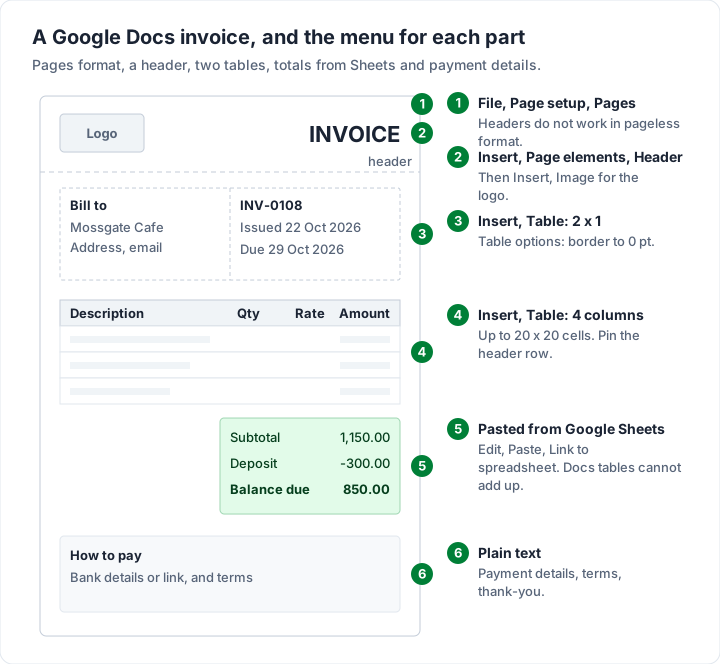
A Google Doc can be set to pageless format, which is one long, unbroken page. An invoice is a printed page, and Google's pageless guide says that in pageless format you “won't be able to add certain features, such as columns, page numbers, headers and footers”. Go to File, then Page setup, select Pages, set the paper size your client uses (A4 or Letter) and select OK.
Step 2: the header and your logo#
Put your logo top left and the word “INVOICE” top right. To place the logo, click where it should go, then Insert, then Image, then Upload from computer, as Google's image guide describes. Choose In line in the image toolbar so it stays put when the text above it changes.
If the invoice can run to a second page, put the logo in a header instead: Insert, then Page elements, then Header, following Google's headers and footers guide. Headers only work in pages format, which is why Step 1 comes first. For file types and sizes, see logo on an invoice.
Type your business name, address and email under the logo.
Step 3: the client and invoice details#
Insert a table of 2 columns and 1 row. Put “Bill to” and the client's details in the left cell, and the invoice number, issue date and due date in the right. Then hide its lines: select the table and use the border width control in the toolbar to reduce the lines to nothing, so only the text shows on the page.
Step 4: the line-item table#
Go to Insert, then Table, and choose the size. Google's table guide notes that tables “can be as large as 20 x 20 cells”, which is plenty for an invoice. Use four columns:
| Column | Header | What goes in it |
|---|---|---|
| 1 | Description | The work or item, specific enough to recognise later |
| 2 | Qty | Hours, days or units |
| 3 | Rate | Price per unit, with cents |
| 4 | Amount | Qty times rate |
Add rows with a right-click and Insert row below. Right-align the three number columns (select them, then Format, then Align & indent, then Right) so the decimal points line up. Under Table options, you can pin the header row so it repeats if the table runs onto a second page.
Step 5: totals and payment details#
Add rows under the table for Subtotal, Tax (only if you charge it) and Total due, with the total in bold. Below that, add your payment details, the terms and a short thank-you line.
Using a ready-made layout in Google Docs#
Google Docs has a template gallery: from the Docs home screen, select Template gallery at the top right, or in an open document use File, then New, then From template. Google's template guide notes that “some template features are only available for work or school accounts”, so what you see varies by account.
If your gallery has an invoice layout, it can save you Steps 2 to 5. Check it the same way you would check your own: does it have a due date, an invoice number and a place for payment details, and is it in pages format? If it has none of those, a blank document is faster than fixing it.
Adding totals when Docs cannot calculate#
This is the part to plan for. A Google Docs table does not do arithmetic. Google's table help covers sorting rows, but nothing in it adds up a column. Whatever number you type in the Total due cell is what your client sees, right or wrong.
You have three options:
| Option | How it works | Best for | Watch out for |
|---|---|---|---|
| Calculate by hand | Use a calculator, type each amount and the total | One or two short invoices | One typo and the total is wrong; check every line twice |
| Paste a linked table from Sheets | Do the maths in Sheets, paste it into Docs with “Link to spreadsheet” | A Docs layout you want to keep, with correct totals | You must select Update in Docs after changing the sheet |
| Build the whole invoice in Sheets | Sheets calculates everything; download as PDF | Anyone who sends invoices every week | Layout takes more setup than in Docs |
How the linked table works#
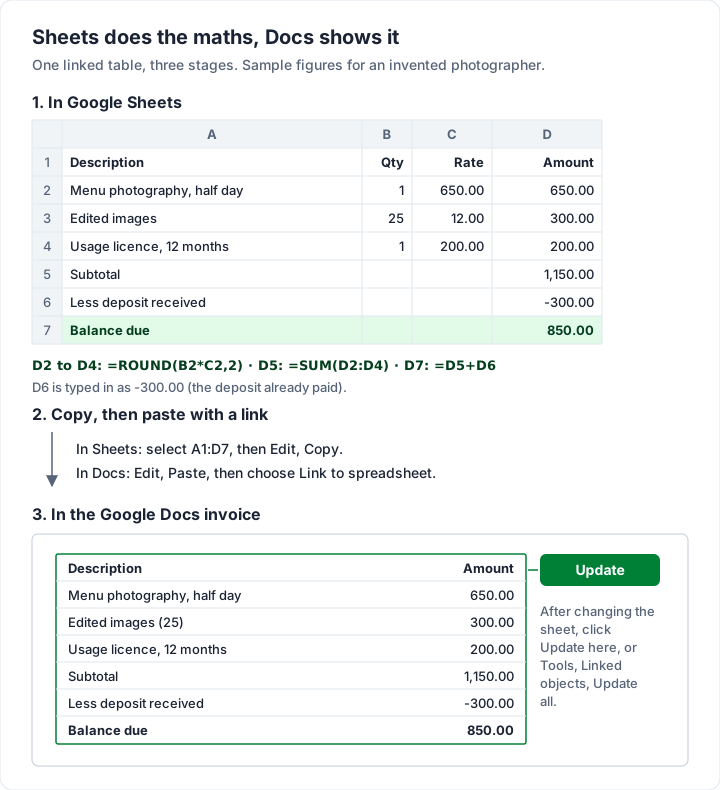
Google's guide to linking a Sheets table into Docs gives these steps:
- In Google Sheets, build the line items and totals, then select those cells.
- Select Edit, then Copy.
- In your Docs invoice, click where the table should go and select Edit, then Paste.
- Choose Link to spreadsheet and select Paste.
When you change a number in the sheet, the Docs copy does not change on its own. Select the table in Docs and click Update in its top-right corner, or use Tools, then Linked objects, then Update all. Google also notes that “Tables with more than 400 cells will paste unlinked”, which no reasonable invoice will reach.
In the sheet, the formulas are the same ones you would use in Excel: Amount is =ROUND(B2*C2,2) on each line, Subtotal is =SUM(D2:D4), and so on. How to create an invoice with Excel explains each formula, and they work unchanged in Sheets.
Saving each invoice: make a copy, number it, download a PDF#
The most common Google Docs invoicing mistake is editing last month's invoice for this month's client. The old version is gone (or buried in version history), and it is easy to forget to change the number. A copy per invoice avoids both.
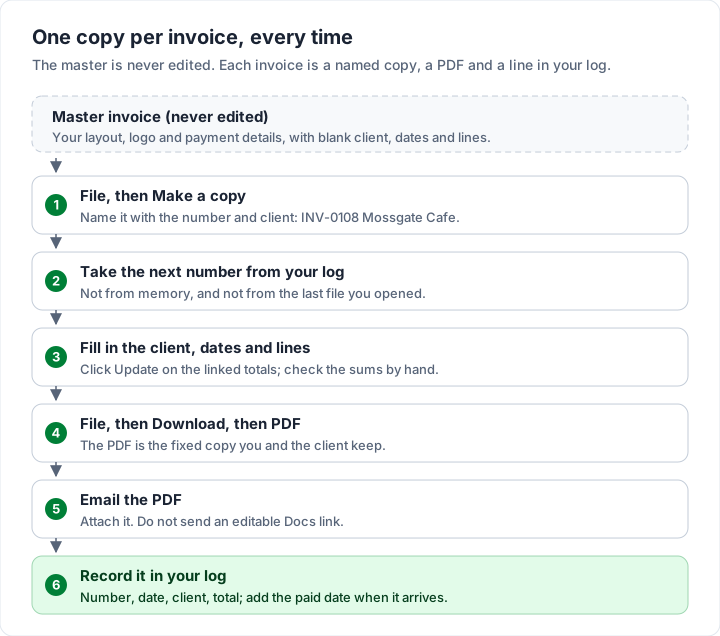
The routine, each time:
| Step | In Google Docs | Why |
|---|---|---|
| 1. Copy the master | File, then Make a copy; name it “INV-0108 Mossgate Cafe” | Last month's invoice stays exactly as sent |
| 2. Take the next number | From your log, not from memory | No duplicates, no gaps |
| 3. Fill it in | Client, dates, lines; click Update on linked totals | Totals match the lines |
| 4. Download the PDF | File, then Download, then PDF | The client gets a fixed copy |
| 5. Send it | Attach the PDF to an email | No editable link leaves your Drive |
| 6. Log it | Number, date, client, total, then paid date later | Your only record of who has paid |
Google's download guide describes the PDF step as File, then Download, then choosing a file type. For a long document, it also suggests File, then Print, then Save as PDF in Chrome.
Google Docs also keeps a version history: Google's version history guide says to click Last edit at the top right to see earlier versions, and you can Name this version (up to 40 named versions in a document). Naming the sent version “Sent 22 Oct” gives you a record if the client later asks what the invoice said. It is a useful backstop, not a replacement for keeping the PDF you sent.
Sharing an invoice safely from Google Docs#
Docs makes sharing a link so easy that it is tempting to send one instead of a PDF. Do not. Google's sharing guide lists what each setting allows:
| Setting | Who can open it | The risk on an invoice |
|---|---|---|
| Restricted | Only people you add by email | Low, if you add them as Viewer |
| Anyone with the link | Anyone the link reaches, “without signing in” | A forwarded email exposes your bank details and the client's address |
| Editor role | Can change the document | Someone can change the amounts or your bank details |
| Viewer role | Can open but not edit | Viewers can download, print and copy unless you turn that off |
There is a quieter risk too. Google's version history guide says that browsing earlier versions needs edit permission. So if you reuse one document for every client and share it as an editor, that person can open version history and read every earlier client's invoice.
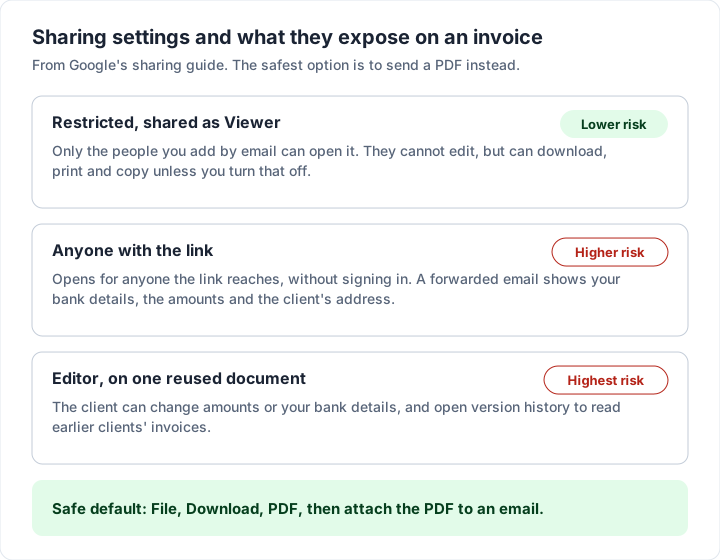
The safe default is simple: download the PDF and attach it to an email. How to email an invoice covers PDF attachment or link, with subject lines and wording.
A worked example#
An invented photographer, Wren & Pine Photography, bills an invented client, Mossgate Cafe, for a menu shoot. The client paid a $300.00 deposit when booking.
| Description | Qty | Rate | Amount |
|---|---|---|---|
| Menu photography, half day on location | 1 | $650.00 | $650.00 |
| Edited images, delivered as web and print files | 25 | $12.00 | $300.00 |
| Usage licence: menu, website and social media, 12 months | 1 | $200.00 | $200.00 |
| Subtotal | $1,150.00 | ||
| Less deposit received | -$300.00 | ||
| Balance due | $850.00 |
The arithmetic, checked: 650.00 + 300.00 + 200.00 is 1,150.00, and 1,150.00 minus the 300.00 deposit is 850.00. Wren & Pine is not registered to charge sales tax in this example, so there is no tax line. The invoice is INV-0108, issued Thursday 22 October 2026 and due Thursday 29 October 2026.
If deposits are new to you, how deposit invoices work shows how to word the deposit and balance invoices so they match.
What Google Docs leaves to you#
Docs is good at looking tidy, and a branded Docs layout exported as a PDF works well. As volume grows, these jobs stay with you:
- No arithmetic in the document itself, so every total is either typed or linked.
- No numbering. The next number lives in your log or your head.
- No payment tracking. Docs does not know which invoices are paid, part-paid or late.
- No reminders. Overdue invoices wait until you notice them.
- Sharing risk, as above, if you send links instead of PDFs.
On a phone, the same approach works in the Docs and Sheets apps; how to make an invoice on your phone covers the mobile steps and offline access. If you use Microsoft's tools instead, how to create an invoice in Word covers the same build there, with a fuller comparison of Word, Excel, Docs and an invoicing app.
What Charming Invoices does instead, and its limits#
We make Charming Invoices, so here is what it does about the gaps above, and what it does not do:
- It calculates the totals to the cent, with one tax rate per invoice and a fixed-amount discount.
- It numbers invoices when you issue them, per business, with no gaps. A “Next invoice number” setting lets you continue from your Docs sequence (it can be raised, never lowered).
- It stores the PDF and a private link when you issue the invoice: download the PDF, print it or copy the link your client opens without an account, and send it however you like, so there is no Drive file to share.
- It shows who owes what: Issued, Overdue, Partially paid and Paid, once you record a payment.
The catches: Charming has no Google Docs or Drive integration and does not import Docs files. You record payments yourself, because clients pay you directly and Charming does not process card payments. It does not email invoices or send reminders; set a calendar reminder for the due date or use your own email. Free invoices carry a small “Sent with Charming Invoices” line. If you would rather start from a finished file than a blank table, download our free invoice template for Google Docs and Sheets (a Word or Excel file you upload to Drive and open), or browse invoice templates, which are designs inside the app. Or create a free invoice and compare it with your Docs version.
Questions people ask about invoices in Google Docs#
Does Google Docs have an invoice template?#
Google Docs has a template gallery, and what it contains varies by account. If yours has an invoice layout, use it as a starting point and check it has a number, a due date and payment details. If not, the blank-document steps above take under an hour.
Can Google Docs add up the invoice for me?#
No. Docs tables do not calculate. Do the maths in Google Sheets and paste it into Docs as a linked table, or build the whole invoice in Sheets.
Is it safe to send an invoice as a Google Docs link?#
Not as a general habit. An “anyone with the link” share opens for whoever the link reaches, and an editor share lets the client change the document and see its version history. Send a PDF.
How do I turn a Google Doc into a PDF?#
Go to File, then Download, and choose PDF. The file downloads to your computer, ready to attach to an email.
The short version#
To make an invoice in Google Docs: switch to pages format, build one table, get the totals from Sheets or check them by hand, make a copy per invoice, and send the PDF rather than a link. Keep a log, because Docs will not remember who has paid. For every field in more depth, see how to make an invoice, which includes a worked example invoice.