Invoice template for Google Docs and Sheets: free download

Nnabuike Okoroafor ·
On this page · 16 sections
You work in Google Drive, you need to bill a client this week, and you would rather fill in a finished invoice than draw one from scratch. So you search for an invoice template for Google Docs or Google Sheets, and many results ask you to request access to a shared file or sign up first.
Here is the honest version. We publish free invoice templates as Excel spreadsheets and Word documents. They are made for Excel and Word; Google Sheets and Google Docs can open them after conversion: check the totals when you do. There is no Google-hosted copy and no “Make a copy” link: you download the file, upload it to your own Drive and save it as a Google file. This guide shows those steps from Google’s own help pages, what each file contains, and what to check after converting. If you would rather build an invoice in Docs yourself, our guide on how to make an invoice in Google Docs covers that from a blank page.
In short#
- Download a template from our free Word and Excel invoice templates page. No sign-up, no email address.
- For Google Sheets, use an .xlsx file. Its totals are formulas, so the maths is done for you once the file works in Sheets.
- For Google Docs, use a .docx file. It is easier to type into, but Docs tables do not calculate, so you type the totals yourself.
- Upload, open, then File, then Save as Google Sheets (or Google Docs). That gives you a Google copy to work in.
- Check the totals after converting with a throwaway test line before any client sees the invoice.
- Send a PDF, never an editable share link.
The free invoice templates for Google Sheets and Docs#
The Excel and Word invoice templates are on the downloads page, and each one is also a direct link below. We read every file with a script, most recently on 28 October 2026, to list exactly what is inside.
| File | Open it in | Calculates? | Best for |
|---|---|---|---|
| invoice-template.xlsx | Google Sheets | Yes: amounts, subtotal, tax, total, balance due, due date | Products, services or a mix, priced by quantity and rate |
| hourly-invoice-template.xlsx | Google Sheets | Yes, plus a Total hours sum | Time-based work, one dated line per day or task |
| invoice-template.docx | Google Docs | No: you type the totals | A general invoice where you mostly write descriptions |
| service-invoice-template.docx | Google Docs | No: you type the totals | A job with a site address, dates, labour and materials, and a deposit |
What is actually in the spreadsheets:
- 15 line rows. Each Amount is quantity times rate (hours times hourly rate in the hourly file), rounded to the cent, and a line stays blank until both numbers are in.
- A due date that works itself out: invoice date plus payment terms in days. Terms start at 30; set 14, 7 or 0 for due on receipt.
- A totals block: Subtotal, Discount (a fixed amount), Tax rate (%), Tax, Total, Amount paid and Balance due. The total never drops below 0.
- A check line under the totals that stays empty unless something looks wrong. It shows a red note if the tax rate holds a fraction such as 0.2, or if the discount is bigger than the subtotal.
- Payment details and notes: account name, bank or routing details, a line for a payment link, and a notes box for terms.
- A second tab called “How to use” with the instructions inside the file.
The Word files have the same header (logo box, From, Bill to, invoice details) and payment details. The general one has a 10-row item table. The service one adds a “Description of work” box (job, site address, dates, work performed), a 6-row labour and materials table, and a “Less deposit paid” line before the balance due.
Every file ends with one small line, “Made with a free Charming Invoices template · charminginvoices.com · Free to use and share, not for resale.”. Delete it if you like; it is there to be deleted. For every field and formula in Word or Excel itself, see our guides to the Word invoice template and the Excel invoice template.
Google Sheets or Google Docs: which template to use#
Pick by what you type more of: numbers or words.
| Google Sheets (.xlsx template) | Google Docs (.docx template) | |
|---|---|---|
| Totals | Formulas work them out | You calculate and type them |
| Due date | Invoice date + terms, calculated | Typed |
| Long descriptions | Fine for one-line items | Better for paragraphs |
| Risk | A broken formula after converting | A typo in a typed total |
| Hourly billing | Hourly file sums the hours | Not built for it |
| Deposits | Amount paid comes off the balance | Service file has “Less deposit paid” |
For most invoices, Sheets is the safer choice, because the arithmetic is not yours to get wrong. Choose Docs when the description is the invoice: a repair, an installation or a project where the client needs to read what was done.
How to open the invoice template in Google Sheets#
These steps follow Google’s help pages, checked again on 28 October 2026: Upload files and folders to Google Drive and Work with Office files using Office editing.
- Download the template. Save invoice-template.xlsx or the hourly version to your computer.
- Upload it to Drive. Go to drive.google.com, click New at the top left, then File upload, and choose the file.
- Open a preview. In Drive, double-click the file.
- Open it in Sheets. At the top, click Open in Google Sheets.
- Make it a Google file. Click File, then Save as Google Sheets.
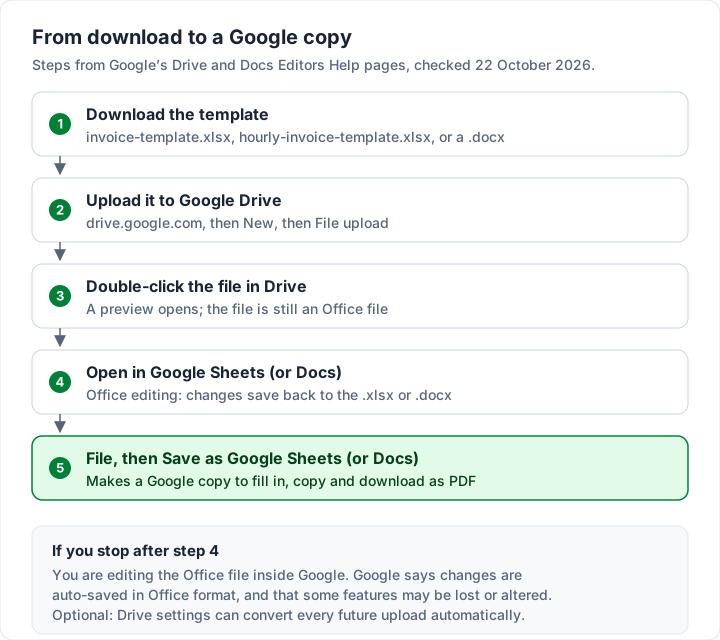
Why step 5 matters. Stopping at step 4 is Google’s Office editing mode. Google says you can edit Office files directly and “Changes will be auto-saved to the file in Office format.” That works, but the same page warns that “Other features may be lost or altered” when you edit that way. Saving a Google copy gives you an ordinary Google Sheets file to copy, fill in and download as a PDF.
Converting every upload automatically#
If you would rather skip step 5 for every file, Google’s upload guide describes a Drive setting: next to “Convert uploads to Google Docs editor format,” check the box. Google notes you can only change Drive settings from a computer. Test the first file you convert this way, as below.
How to open the Word invoice template in Google Docs#
The route is the same, with a different file and menu:
- Download invoice-template.docx or service-invoice-template.docx.
- In Drive, click New, then File upload, and choose it.
- Double-click it, then click Open in Google Docs.
- Click File, then Save as Google Docs.
Then read the italic note under the totals. It is part of the template and says plainly that Word and Google Docs do not calculate tables, so you fill in the totals yourself. It also gives the formulas, and asks you to delete the note before sending.
What Google says changes when you convert Office files#
Google does not promise that any particular file converts unchanged. Its Work with Office files page lists features that are not supported when you edit with Docs, Sheets or Slides. Here is that list, set against what our templates contain:
| Google’s list of unsupported features | In our templates? |
|---|---|
| Macros (Google suggests rewriting them in Apps Script) | None |
| Embedded charts and videos in Word files become images | None |
| Linked spreadsheets in Excel files | None |
| Locked and hidden cells in protected Excel files become viewable and editable | The sheets are not protected |
| SmartArt becomes a Google Drawing | None |
Two more points from Google: password-protected files are not supported (ours have no password), and in Office editing mode “Other features may be lost or altered.” Fonts are worth a look too: the files are set in Calibri, so check the text still fits its cells after converting.
The spreadsheet formulas and checks use eight functions: IF, OR, AND, SUM, ROUND, MAX, ISNUMBER and N. All eight are on Google’s Sheets function list. That is a good sign, not a guarantee: we have not tested every conversion, and the template’s own “How to use” tab says Google can alter some features when it converts an Office file. Confirm the totals on your copy, in the next step.
Google Sheets invoice: what we checked in the file#
If you searched for a Google Sheets invoice or a Google spreadsheet invoice, the Excel download is the file to start from. We cannot sign in to a Google account from our test setup, so we have not converted these files in Google Sheets ourselves. Here is what we did check, and what we did not.
What is in the .xlsx files. On 28 October 2026 we unzipped both spreadsheets and read the sheet, workbook and style XML directly:
- 2 tabs: “Invoice” and “How to use”.
- Formulas: 21 in the general file (15 line amounts, the due date, subtotal, tax, total, balance due and the check line) and 22 in the hourly file, which adds Total hours.
- Input checks: 7 data validation rules in the general file and 8 in the hourly file, which also checks the date on each line. The tax rate rule is a custom formula, not a simple number range.
- Named cells: 12 in the general file and 13 in the hourly file, such as InvoiceDate, DueDate, Subtotal and BalanceDue.
- Formats: amounts use a two-decimal number format with a thousands separator and no currency symbol; dates use a “d mmm yyyy” format.
- Print setup: a print area of A1:D43 (A1:E43 in the hourly file), A4 paper, scaled to 1 page wide by 1 page tall.
- None of the features on Google’s unsupported list: no macros (the files are .xlsx, not the macro-enabled .xlsm), no linked spreadsheets, no sheet protection and no password.
What Google’s help pages say, read on 28 October 2026. Work with Office files says: “You can edit, download, and convert Microsoft® Office files in Google Docs, Sheets, and Slides.” It lists .xlsx among the spreadsheet types. There is also a second route into Sheets besides uploading to Drive. Import data sets & spreadsheets describes opening a spreadsheet in Google Sheets, clicking File, then Import, choosing the file and picking an import option such as “Create new spreadsheet”, which it describes as: “Create a spreadsheet from the imported data in a new browser tab.”
What is untested. Neither page we read says how data validation rules, named cells, custom date formats or print settings come through a conversion, and we have not seen it happen. So we do not know whether the tax-rate rule, the other input checks, the named cells, the date format or the one-page print setup survive in Google Sheets. The 8 functions the formulas use are all on Google’s function list (see above), which is encouraging, not proof. The test invoice below checks the parts that matter most: the formulas, the due date and, with a negative quantity, the input checks.
Check the totals after converting#
A spreadsheet invoice can look perfect and still add up wrongly if one formula did not come across. So before you use your Google copy for a real client, type in a test invoice whose answers you already know:
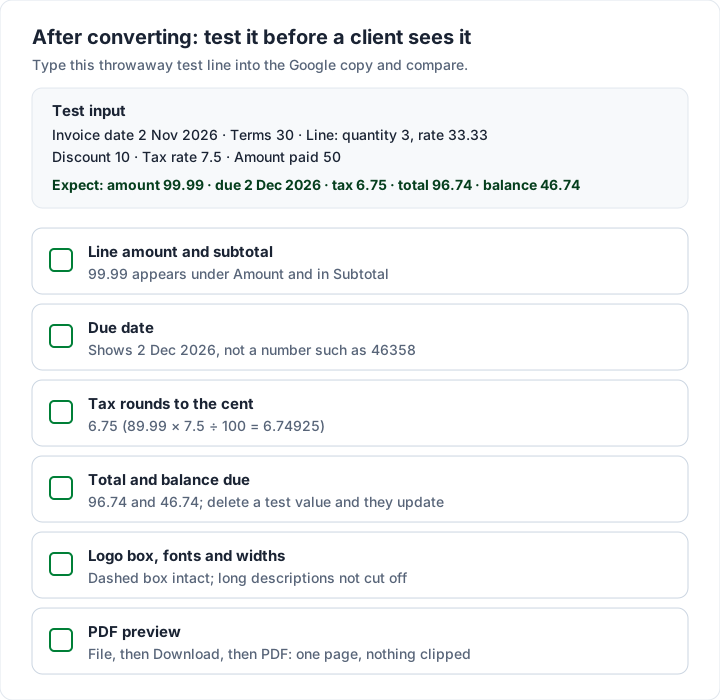
| Type this | Into | You should see |
|---|---|---|
| 2 Nov 2026 | Invoice date | Due date 2 Dec 2026 (with terms 30) |
| 3 and 33.33 | Quantity and Rate on line 1 | Amount 99.99 and Subtotal 99.99 |
| 10 | Discount (fixed amount) | |
| 7.5 | Tax rate (%) | Tax 6.75 (89.99 × 7.5 ÷ 100 = 6.74925, rounded to the cent) |
| 50 | Amount paid | Total 96.74, Balance due 46.74 |
The arithmetic, checked: 3 × 33.33 = 99.99; 99.99 − 10.00 = 89.99; tax rounds to 6.75; 99.99 − 10.00 + 6.75 = 96.74; 96.74 − 50.00 = 46.74.
If a figure is wrong or missing:
- Due date shows a number such as 46358: the formula worked, but the cell lost its date format. Select it and choose Format, then Number, then Date.
- An Amount is blank or wrong: click the cell and compare its formula with a row that works. Copy the working formula down.
- Validation: the Excel file also checks what you type (a date must be a date, quantities and rates cannot be negative, tax rate 0, or 1 to 100, terms 0 to 365 days). Try a negative quantity; if Sheets accepts it, the rule did not come across, so take more care when typing.
Then delete the test values. The whole check takes a few minutes and you only do it once, on your master copy.
Filling in the Google Sheets invoice template#
Shaded cells are yours to type in; everything unshaded works itself out. The shading is faint so it barely shows on paper. Here is the general template filled in with an invented studio and client:
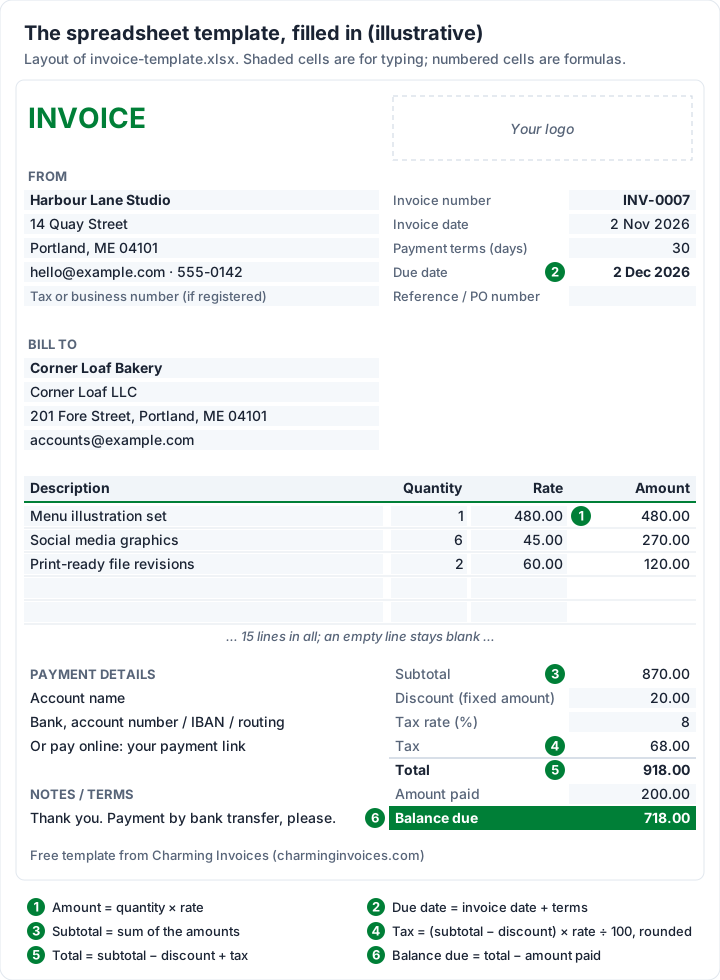
The worked example (invented names and figures; the 8% tax rate is illustrative, so use your own rate or leave it blank):
| Description | Quantity | Rate | Amount |
|---|---|---|---|
| Menu illustration set | 1 | 480.00 | 480.00 |
| Social media graphics | 6 | 45.00 | 270.00 |
| Print-ready file revisions | 2 | 60.00 | 120.00 |
| Subtotal | 870.00 | ||
| Discount (fixed amount) | 20.00 | ||
| Tax (8%) | 68.00 | ||
| Total | 918.00 | ||
| Amount paid (deposit) | 200.00 | ||
| Balance due | 718.00 |
The arithmetic, checked: 480.00 + 270.00 + 120.00 = 870.00. Tax is (870.00 − 20.00) × 8 ÷ 100 = 68.00. Total is 870.00 − 20.00 + 68.00 = 918.00, and 918.00 − 200.00 = 718.00. The invoice is dated Monday 2 November 2026 and, on 30-day terms, due Wednesday 2 December 2026.
A few details that trip people up:
- Tax rate is a plain number: type 8 for 8%, not 0.08 or 8%. In Excel the cell rejects both, because they are stored as 0.08 and would charge 0.08%. If a fraction gets in anyway, for example when a validation rule did not survive the conversion, the red note under the totals says “Check the tax rate: type 20 for 20%, not 0.2 or 20%.” Leave the rate blank if you do not charge tax.
- The discount is an amount, taken off before tax. It is not a percentage.
- Currency: amounts show two decimals and no symbol, so the file works in any currency. To add one, select the amounts and choose Format, then Number, then Currency (the file’s own tip).
- Your logo: the file’s notes say to click the dashed box, then Insert, then Image, then Image over cells, and size the picture to fit. Then delete the words “Your logo”. Our guide to a logo on an invoice covers file types and sizes.
- More than 15 lines: insert rows inside the line items and copy the Amount formula down from the row above. The subtotal picks up any row inserted between the first and last line.
If your payment terms are new to you, what net 30 means on an invoice explains the common terms and when to use each.
Filling in the Google Docs invoice template#
The Word template has the same fields in tables, so typing over the placeholders is the whole job. Press Tab in the last cell of the item table to add a row.
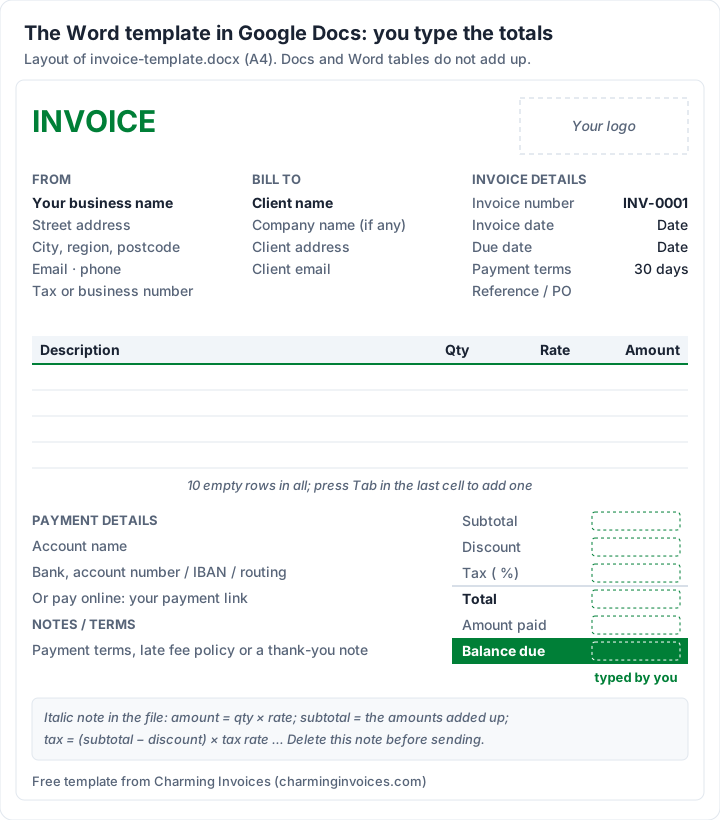
Because nothing calculates, use the note’s formulas and a calculator:
- Each amount is quantity × rate.
- Subtotal is the amounts added up.
- Tax is (subtotal − discount) × tax rate.
- Total is subtotal − discount + tax.
- Balance due is total − amount paid (or, on the service invoice, total − the deposit already paid).
If that sounds like a chore, it is the main reason to use the spreadsheet instead. Our Google Docs guide also shows a middle way: doing the maths in Sheets and pasting a linked table into Docs.
Keep a master and make a copy per invoice#
A template file has no memory. It cannot pick the next number or remember which invoices you sent. So keep your converted, tested Google copy as a master that you never send, and for each invoice:
- Open the master and use File, then Make a copy. Name the copy with the invoice number and client, for example “INV-0007 Corner Loaf Bakery”.
- Take the next number from your own list. The templates start at INV-0001; how to number invoices covers formats and what to do about gaps.
- Fill in the copy, check the totals, download the PDF and send it.
- Record the number, date, client, total and, later, the paid date in a simple log.
A common split is a document template for the invoice and a spreadsheet for the log. If your log lives in a spreadsheet, how to create an invoice in Excel explains invoice numbering and tracking formulas that work the same way in Sheets. Our invoice tracker guide builds a full tracking sheet, and notes what is different in Google Sheets.
Download a PDF and send that, not a share link#
Google’s download guide gives the steps: open the file, click File, then Download, and choose a file type. Choose PDF. The spreadsheet’s print area is set to the invoice alone, fitted to one page, and its paper size is A4. If you and your client use Letter paper, change the paper size before you download, then check the PDF preview.
Attach the PDF to an email. Do not send an editable Google link: anyone who can edit it can change the amounts or your bank details. Our Docs guide explains which sharing settings put an invoice at risk, and how to email an invoice has subject lines and wording.
What about Google’s own invoice templates?#
Google Docs and Sheets have a template gallery: click Template gallery at the top right of the Docs or Sheets home screen, or, in an open Google Doc, use File, then New, then From a template. What it contains varies by account: Google’s template guide notes that some template features are only available for work or school accounts. If your gallery has an invoice you like, use it, and check it has an invoice number, a due date and a place for payment details.
The difference with a file you download is ownership. A downloaded template is a copy in your own Drive from the start. Nobody else’s sharing settings, or a link that stops working, stand between you and next month’s invoice.
When a Google template stops being enough#
A template is a good way to send your first invoices. The gaps show up with volume: you track numbers, due dates and payments by hand, and nothing reminds a client when an invoice is late. If you are comparing other routes, the best free invoicing software sets out free plans side by side.
We make Charming Invoices, so here is what it does about those gaps, and its limits:
- It numbers each invoice for you, per business, with no gaps. A “Next invoice number” setting continues your Drive sequence (it can be raised, never lowered).
- It works out the totals and lays the invoice out in one of 60 templates with your logo, colours and fonts.
- It gives you a PDF and a private link your client opens without an account. You issue the invoice, then download, print or copy the link and send it however you like.
- It shows what is late. An issued invoice past its due date shows as Overdue, so you know whom to follow up. It does not send reminders for you.
The catches: Charming has no Google Docs, Sheets or Drive integration and does not import these files, so you add your business and clients once. Clients pay you directly; Charming does not process card payments, and you record payments or mark an invoice paid yourself. The free plan is $0 with no card and no invoice limit, for 1 business, and adds a small “Sent with Charming Invoices” line to its invoices. Create a free invoice and compare it with your Google version.
Questions about Google Docs and Sheets invoice templates#
Is there a free invoice template for Google Docs?#
Yes. Download invoice-template.docx or the service version, upload it to Drive, open it in Google Docs and use File, then Save as Google Docs. You type the totals yourself.
Is there an invoice template for Google Sheets that calculates?#
Our invoice-template.xlsx and hourly-invoice-template.xlsx work out every amount, the subtotal, tax, total, balance due and due date by formula. Open them in Google Sheets as above, then run the test invoice to confirm the formulas came across on your copy.
How do I make an invoice in Google Sheets?#
Download invoice-template.xlsx, upload it to Google Drive, open it in Google Sheets and choose File, then Save as Google Sheets. Or, in an open Google Sheet, use File, then Import, and pick “Create new spreadsheet”. Then run the test invoice once, delete the test values, and fill in the shaded cells. The formulas are written to work out the amounts, totals, balance due and due date, but we have not tested the conversion in Google ourselves, which is why the test invoice comes first.
Is there a “make a copy” link for these templates?#
No. There is no shared Google copy to request. You download the file and upload it to your own Drive, so the copy is yours from the start.
Can Google Docs add up an invoice?#
No. Docs tables do not calculate, which is why the Word template asks you to type the totals. Use the Sheets version, or link a Sheets table into Docs.
Do the templates connect to Charming Invoices?#
No. They are standalone files. Nothing you type in them is sent anywhere, and Charming cannot import them.
The short version#
Download the Excel or Word template, upload it to Google Drive, open it, and choose File, then Save as Google Sheets or Save as Google Docs. Test the totals once on your master copy, make a copy per invoice, and send each one as a PDF. The Excel and Word invoice templates are on the free templates page.
Free downloads
No sign-up and no email address. More on the free templates page.
- Download .xlsx: Invoice template for Excel
Invoice template for Excel
Excel .xlsxThe general-purpose invoice: products, services or a mix, priced by quantity and rate.
- Download .xlsx: Hourly invoice template for Excel
Hourly invoice template for Excel
Excel .xlsxFor time-based work: one line per day or task, billed by the hour.
- Download .docx: Invoice template for Word
Invoice template for Word
Word .docxThe general invoice as a Word document, for people who would rather type than use cells.
- Download .docx: Service invoice template for Word
Service invoice template for Word
Word .docxFor a job: what you did, where and when, then labour and materials.