Invoice tracker: Excel and Sheets template with formulas

Nnabuike Okoroafor ·
On this page · 12 sections
You have sent a dozen invoices this quarter. Two clients paid, one paid half, and you are fairly sure someone is late, but you would have to open every email to know who. An invoice tracker fixes that: one sheet that shows what each client owes, what is overdue and by how long.
This guide builds an invoice tracking Excel template column by column, with every formula explained, and it works the same way in Google Sheets. Then it runs a worked example of nine invoices and looks honestly at when a spreadsheet stops coping and what invoice tracking software takes off your hands.
An invoice tracker in short#
- What it is: every invoice you have sent, one row each, with the amount, what has been paid, the balance and a status. An invoice log, ledger or register is the same idea.
- Who it is for: anyone billing their own clients. It tracks money owed to you (accounts receivable). Bills you receive are accounts payable and belong in a separate list; see accounts receivable vs accounts payable.
- What makes it useful: four formula columns and a five-line ageing summary. You type the facts; the formulas sort them.
- When to move on: when keeping the sheet up to date takes longer than acting on it.
If you would rather skip the building, download the free invoice tracker for Excel: the same columns and formulas, filled in for up to 499 invoices, with an ageing summary tab and this post’s nine-invoice example. The rest of this post is the full recipe, which helps if you want to change the sheet or build it in Google Sheets yourself. If you also need the invoice itself, start with our free Excel invoice template.
The columns an invoice tracker needs#
Columns A to F and K are typed by you; G to J are formulas.
| Column | What goes in it | Example |
|---|---|---|
| A: No | The invoice number, exactly as it appears on the invoice | 105 |
| B: Client | The client's name, spelled the same way every time | Pine & Co |
| C: Issued | The date on the invoice | 5 Sep 2026 |
| D: Due | The due date | 5 Oct 2026 |
| E: Amount | The invoice total | $950.00 |
| F: Paid | Everything received so far against this invoice | $0.00 |
| G: Balance | Formula: what is still owed | $950.00 |
| H: Status | Formula: Paid, Overdue, Part paid, Open or Void | Overdue |
| I: Days overdue | Formula: days past the due date | 23 |
| J: Bucket | Formula: the ageing group | 1 to 30 |
| K: Void | Type the word Void if the invoice was cancelled; otherwise leave it blank |
Two habits keep it trustworthy:
- One row per invoice, never per payment. If a client pays in two parts, add the second amount to the Paid cell.
- Client names must match exactly. Filters treat “Pine & Co” and “Pine and Co” as two clients.
Put the as-at date in cell M1, with the label “As at” in L1. Type a date, or use =TODAY() so the sheet always measures from today.
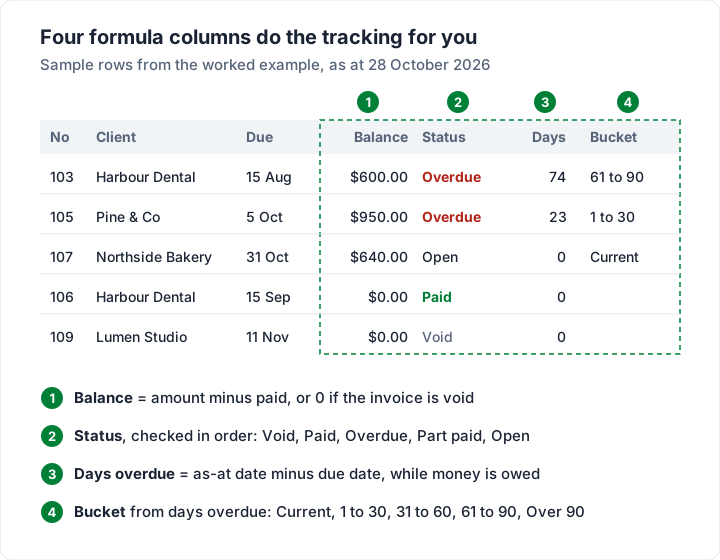
The formulas, one column at a time#
Each formula is written for row 2 (the first invoice) and copied down the column. The dollar signs in $M$1 keep every row pointing at the same as-at date.
Balance: what the client still owes#
=IF(K2="Void",0,E2-F2)
Amount minus paid. A void invoice returns 0, so you keep the row and its original amount without it counting as money owed. A negative result means the client overpaid: refund or credit the difference.
Status: one word that sorts the list#
=IF(K2="Void","Void",IF(G2<=0,"Paid",IF($M$1>D2,"Overdue",IF(F2>0,"Part paid","Open"))))
The order of the checks is the point of this formula:
- Void comes first, so a cancelled invoice never shows as paid or overdue.
- Paid when nothing is left to pay.
- Overdue when money is owed and the as-at date is after the due date. An invoice due today is not overdue yet.
- Part paid when some money has arrived and the due date has not passed.
- Open for everything else: sent, unpaid, not yet due.
Copy the formulas down only as far as the rows you have filled in: on an empty row the balance is 0, so the status would read Paid. (The download already handles this: its formulas leave an empty row blank, and a row with no due date says No due date instead of Overdue.)
Overdue outranks part paid on purpose: money past its due date is what you need to see. If the words blur, our post on outstanding vs overdue vs unpaid pins it down.
Days overdue: how late, in days#
=IF(G2>0,MAX(0,$M$1-D2),0)
Subtracting one date from another gives the days between them. MAX(0, ...) turns a not-yet-due invoice into 0 instead of a negative number, and paid invoices stop ageing. If the cell shows a date instead of a number, set the column's number format to General or Number.
Ageing bucket: which group the balance falls in#
=IF(G2<=0,"",IF(I2=0,"Current",IF(I2<=30,"1 to 30",IF(I2<=60,"31 to 60",IF(I2<=90,"61 to 90","Over 90")))))
Paid and void invoices get a blank bucket, so they drop out of the ageing summary. Due today counts as Current; the first day late starts 1 to 30.
Write bucket labels as words, not as 1-30. Spreadsheet apps can read an entry like 1-30 typed into a cell as a date, which breaks every formula that looks for the label. “1 to 30” stays plain text.
A worked example: nine invoices on 28 October 2026#
Here is the tracker for an invented small studio as at Wednesday 28 October 2026, with M1 set to that date. Balance, Status, Days and Bucket are what the formulas return.
| No | Client | Due | Amount | Paid | Balance | Status | Days | Bucket |
|---|---|---|---|---|---|---|---|---|
| 101 | Harbour Dental | 15 Jul | $1,200.00 | $1,200.00 | $0.00 | Paid | 0 | |
| 102 | Pine & Co | 9 Aug | $2,450.00 | $0.00 | $2,450.00 | Overdue | 80 | 61 to 90 |
| 103 | Harbour Dental | 15 Aug | $1,200.00 | $600.00 | $600.00 | Overdue | 74 | 61 to 90 |
| 104 | Lumen Studio | 19 Sep | $3,800.00 | $0.00 | $3,800.00 | Overdue | 39 | 31 to 60 |
| 105 | Pine & Co | 5 Oct | $950.00 | $0.00 | $950.00 | Overdue | 23 | 1 to 30 |
| 106 | Harbour Dental | 15 Sep | $1,200.00 | $1,200.00 | $0.00 | Paid | 0 | |
| 107 | Northside Bakery | 31 Oct | $640.00 | $0.00 | $640.00 | Open | 0 | Current |
| 108 | Harbour Dental | 15 Oct | $1,200.00 | $0.00 | $1,200.00 | Overdue | 13 | 1 to 30 |
| 109 | Lumen Studio | 11 Nov | $500.00 | $0.00 | $0.00 | Void | 0 |
Issue dates are left out to keep the table narrow; no formula uses them. Two rows are worth a second look:
- Invoice 103 reads Overdue, not Part paid. Harbour Dental paid $600.00 of $1,200.00, but the due date was 15 August, so the remaining $600.00 is 74 days late.
- Invoice 109 is void. It keeps its $500.00 amount for the record, but its balance is $0.00 and it appears in no bucket.
How we tested these formulas. We built this exact sheet with a script and calculated it with “formulas”, an open-source Python library that evaluates Excel formulas. Every balance, status, day count, bucket and total in this post matched. We did not open the file in Excel or Google Sheets themselves, so if a figure differs on your screen, check that the dates are real dates, not text.
The ageing summary, and one client's statement#
The ageing summary turns the bucket column into five totals. Put the five labels in L3 to L7, exactly as the bucket formula writes them, and this in M3, copied down to M7:
=SUMIFS($G$2:$G$500,$J$2:$J$500,L3)
SUMIFS adds up the balances whose bucket matches the label beside it. Raise 500 if you have more rows. Then add two check figures:
- Total outstanding in M8: =SUM(M3:M7)
- Of which overdue in M9, adding up every balance whose status is Overdue: the same SUMIFS pattern, with column H as the criteria range and the word Overdue as the criterion
For the nine invoices above, that gives:
| Bucket | Balance |
|---|---|
| Current | $640.00 |
| 1 to 30 | $2,150.00 |
| 31 to 60 | $3,800.00 |
| 61 to 90 | $3,050.00 |
| Over 90 | $0.00 |
| Total outstanding | $9,640.00 |
| Of which overdue | $9,000.00 |
The 1 to 30 bucket is invoices 105 and 108 ($950.00 + $1,200.00); 61 to 90 is invoices 102 and 103 ($2,450.00 + $600.00). The overdue figure is the total minus the one current invoice: $9,640.00 − $640.00 = $9,000.00.
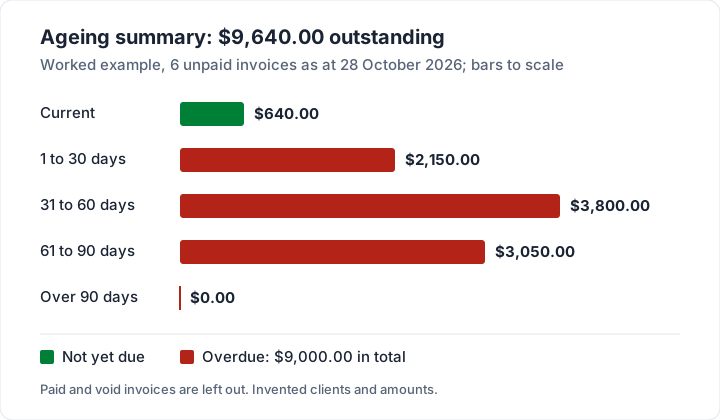
Start with the oldest money: the 61 to 90 group, Pine & Co's $2,450.00 and Harbour Dental's $600.00. Our overdue invoice follow-up email has wording for each stage, and how to run an open invoices report turns this summary into a weekly routine.
One client's statement. Filter column B to one client and hide the paid rows. Harbour Dental's list is invoice 103 ($600.00) and invoice 108 ($1,200.00): $1,800.00 in total. Do not send the tracker file itself, which shows every client's balances; copy the rows into an invoice statement template, such as our free statement of account for Excel.
Google Sheets: what is different#
Every formula here is typed the same way in Google Sheets; SUMIFS, MAX and nested IF all exist there. Our Google Sheets invoice template pairs with this tracker. The differences are practical:
- TODAY() moves with the calendar. For a month-end snapshot you can reproduce later, type the date instead.
- Sharing is easier and riskier. A shared sheet is the simplest way to give a bookkeeper access, and they will see every client's balance.
- Your region can change the separator. Some regional settings expect semicolons between formula arguments instead of commas. If a formula is rejected, try swapping them.
To colour overdue rows red in either app, select columns A to K from row 2 and add a conditional formatting rule with a custom formula. The dollar sign before H makes every cell in the row look at the status column:
=$H2="Overdue"
Recording payments, part payments and voids#
The formulas are only as good as what you type. Three rules keep them honest:
- Record a payment when it reaches your bank, not when the client says it is sent. Add it to the Paid cell ($600.00 then another $600.00 becomes $1,200.00) and the status changes on its own. To check deposits line by line, see how to match payments to invoices.
- Do not delete a cancelled invoice. Type Void in column K and leave the row; a gap in the numbering is harder to explain than a void. Our guide to void or cancel an invoice covers when to void and when to issue a credit note instead.
- Keep the invoice amount as sent. For a discount agreed later, record a credit note rather than overwriting the amount.
How long to keep these records depends on where you are. The IRS puts it this way: “The length of time you should keep a document depends on the action, expense, or event which the document records.” (IRS, How long should I keep records?, as of 28 October 2026). Rules outside the US vary; check your tax authority's page or ask an accountant. This is general information, not legal or tax advice.
When a spreadsheet stops being enough#
A tracker works well for a handful of clients. There is no fixed number of clients at which it stops coping, but the symptoms are easy to spot. Your tracker has outgrown itself when:
- You update it in a batch, days after the payments arrived, so the statuses are wrong most of the time.
- You check your inbox to find out whether an invoice was sent, because the sheet does not know.
- You write reminder emails by hand from the overdue rows, one client at a time.
- The invoices live in one file and the tracker in another, and the numbers drift apart.
If none of that sounds familiar, keep the sheet. It is free, private and entirely under your control.
What invoice tracking software does that a sheet cannot#
Invoice tracking software keeps the list because it also sends the invoices, so it knows more:
| Task | Spreadsheet | Invoice tracking software |
|---|---|---|
| Status | You type the facts; formulas sort them | Set from the invoice, its due date and the payments you record |
| Sent and viewed | You remember | Logged when sent; many tools show when the client opened it |
| Reminders | You write each one | Sent on a schedule you choose |
| Statements | Filter and copy | Generated per client |
| Recording payments | You type them | You still record them, unless the tool processes card payments or reads a bank feed |
That last row is the honest catch: software cannot know a bank transfer arrived unless it takes the payment or connects to your bank. Here is what three tools list on their own pricing pages, read on 28 October 2026:
| Tool | Price as listed | Relevant to tracking |
|---|---|---|
| Zoho Invoice | $0; “Send up to 500 invoices per year” | Lists automated payment reminders and a client portal; the free plan carries “Powered by Zoho Invoice” branding |
| Wave | Starter $0 with unlimited invoices; Pro $19 a month or $190 a year | Pro lists automatic bank transaction import and reminders 3, 7 and 14 days after the due date (with online payments) |
| Charming Invoices | Free; paid plans from $29 once | Statuses, statements and CSV export, with no email sending or reminders, covered in the next section with its limits |
We make Charming Invoices, so check our row against our own pricing page as you would any vendor's. Our guides to Zoho Invoice and Wave go deeper on each, and what to look for in invoicing software has a checklist for any tool.
Tracking invoices in Charming, and what it does not do#
In Charming, the tracker is a by-product of issuing invoices. Checked in our code on 28 October 2026:
- Statuses you never type. Every invoice shows Draft, Issued, Partially paid, Overdue, Paid or Void. Overdue and Partially paid are worked out from the due date and the payments you record, and overdue outranks partially paid, as in the sheet above.
- A dashboard showing Outstanding (still owed on issued invoices), the number of Overdue invoices, Paid this month and Drafts.
- Payments by method. Record a full or part payment as bank transfer, card, cash, check, online payment or other, and the balance updates.
- “Viewed by the client”, recorded when the client opens the invoice's private link. Bots and your own team are not counted, and repeat opens within 30 minutes count once.
- Statements with ageing. Each client has a Statement button that produces a PDF of their unpaid issued invoices in the same five buckets, labelled Current, 1–30 days, 31–60 days, 61–90 days and 90+ days. Drafts, voids and paid invoices are left out.
- Export CSV. The invoice list, filtered however you like, downloads with columns including Invoice number, Status, Client, Issue date, Due date, Total, Amount paid and Balance due. It is the bridge if you keep a spreadsheet too.
What it does not do, plainly: Charming does not email invoices or send reminders to your client; you send the PDF or private link yourself, and follow up from your own email. It processes no payments, has no bank feed, and does not track bills you receive. Payment tracking is manual: when a transfer lands, you mark the invoice paid or record the part payment yourself. The app has no tracker spreadsheet export of its own (the free tracker above is a separate file you fill in yourself), and no integrations with accounting software; the CSV export is the way out.
The catches on price: the free plan has unlimited invoices and clients for 1 business, but free invoices carry a small “Sent with Charming Invoices” line, which is hidden by default on paid plans. Paid plans are Individual at $29 once, Team at $79 once and Pro at $12 a month or $99 a year; the lifetime plans are final sale.
If you would rather stop maintaining formulas, create a free invoice, download the PDF and send it your way, or compare plans on the pricing page.
Questions about invoice trackers#
How do I keep track of invoices and payments?#
Keep one row per invoice with the amount, the total paid and a balance, and update the paid column the day money arrives. Add a status and an ageing bucket so overdue invoices sort themselves. The formulas in this post do that in Excel or Google Sheets; invoicing software does it as a side effect of sending.
Is there a free invoice tracker?#
Yes. Our free invoice tracker for Excel has the formulas from this post already filled in, and the recipe itself costs nothing either. As of 28 October 2026, Vertex42's invoice tracker page offers a free workbook for Excel and Google Sheets, with Draft, Sent, Partial, Paid and Closed statuses and an ageing summary, under a “Private Use” licence. Free invoicing apps, including Charming, track status for you as well.
What is an invoice log, ledger or register?#
The same thing as a tracker: a running list of every invoice issued, in number order, with dates, amounts and whether each is paid. “Register” and “ledger” are older bookkeeping words for it.
How long should I keep invoices?#
It depends on your country and on what the record supports. The IRS says the length of time “depends on the action, expense, or event which the document records” (as of 28 October 2026). Check your tax authority's page or ask an accountant.
The short version#
An invoice tracker is one row per invoice and four formulas: balance, status, days overdue and ageing bucket, plus a SUMIFS summary. In the worked example, nine invoices reduce to one fact worth acting on: $9,000.00 of $9,640.00 is overdue, and $3,050.00 of it is more than 60 days late. Keep the sheet while it is quick to update. When updating it becomes the job, let your invoicing software keep the list, and remember that someone still has to record the payments.
Free downloads
No sign-up and no email address. More on the free templates page.
- Download .xlsx: Invoice tracker for Excel
Invoice tracker for Excel
Excel .xlsxEvery invoice you have sent on one sheet, with its balance, status and how many days late it is.
- Download .xlsx: Statement of account for Excel
Statement of account for Excel
Excel .xlsxFor a client with several unpaid invoices: one page listing each one, what is left and how late it is.