Excel invoice template: free download with working formulas

Nnabuike Okoroafor ·
On this page · 11 sections
You want an invoice that adds itself up. You have Excel, you do not want to sign up for anything, and you definitely do not want to send a client a total that is a few dollars off because a formula pointed at the wrong row.
That is what a good invoice template for Excel is for: you type the client, the lines and the date, and the spreadsheet does the arithmetic. This page gives you two free Excel templates (a general one and an hourly one), shows every cell and formula inside them, and works through a full example so you can check the maths yourself. If you would rather build a spreadsheet invoice from a blank sheet, how to create an invoice with Excel covers that instead.
Download the free Excel invoice templates#
Both are ordinary Excel workbooks (.xlsx) with two tabs: “Invoice”, the page you send, and “How to use”, which repeats the steps inside the file. There is no sign-up and no email address to give.
| Template | Best for | Direct download |
|---|---|---|
| Invoice template for Excel | Products, services or a mix, priced by quantity and rate | invoice-template.xlsx |
| Hourly invoice template for Excel | Time-based work: one line per day or task, with a date and hours | hourly-invoice-template.xlsx |
The free templates page has the same workbooks, Word versions of the invoice template, and other free files such as a receipt, an estimate and an invoice tracker. If you write long descriptions and only price a line or two, the Word invoice template may suit you better, but you work out its totals yourself.
An .xlsx file cannot carry macros: Microsoft's file format reference describes the Excel Workbook format as one that “Can't store VBA macro code”. Everything in these files is plain cells, formulas and formatting.
What the Excel invoice template includes#
We read the workbook with a script and mapped every cell, so this is what is actually in the file rather than a description from memory. The Invoice sheet uses four columns, A to D, with gridlines hidden so it prints like a document.
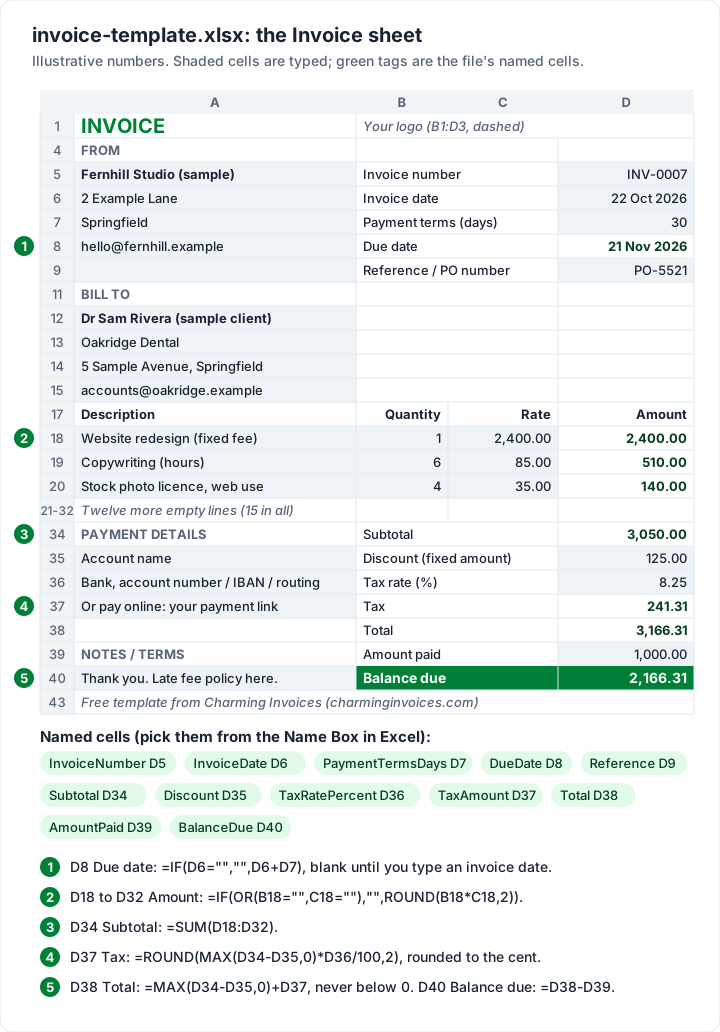
Here is the same map as a table: what you type, and what the sheet calculates for you.
| Area | Cells | What you type | What calculates |
|---|---|---|---|
| Header | A1, B1 to D3 | Your logo in the dashed box | Nothing |
| From (your details) | A5 to A9 | Business name, street, city, email and phone, tax number if registered | Nothing |
| Invoice details | D5 to D9 | Invoice number, invoice date, payment terms in days (starts at 30), reference or PO number | Due date in D8 |
| Bill to | A12 to A15 | Client name, company, address, email | Nothing |
| Line items | Rows 18 to 32 (15 lines) | Description, quantity, rate | Amount in column D |
| Totals | D34 to D40 | Discount (a fixed amount), tax rate (%), amount paid | Subtotal, tax, total, balance due |
| Check note | B41 (merged to D41) | Nothing: it stays empty unless the tax rate or discount looks wrong | A red warning line |
| Payment details | A35 to A37 | Account name, bank details, a payment link | Nothing |
| Notes | A40 | Terms, a late fee policy or a thank-you | Nothing |
| Footer | A43 | Nothing: delete the attribution line if you like | Nothing |
Some details that make the file easier to live with:
- Shaded cells are yours. The cells you type into carry a very faint fill; the file's own instructions say it is “faint so it barely shows on paper”. Select them and choose No Fill to remove it.
- Named cells. Twelve key cells have names: InvoiceNumber, InvoiceDate, PaymentTermsDays, DueDate, Reference, Subtotal, Discount, TaxRatePercent, TaxAmount, Total, AmountPaid and BalanceDue. Pick one from the Name Box (left of the formula bar) to jump straight to it.
- No currency symbol. Amounts show two decimals and a thousands separator, so the file works in any currency. Add a symbol by applying a currency number format to the amount cells.
- One page. The print area is set to the invoice alone (A1 to D43), scaled to fit one page wide and one page tall.
- Not locked. The sheet is not protected, so you can change anything, including the formulas. If you want to stop yourself typing over them, our Excel build guide shows how to lock formula cells.
How to fill in the Excel invoice template#
The first time, set up a master copy with your own details. After that, each invoice takes a few minutes.
- Save the download under a new name, such as “Invoice master.xlsx”, so the original stays clean.
- Type your business details over the From placeholders (A5 to A9) and your bank details or payment link in A35 to A37. Delete the tax number line if you are not registered for sales tax, VAT or GST.
- Add your logo. The file's How to use tab says: click the dashed box, then Insert, Pictures in Excel, size the picture to fit the box, then delete the words “Your logo”. Logo on an invoice covers file types and sizes.
- Set your usual payment terms in D7 (30 days unless you change it) and your standard note in A40. Save the master.
- For each invoice, open the master and save a copy straight away, named with the number and client, such as “INV-0007 Oakridge.xlsx”.
- Type the invoice number in D5. The file starts at INV-0001; it does not pick the next number for you.
- Type the invoice date in D6. The due date appears in D8 by itself.
- Fill in the client in A12 to A15.
- Add one line per item in rows 18 to 32: a description in column A, a quantity in B and a rate in C. The amount appears in D.
- Add any discount, tax rate or amount already paid in D35, D36 and D39. Leave them blank if they do not apply.
- Check the balance due in D40, then save a PDF: File, Save As (or Export), PDF in Excel. Microsoft's guide to saving as PDF has the steps for each version.
- Email the PDF, not the spreadsheet, and add the invoice to your log (more on that below).
What the cells will not let you type#
Seven cells or ranges use Excel's data validation, which Microsoft describes as a way “to restrict the type of data or the values that users enter into a cell” (Microsoft's data validation guide). An entry outside the rule is refused with a message saying what is allowed:
| Cell | Allowed | Message shown when you select it |
|---|---|---|
| D6 Invoice date | A date after 1 January 2000 | “The date you issue the invoice. The due date is worked out from it.” |
| D7 Payment terms | Whole days, 0 to 365 | “Days the client has to pay. 0 means due on receipt.” |
| B18 to B32 Quantity | A number of 0 or more | None; the refusal says “Quantity must be a number of 0 or more.” |
| C18 to C32 Rate | A number of 0 or more | None; the refusal says “Rate must be a number of 0 or more.” |
| D35 Discount | An amount of 0 or more | “A fixed amount taken off the subtotal before tax. Leave blank for none.” |
| D36 Tax rate | 0, or a number from 1 to 100 | “Type the percentage as a plain number: 20 for 20%. Leave blank if you don't charge tax.” |
| D39 Amount paid | An amount of 0 or more | “Deposits or part-payments already received. Leave blank if none.” |
The tax rate rule matters more than it looks. Excel stores both 0.2 and 20% as 0.2, and the tax formula divides the rate by 100, so either entry would quietly charge 0.2%. The cell therefore refuses anything between 0 and 1, with the message “Type the rate as a plain number from 1 to 100 (20 for 20%), or 0.” If a value like 0.2 gets in anyway (pasted over the cell, or opened in another spreadsheet app), a red note under the totals in B41 says “Check the tax rate: type 20 for 20%, not 0.2 or 20%.” The trade-off: a rate under 1% cannot be typed into this template.
The Excel invoice template formulas, explained#
There are only six kinds of formula in the general template, plus the check note in B41. Here they are exactly as they appear in the file:
D8         Due date      =IF(D6="","",D6+D7)
D18:D32    Amount        =IF(OR(B18="",C18=""),"",ROUND(B18*C18,2))   (one per row)
D34        Subtotal      =SUM(D18:D32)
D37        Tax           =ROUND(MAX(D34-D35,0)*D36/100,2)
D38        Total         =MAX(D34-D35,0)+D37
D40        Balance due   =D38-D39
What each one is doing, in plain words:
| Formula | In plain words | Why it is written that way |
|---|---|---|
| Amount | Quantity × rate, rounded to the cent, but only when both are typed | An unused line stays blank instead of printing 0.00, and each line shows exactly what the subtotal adds |
| Subtotal | Adds up all 15 amount cells | Blank lines count as nothing |
| Tax | (Subtotal − discount) × rate ÷ 100, rounded to two decimals | ROUND stops a hidden third decimal; MAX stops a negative tax if the discount is bigger than the subtotal |
| Total | Subtotal − discount + tax, never below 0 | The figure your client is billed. If the discount is bigger than the subtotal, the total stops at 0 and a red note in B41 says “The discount is over the subtotal: the total stops at 0.” |
| Balance due | Total − amount paid | A deposit or part-payment comes off what is still owed |
Microsoft's ROUND function page explains the syntax: ROUND(number, num_digits), so the 2 at the end keeps two decimal places.
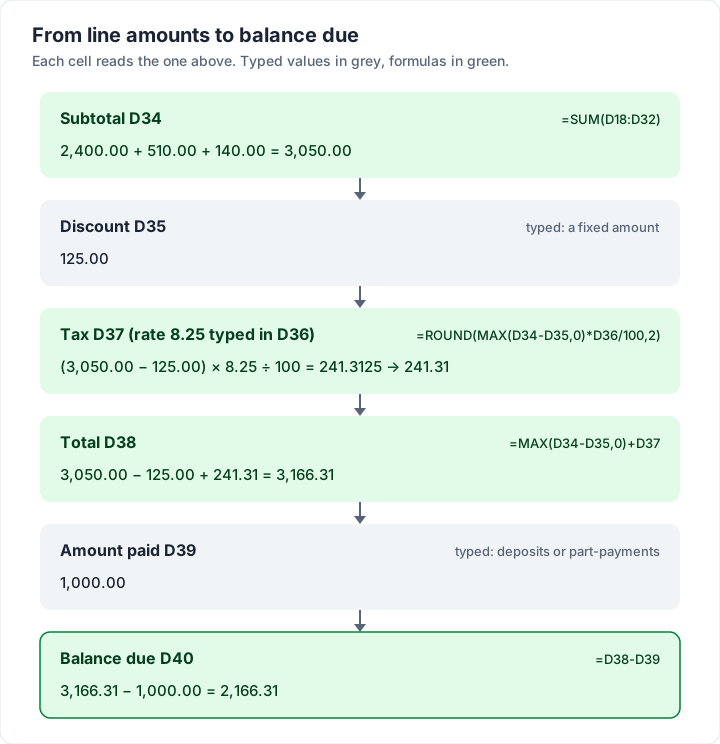
A worked example you can check#
An invented design studio bills an invented dental practice. The 8.25% tax rate is an example, not advice. If you run the practice rather than bill it, our dental invoice template guide covers patient and lab invoices.
| Description | Quantity | Rate | Amount |
|---|---|---|---|
| Website redesign (fixed fee) | 1 | 2,400.00 | 2,400.00 |
| Copywriting (hours) | 6 | 85.00 | 510.00 |
| Stock photo licence, web use | 4 | 35.00 | 140.00 |
| Subtotal | 3,050.00 | ||
| Discount (fixed amount) | 125.00 | ||
| Tax (8.25%, example) | 241.31 | ||
| Total | 3,166.31 | ||
| Amount paid (deposit) | 1,000.00 | ||
| Balance due | 2,166.31 |
Here is the arithmetic the file does: 2,400.00 + 510.00 + 140.00 = 3,050.00. Take off the 125.00 discount and the taxable amount is 2,925.00. 2,925.00 × 8.25 ÷ 100 is 241.3125, which ROUND turns into 241.31. The total is 3,050.00 − 125.00 + 241.31 = 3,166.31 (the discount is under the subtotal, so the never-below-0 rule does not come into it), and after the 1,000.00 deposit the client owes 2,166.31. With an invoice date of 22 October 2026 and the default 30-day terms, D8 shows a due date of 21 November 2026.
Why each line amount is rounded#
Each line amount is rounded to the cent before the subtotal adds it. With whole-cent rates and whole-number quantities that changes nothing. With fractional quantities it matters: 1.5 hours at 33.33 is 49.995, and without rounding the cell would show 50.00 while the subtotal added 49.995, so two such lines would print 50.00 and 50.00 above a subtotal of 99.99. Rounding each line keeps the printed lines and the subtotal in step. Our Excel build guide explains the same missing-cent problem if you build your own sheet.
How the due date is worked out from your payment terms#
The due date is the invoice date plus the number of days in D7. It works because, in Microsoft's words, “Excel stores dates as sequential serial numbers so that they can be used in calculations” (Microsoft's guide to adding or subtracting dates).
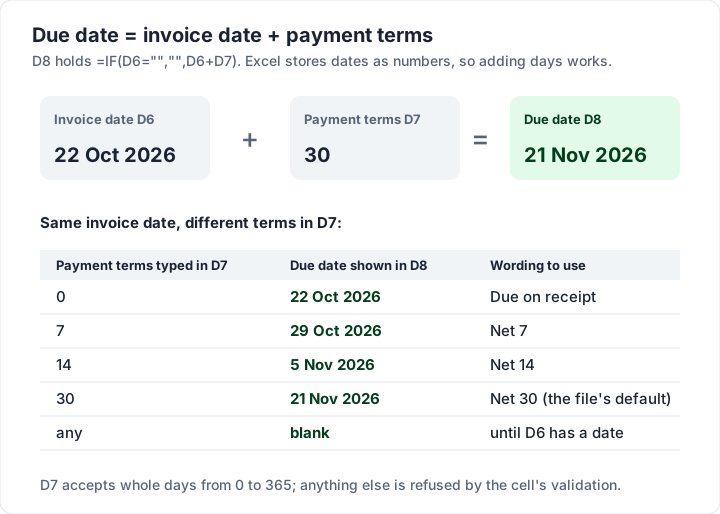
A few things to know about it:
- 0 means due on receipt. The due date then equals the invoice date. Invoice due upon receipt explains when that wording helps and when it does not.
- The terms are calendar days, not working days. 30 days from 22 October 2026 is Saturday 21 November 2026. If you want weekends handled differently, adjust the date yourself or use the free invoice due date calculator.
- Write the terms in words too. The sheet only shows the date. Adding “Net 30” to your note in A40 tells the client how the date was set. Invoice payment terms, in plain English covers which terms to choose.
If you charge for late payment, state it in the notes before the invoice goes out. Late fees on invoices covers how to word it and the rules to check where you work.
The hourly invoice template: dates, hours and Total hours#
The hourly workbook is the same invoice with a five-column line table (Date, Description of work, Hours, Hourly rate, Amount) and one extra total: Total hours, under the Hours column. It is the one to use for consulting, freelancing or any job billed by time.
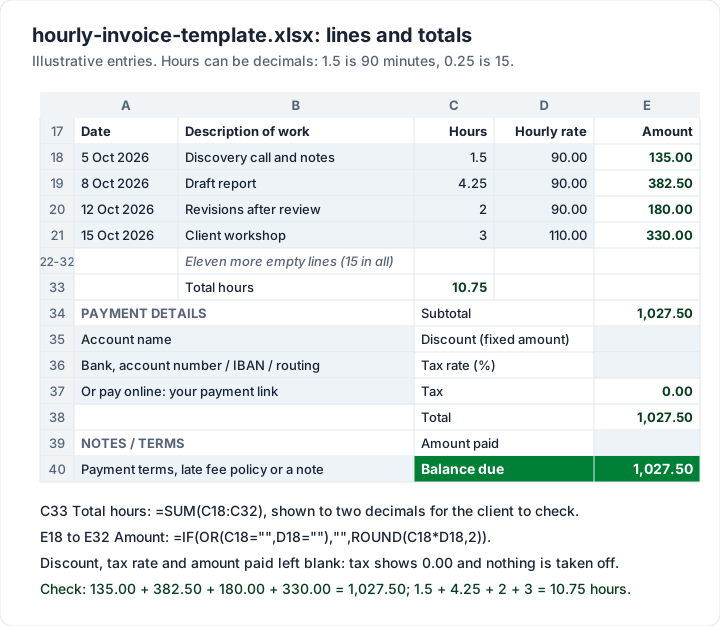
What is different from the general template:
- A date on every line, in column A, checked as a real date.
- Hours accept decimals. The file's instructions: “1.5 is an hour and a half, 0.25 is fifteen minutes.”
- Rates can differ by line. In the example, the workshop is billed at 110.00 and the rest at 90.00.
- Total hours in C33 is =SUM(C18:C32), shown to two decimals. In the example, 1.5 + 4.25 + 2 + 3 = 10.75 hours.
- Everything else moves one column right. The invoice details and totals sit in column E (InvoiceDate is E6, BalanceDue is E40), the check note sits in C41, and the named cells point to the new places, with TotalHours added.
The example invoice is dated 16 October 2026 on 14-day terms, so E8 shows 30 October 2026. With no discount, tax rate or payment entered, the tax shows 0.00 and the balance due equals the subtotal, 1,027.50.
The template does not track time for you: you still need the hours from a timer, a diary or a timesheet. For a filled-in hourly example with a PDF to print, see the hourly invoice template page, and how to invoice for consulting covers how much detail clients expect on time-based bills.
Adding lines, a currency symbol and other changes#
The How to use tab answers the common edits. In short:
| You want to | Do this |
|---|---|
| Add more than 15 lines | Right-click a row number inside the line items, choose Insert, then copy the Amount formula down from the row above. The subtotal picks the row up as long as it sits between the first and last line |
| Show a currency symbol | Select the amounts and apply a currency number format (Excel: Home, Number Format) |
| Remove the input shading | Select the shaded cells and choose No Fill |
| Remove a line you do not need | Delete the placeholder text, such as the company or tax number line |
| Fix a cell showing ##### | Widen the column; Microsoft's ##### error page says Excel shows it when a column “isn't wide enough to show all of the cell contents” |
One edit to avoid: inserting a new line below row 32 or above row 18. It falls outside the SUM range, so the subtotal ignores it. Insert inside the block, then check that the subtotal moved.
Opening the Excel template in Google Sheets or Numbers#
The file is a standard .xlsx made for Excel. Other spreadsheet apps may open it after conversion, but we have not checked them. The official routes:
| App | How to open it | Source |
|---|---|---|
| Google Sheets | In Google Drive, double-click the file; to make a Google copy, click Open in Google Sheets, then File, Save as Google Sheets | Google's help on Office files |
| Apple Numbers | Drag the file to the Numbers icon, or choose File, Open | Apple's Numbers guide |
We build these files by script and have not opened them in Excel, Google Sheets or Numbers. Before you send an invoice from another app, run a 30-second test: change a quantity and a rate, and confirm the amount, subtotal, tax, total and balance due all move, and that the due date still appears. For apps that invoice on a Mac without a spreadsheet, see invoicing software for Mac. Google's help page lists how Office files behave in Sheets, so read it before you rely on any cell protection after converting. For the Google route step by step, with a test invoice to run after converting, see our invoice template for Google Docs and Sheets.
Keeping an invoice log and numbering beside the template#
The template is one invoice. It does not know about the invoice before it, which is where spreadsheet invoicing usually goes wrong. Two habits fix most of it:
- One file per invoice, named by number, saved as a copy of the master. Past invoices then stay exactly as you sent them.
- A log: a separate sheet or workbook with one row per invoice (number, date, client, total, due date, amount paid, paid date). Take the next number from the log before you start an invoice, and fill in the paid columns when money arrives. Our invoice tracker guide turns that log into a full tracker, with balance, status and ageing formulas.
How to number invoices covers formats and gaps, and our Excel build guide shows a MAX formula that suggests the next number from a log. When payments land in your bank account, invoice reconciliation explains how to match them to the right rows. When one client has several invoices open, an invoice statement template shows how to list them all on one page, with how overdue each one is.
Plenty of people manage this way for years: one template, one invoice a month per client on agreed terms, and a log kept up to date.
Excel invoice template vs an invoicing app#
A spreadsheet is a fine answer for a handful of invoices a month. The difference with an invoicing app is not the arithmetic, which the template already does, but the memory around it.
| Job | Excel invoice template | Charming Invoices |
|---|---|---|
| Line amounts, tax and totals | Formulas in the file | Calculated to the cent, one tax rate per invoice and a fixed discount |
| Due date from terms | Formula in D8 | Set on each invoice |
| Next invoice number | You type it from your log | Assigned automatically per business, with no gaps |
| Who has paid | Your log, updated by hand | Statuses, and payments you record (including part-payments) |
| Reminders | You check the log and write the email | Overdue invoices are flagged; you write and send the reminder yourself |
| Sending | Save a PDF, attach it to an email | Download the PDF, print it or copy a private link your client opens without an account, then send it your way |
| Export | It is already a spreadsheet | Invoice list exports as CSV, not .xlsx |
| Cost | Free download | Free plan; paid plans from $29 once |
The catches, stated plainly: Charming does not process card payments (clients pay you directly and you record it or mark it paid), it does not import your Excel invoices or clients, it does not email invoices or send reminders (set a calendar reminder or use your own email), and free invoices carry a small “Sent with Charming Invoices” line. The free plan has no invoice limit and covers 1 business; lifetime plans are final sale. If your log is getting long, create a free invoice and compare it with your spreadsheet.
Questions about Excel invoice templates#
Does Excel have built-in invoice templates?#
Yes. Microsoft publishes free invoice templates for Excel. When we checked on 22 October 2026, Microsoft's free invoice template gallery listed 10 templates, all Excel workbooks, including simple, service and timesheet invoices. Test any of them by changing a quantity and checking the total moves.
Is this Excel invoice template free?#
Yes. Download it, change it and use it as often as you like for your own invoices. There is no sign-up, and the attribution line at the bottom of the sheet is yours to delete.
Can I add my logo?#
Yes. Click the dashed box at the top right, use Insert, Pictures, size the image to fit and delete the words “Your logo”. The box spans B1 to D3, so the logo sits beside the word INVOICE.
Why does my total show ####?#
The column is too narrow for the number. Widen the column by dragging the right edge of its header.
Can I change the tax to a different rate per line?#
Not in this template: it applies one rate to the subtotal after any discount, which covers a single sales tax, VAT or GST rate. If you need tax per line or several rates, add a tax column and change the formulas, and check your tax authority's guidance on what the invoice shows. For UK VAT, what HMRC lists for a UK VAT invoice links HMRC's guidance. This is general information, not tax advice.
Can Charming export my invoices to Excel?#
Charming exports your invoice list as a CSV file (number, status, client, dates, totals, amount paid, balance due and more), which Excel opens. It does not produce .xlsx invoices or import spreadsheet invoices.
Free downloads
No sign-up and no email address. More on the free templates page.
- Download .xlsx: Invoice template for Excel
Invoice template for Excel
Excel .xlsxThe general-purpose invoice: products, services or a mix, priced by quantity and rate.
- Download .xlsx: Hourly invoice template for Excel
Hourly invoice template for Excel
Excel .xlsxFor time-based work: one line per day or task, billed by the hour.