Invoice template for Word: free download and how to fill it

Nnabuike Okoroafor ·
On this page · 10 sections
You need an invoice out today, you have Microsoft Word, and you do not want to build a layout from nothing. A good invoice template for Word gets you most of the way: the boxes are already in the right places, and you only type what changes.
This page gives you two free Word templates and explains exactly what is inside them, so you know what you are downloading before you open it. It also covers the totals in detail. Word tables do not add up by themselves, so you either do the arithmetic, add formulas you have to refresh, or use a spreadsheet instead. If you would rather build your own layout from a blank page, how to create an invoice in Word walks through that instead.
Download the free Word invoice templates#
Both files are ordinary Word documents (.docx). There is no sign-up and no email address to give. Download one, open it in Word and type over the placeholders.
| Template | Best for | Direct download |
|---|---|---|
| General invoice template | Products, services or a mix, priced by quantity and rate | invoice-template.docx |
| Service invoice template | A job: what you did, where and when, then labour and materials, minus any deposit | service-invoice-template.docx |
The free templates page has the same files, Excel versions of the invoice template whose totals calculate by formula, and other free files such as a receipt and an estimate. If the arithmetic is the part you dread, the Excel invoice template is the better download.
Both Word files are blank starting points. They do not connect to Charming Invoices or any other app, and nothing you type in them goes anywhere.
What is in the Word invoice templates#
We read both files with a script and listed what they actually contain, so nothing below is a guess. Both use the Calibri font on an A4 page with 0.625-inch margins, and the layout is built from plain Word tables, which makes it easy to edit and hard to knock out of place.
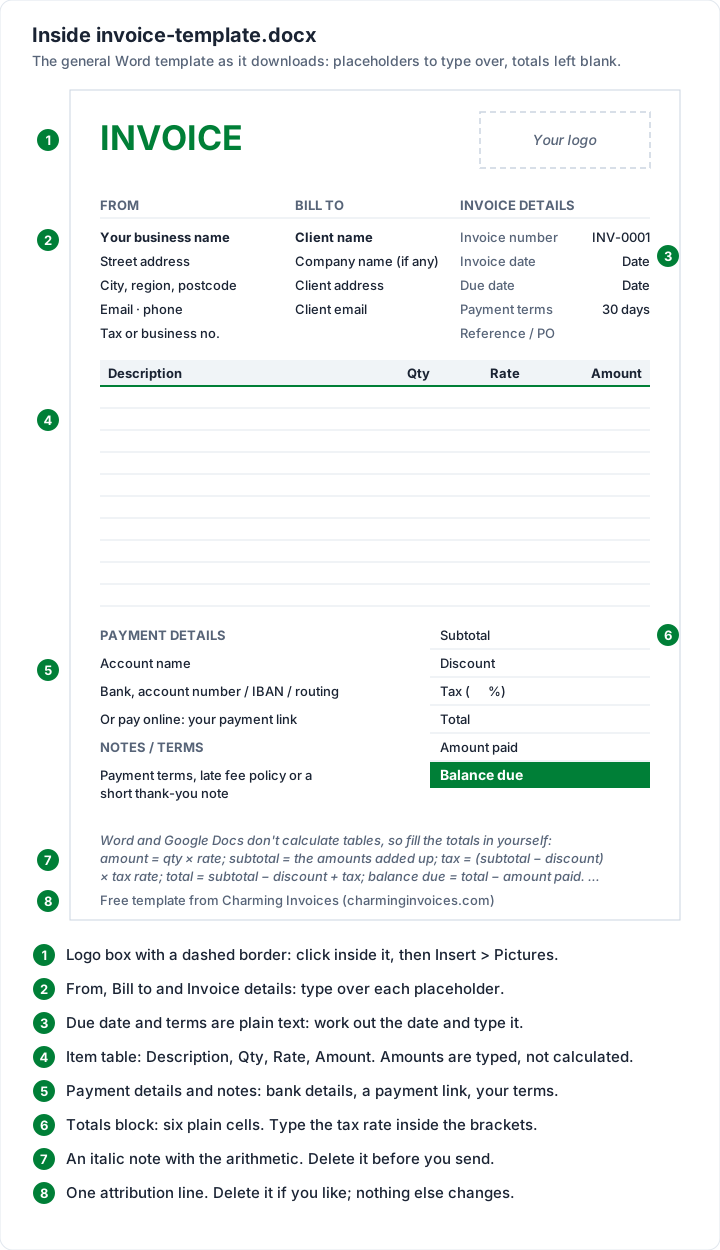
Here is what each file holds, section by section:
| Section | General template (invoice-template.docx) | Service template (service-invoice-template.docx) |
|---|---|---|
| Header | “INVOICE” and a dashed box marked “Your logo” | The same |
| Your details | Business name, street, city, region and postcode, email and phone, tax or business number (if registered) | The same |
| Bill to | Client name, company name (if any), client address, client email | The same |
| Invoice details | Invoice number (INV-0001), invoice date, due date, payment terms (30 days), reference or PO | The same |
| Description of work | None | A box for job or project, site address, dates of work and work performed |
| Line items | A 10-row table: Description, Qty, Rate, Amount | A 6-row “Labour and materials” table: Item, Qty / hours, Rate, Amount |
| Payment details | Account name, bank and account number (IBAN or routing), a payment link | The same |
| Notes and terms | A space for payment terms, a late fee policy or a thank-you note | The same |
| Totals | Subtotal, Discount, Tax ( %), Total, Amount paid, Balance due | Subtotal, Discount, Tax ( %), Total, Less deposit paid, Balance due |
| Helper text | A short italic note with the arithmetic, to delete before sending | The same, with the deposit in place of amount paid |
| Footer line | “Made with a free Charming Invoices template · charminginvoices.com · Free to use and share, not for resale.”, which you can delete | The same |
Three things the files deliberately do not contain:
- No formulas. Every amount and total is a plain table cell. The italic note under the totals says so in its first words: “Word and Google Docs don't calculate tables, so fill the totals in yourself”.
- No macros. A .docx file cannot hold them: Microsoft's file format reference describes the Word Document format as “Can't store VBA macro code.” Be wary of any invoice template that arrives as a .docm, which can.
- No content controls, headers or footers. Everything is in the body of the page, so you click a placeholder and type.
For what every invoice needs to show, and why, see what actually belongs on an invoice. Not sure which of the two to pick? Sales invoice vs service invoice explains the difference, and the service template's deposit line pairs with how a deposit invoice works.
How to fill in the Word invoice template#
Do this once to make your own master copy, then the short version for each invoice after that.
Make it yours once#
- Download the file and save it under a new name, such as “Invoice master.docx”, in the folder where you keep your invoices.
- Add your logo. Click inside the dashed box, delete the words “Your logo”, then use Insert, Pictures, This Device, as Microsoft's guide to inserting pictures describes. In Word for the web it is Insert, Picture, This device. Drag a corner handle to resize it so it sits inside the box. Putting a logo on an invoice covers file types and sizes.
- Type your details over the From placeholders and the payment details block. Delete the tax number line if you are not registered for sales tax, VAT or GST.
- Change the colour if you want. The “INVOICE” heading, the column rule and the Balance due row are green by default. Select them and pick your brand colour. How to customize an invoice without breaking it has the rules for colour and contrast.
- Write your standard terms in the notes block, such as your payment terms and late fee policy. Invoice payment terms, in plain English explains what Net 14 or Net 30 commits you to.
- Save it. Either keep this as your master document, or save it as a Word template (.dotx) so every new invoice opens as an untitled copy (steps in the FAQ below).
Then, for every invoice#
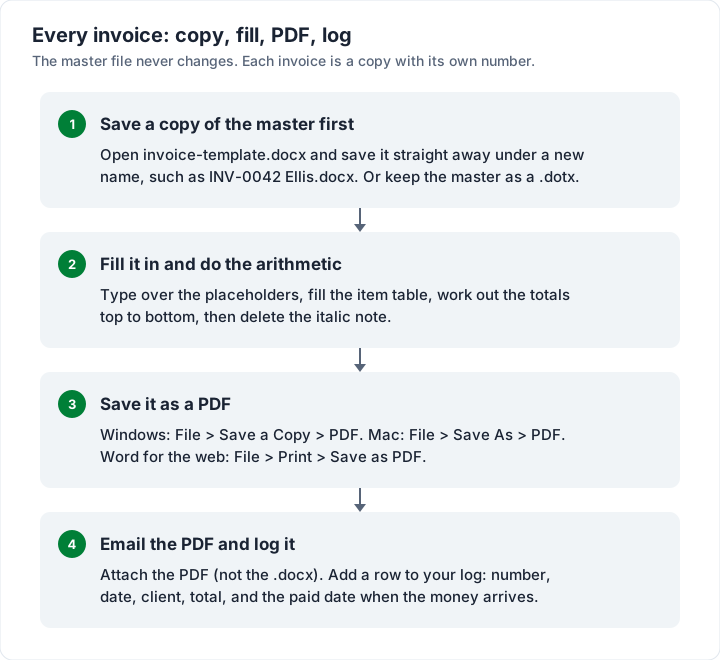
- Open the master and immediately save a copy named with the invoice number and client, such as “INV-0042 Ellis.docx”.
- Fill in the client under Bill to, and delete the company line if there is none.
- Give it the next invoice number. Each document stands alone, so take it from your log. How to number invoices covers formats and what to do about a gap.
- Type the invoice date, the terms and the due date. All three are plain text, so work the due date out yourself: 22 October 2026 on 14-day terms is due on 5 November 2026. The free invoice due date calculator does the counting if you prefer.
- Fill the item table, one line per product, service or block of hours. To add a row, click in the last row and choose Insert Below on the Table Layout tab, as Microsoft's table guide for Word for Mac describes. The same guide gives a shortcut: “To add a row at the end of a table, select the last cell of the last row, and then press the Tab key.” To remove a row you do not need, select it and use Delete on the Table Layout tab.
- Work out the totals (next section), then delete the italic note under them.
- Save it as a PDF and send that, not the .docx.
Getting the totals right in a Word invoice#
This is the step to take care over. A changed quantity with an unchanged total is the classic error, and the client spots it before you do. You have three ways to handle it.
Option 1: work the totals out by hand#
For one or two lines this is the quickest route, and it is what the templates are set up for. Fill the totals block from the top down, because each line uses the one above it:
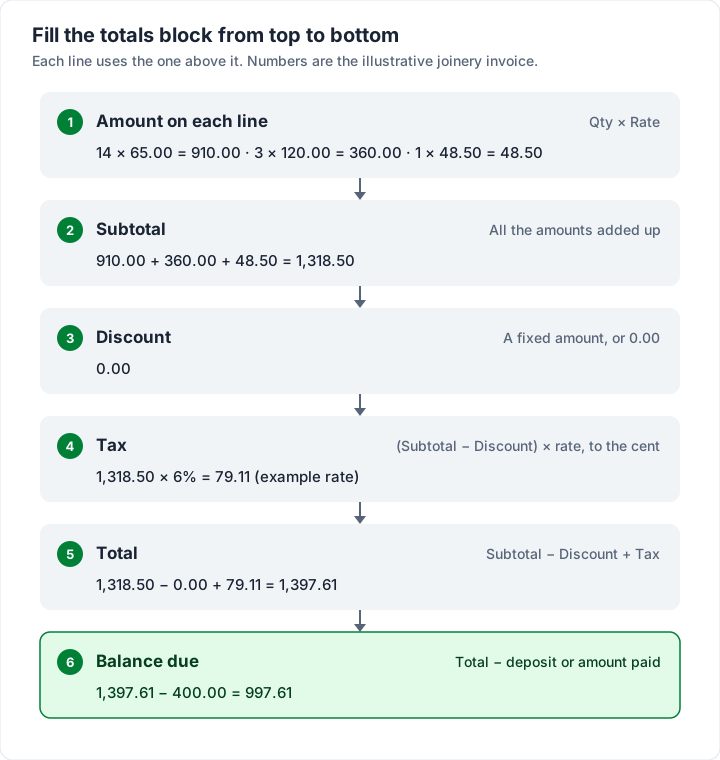
The rules, from the note inside the file:
- Amount = quantity × rate, on each line
- Subtotal = all the amounts added up
- Tax = (subtotal − discount) × your tax rate, rounded to the cent. Type the rate inside the brackets of “Tax ( %)” so the client can see it
- Total = subtotal − discount + tax
- Balance due = total − anything already paid (on the service template, the deposit)
Only add tax if you charge sales tax, VAT or GST; if you do not, leave the tax line at zero or delete the row. What is a tax invoice links the official guidance on what a tax invoice shows. This is general information, not legal or tax advice.
Option 2: add Word table formulas yourself#
Word tables can calculate, with limits. Microsoft's guide to using a formula in a Word table says to click the cell and then, “On the Table Layout tab, in the Data group, select Formula.” Word names table cells like a spreadsheet: columns A, B, C, D from the left and rows 1, 2, 3 from the top, counting the header as row 1.
In our general template that gives you:
| Where | Formula to insert | What it does |
|---|---|---|
| Item table, Amount on the first line (D2) | =B2*C2, then =B3*C3 and so on down | Quantity times rate |
| Totals block, Tax (D3) | =ROUND((D1-D2)*0.06,2) | An example 6% of the subtotal after discount; put your own rate in place of 0.06 |
| Totals block, Total (D4) | =D1-D2+D3 | Subtotal minus discount plus tax |
| Totals block, Balance due (D6) | =D4-D5 | Total minus amount paid |
The subtotal is the awkward one. The line items and the totals block are two separate tables, and a Word formula only sees its own table unless you bookmark the other one: Microsoft's formula field reference says “To reference cells in another table, or to reference a cell from outside a table, identify the table with a bookmark”, with the example =average(Table2 b:b). Most people find it simpler to add up the line amounts and type the subtotal.
Know the limits before you rely on formulas:
- They do not update as you type. Microsoft says a formula “automatically updates when you open the document”. After any change, select the whole table and press F9, then check the total once by hand.
- Word for the web cannot add them. Microsoft's SUM page says: “Using a SUM formula in a table isn't currently possible in Word for the web.” Use the desktop app.
- Google Docs tables do not calculate, as the note in the file says, so formulas are no help if you edit there.
Our guide to building an invoice in Word has a full worked example of Word table formulas, including why naming cells beats =SUM(ABOVE).
Option 3: use the Excel version instead#
If you have more than a few lines, or you change quantities often, a spreadsheet is the right tool. The Excel templates on the downloads page have the same layout with every amount, the subtotal, tax, total and balance due calculated by formula. Our Excel invoice template guide explains each formula.
A filled-in example: the service invoice template#
Here is the service template filled in for an invented joinery business. The names, addresses and the 6% tax rate are illustrative, not real.
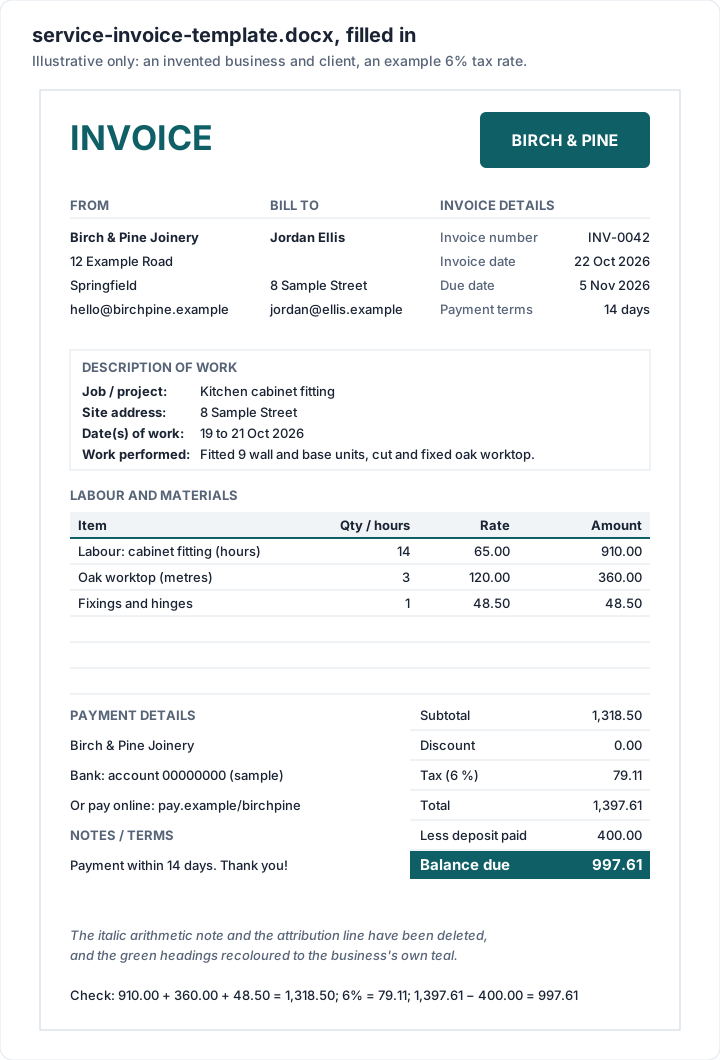
| Item | Qty / hours | Rate | Amount |
|---|---|---|---|
| Labour: cabinet fitting (hours) | 14 | 65.00 | 910.00 |
| Oak worktop (metres) | 3 | 120.00 | 360.00 |
| Fixings and hinges | 1 | 48.50 | 48.50 |
| Subtotal | 1,318.50 | ||
| Tax (6%, example) | 79.11 | ||
| Total | 1,397.61 | ||
| Less deposit paid | 400.00 | ||
| Balance due | 997.61 |
Check it the way your client will: 14 × 65.00 is 910.00 and 3 × 120.00 is 360.00, so the subtotal is 910.00 + 360.00 + 48.50 = 1,318.50. Six per cent of 1,318.50 is 79.11, which makes the total 1,397.61, and taking off the 400.00 deposit leaves 997.61.
The description-of-work box is what makes this a service invoice: the client can match the bill to the job, the site and the dates without phoning you.
Save it as a PDF and send it#
Send your client a PDF, not the Word file. A .docx can be edited, may reflow on their computer, and can carry comments or tracked changes you did not mean to share. Microsoft's guide to saving as PDF gives the route for each version of Word:
| Word version | Steps |
|---|---|
| Windows | File, Save a Copy, choose PDF as the file type, Save |
| Mac | File, Save As, set File Format to PDF, Save |
| Word for the web | File, Print, choose Save as PDF, Save |
If you added formulas, press F9 on each table before you make the PDF: the PDF keeps whatever the cells showed at that moment. Then attach it to an email with the invoice number in the subject line. How to email an invoice has subject lines and wording you can copy. If you work on a Mac and want an app instead of a Word file, invoicing software for Mac compares the options.
Microsoft's Word invoice templates vs these#
Word also has its own templates. Microsoft's guide to creating a document says to select File, New, then type a word “like letter, resume, or invoice” into the Search for online templates box, preview one and select Create. Microsoft's web page of free invoice templates is a separate gallery: when we checked it on 22 October 2026, the old Create address redirected to a page listing 10 invoice templates, all of them Excel workbooks.
| Microsoft's templates | These two .docx files | |
|---|---|---|
| Where to get them | Inside Word (File, New, search) or Microsoft's web gallery | The downloads page, no sign-up |
| Totals | Varies by template; test one by changing a quantity | Plain cells by design, with the arithmetic written out in the file |
| Layout | Varies; some use floating text boxes | Plain tables, easy to edit, A4 page |
| Service job details | Depends on the template | Built into the service template |
| Cost | Free | Free |
Neither is better for everyone. If one of Microsoft's designs suits your brand, use it, and check whether its total is a formula before you rely on it. If you want a plain layout you can understand in a minute, with a deposit line and a job description already there, use ours.
Using the Word template in Google Docs#
The file is made for Word. Google Docs can open it after conversion, but we have not checked it there, so check the totals and layout. Google's help on working with Office files says to double-click the file in Google Drive and it “opens in Google Docs, Sheets, or Slides”; to make a Google copy, click Open in Google Docs, then File, Save as Google Docs. Google also warns that some Office features “may not display or be editable”, so look over the page before you send anything. If you work mostly in Google's tools and want the maths done for you, try the Excel template in Google Sheets instead (Docs tables do not calculate), and change a quantity to check the totals update before you rely on it. Our guide to the invoice template for Google Docs and Sheets has the upload steps and the checks to run after converting.
What to keep track of alongside a Word template#
A Word template is a sensible answer for a handful of invoices a month. Each invoice is a separate document, though, and invoicing is partly record-keeping, so a few habits keep the records straight as the volume grows:
| What to watch | Why | The habit that helps |
|---|---|---|
| Totals that match the lines | The totals are typed cells, or formulas refreshed with F9 | Fill totals top to bottom; press F9 before every PDF |
| A unique number on every invoice | Each document stands alone | Take every number from a log and add the row first |
| Who has paid | Each file records what you billed | Add amount paid and paid date to your log |
| Overdue invoices | Due dates live in your log | Check the log weekly for unpaid rows past due |
| The version you sent | You will have many similar files | Keep the sent PDF next to the .docx, named by number |
If those habits are taking real time each month, an invoicing app that keeps the record for you may suit you better. Paid invoices explains what a proper paid record looks like, whichever tool you use.
What Charming keeps track of#
We make Charming Invoices, so here is the honest version. It keeps the record for you:
- Invoice numbers assign themselves, per business, with no gaps. A “Next invoice number” setting lets you carry on from your Word numbering (it can be raised, never lowered).
- Totals calculate to the cent, with one tax rate per invoice and a fixed-amount discount, and deposits come off the balance due.
- 60 templates with your logo, any brand colour and 30 fonts, so you do not have to rebuild a layout.
- Each invoice is issued as a PDF and a private link your client opens without an account, and you can see when they have viewed the link. You send it however you like.
- Overdue invoices are flagged, so you can see what is still owed at a glance.
The catches: Charming does not open, import or export Word files; invoices are PDFs and a private link. Clients pay you directly (Charming does not process card payments), so you record each payment or mark it paid yourself. Charming does not email the invoice or send reminders; you send the PDF or link from your own email. The free plan has no invoice limit but covers 1 business, and free invoices carry a small “Sent with Charming Invoices” line. Paid plans start at $29 once, and lifetime plans are final sale. If that trade suits you, create a free invoice and compare it with your Word version, or browse the 60 invoice templates first.
Questions about Word invoice templates#
Is there an invoice template in Word?#
Yes. In Word, select File, then New, and type “invoice” into the Search for online templates box. Microsoft's designs vary, so change a quantity and check the total before you rely on one. The two files on this page are an alternative with a plain, table-based layout.
Is this Word invoice template really free?#
Yes. Download it, change it and use it for your own invoices as often as you like. There is no sign-up. The one line at the foot of the page that names Charming Invoices is there to be deleted.
Can I add my logo to the Word invoice template?#
Yes. Click inside the dashed logo box, delete the words “Your logo”, and insert your image with Insert, then Pictures. Use a PNG or JPG large enough to print sharply; logo on an invoice has the sizes.
Should I keep it as a .docx or save a .dotx?#
Either works. A .dotx is a Word template: opening it creates a new, untitled document, so you cannot type over your master by accident. Microsoft's guide to creating a template gives the steps: on Windows, File, Save As, then Word Template in the Save as type list; on a Mac, File, Save as Template. To use it, choose File, New, Personal on Windows, or File, New from Template on a Mac.
Will the Word template calculate the totals?#
No. The amounts and totals are plain table cells, on purpose: Word formulas need F9 to refresh and Google Docs tables do not calculate, so the file writes out the arithmetic in a note instead. You can add Word formulas yourself (see above), or use the Excel version, which calculates as you type.
Does it print on US Letter paper?#
The page is set to A4. If you print on Letter, change the paper size in Word's page setup and check the preview before you print; the layout has no floating boxes to drift.
Can I import a filled-in Word invoice into Charming?#
No. The files are standalone, and Charming does not import invoices or clients from any tool. If you switch, you add your business and clients once and set the next invoice number so your numbering carries on.
For the bigger picture on building and sending invoices, how to make an invoice covers every field step by step, and if you would rather build your own spreadsheet from scratch, how to create an invoice with Excel shows how.
Free downloads
No sign-up and no email address. More on the free templates page.
- Download .docx: Invoice template for Word
Invoice template for Word
Word .docxThe general invoice as a Word document, for people who would rather type than use cells.
- Download .docx: Service invoice template for Word
Service invoice template for Word
Word .docxFor a job: what you did, where and when, then labour and materials.