QuickBooks Online invoices: credits, imports, batches and email

Nnabuike Okoroafor ·
On this page · 11 sections
Disclosure: We make Charming Invoices, an invoicing app that competes with QuickBooks for people who only send invoices. Every QuickBooks step and limit below comes from Intuit’s own help articles, read on 28 October 2026 and linked, with their wording quoted where the exact words matter. Where a step involves your books, ask whoever keeps them; this is general information, not accounting or tax advice.
You already know how to send an invoice in QuickBooks Online. The question is the next thing: a client is owed a credit, you have 60 invoices in a spreadsheet, the batch screen is missing, or a client swears the invoice never arrived. Each of those has its own Intuit help article, and several come with plan or size limits worth knowing first.
This guide covers the QuickBooks Online invoice tasks people search for once the basics are done: creating and applying a credit to an invoice, the difference between a credit memo and a delayed credit, importing invoices, batch invoicing, invoices that do not send or do not arrive, and clients who cannot pay online. For the basics themselves (creating, customizing, sending, voiding), see how QuickBooks invoicing works, which also has a table of common first-week fixes.
QuickBooks invoice fixes in short#
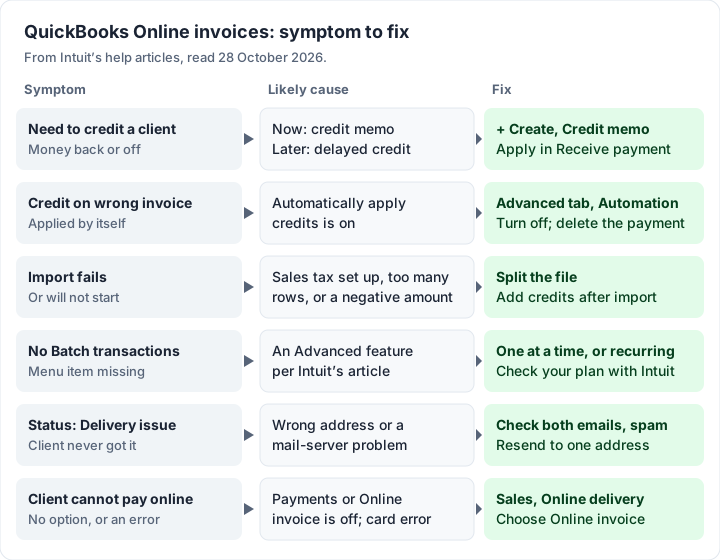
Find your symptom, then jump to its section.
| Symptom | Likely cause | Section |
|---|---|---|
| You need to give a client money back or off | Use a credit memo, or a delayed credit for later | Credit invoice; apply a credit |
| A credit went on the wrong invoice by itself | Automatically apply credits is on | Apply a credit |
| Your invoice import fails or will not start | Sales tax set up, a limit hit, or a negative amount | Import invoices |
| You cannot find Batch transactions | It is a QuickBooks Online Advanced feature | Batch invoicing |
| The status says Delivery issue | A wrong address or a mail-server problem, for at least one recipient | Not sending |
| The client cannot pay from the invoice | QuickBooks Payments or the online invoice setting is off, or a card error | Client cannot pay |
How to create a credit invoice in QuickBooks Online#
What most people call a “credit invoice” is a credit memo in US QuickBooks Online: a separate document that reduces what a client owes, without touching the original invoice. Intuit’s US help article Create and apply credit memos or delayed credits in QuickBooks Online (updated 21 October 2026) gives the steps:
- Select + Create.
- Select Credit memo (or Delayed credit, see the next sections).
- Choose the customer from the Customer dropdown.
- Enter the details, such as the date and the amount.
- Select Save and close.
Intuit suggests creating “a custom credit service item so you can quickly add it as a single line item.” If you issue credits often, it saves retyping.
Creating the credit memo does not finish the job: you still have to apply it to an invoice, which is the next section. Before you create one at all, check it is the right tool. A credit memo is for money the client genuinely gets back or off (a return, an agreed discount, an overcharge). If the invoice itself was a mistake, voiding it may be cleaner; our guide to when to delete, void or cancel an invoice sets out the difference, and when to issue a credit note covers the general case outside QuickBooks.
How to apply a credit to an invoice in QuickBooks Online#
There are two routes, depending on one setting.
If “Automatically apply credits” is on, QuickBooks applies the credit for you. Intuit explains what that means: “When you turn this setting on, QuickBooks applies the credit to the oldest unpaid invoice and if the credit matches or exceeds the remaining balance, closes the invoice.” Any credit left over goes to the next oldest unpaid invoice. So if a credit lands on a different invoice from the one you meant, this setting is the first thing to check: it goes to the oldest.
You turn the setting on or off under Settings, Account and settings, the Advanced tab, Edit in the Automation section. To undo a credit applied by mistake, Intuit’s steps are: open the invoice, select the blue link of the applied credit, then its date to open the payment, then More, Delete, and Yes.
If the setting is off, you apply the credit memo yourself through Receive payment, the same screen you use to match payments to invoices:
- Select + Create, then Receive payment.
- Choose the customer.
- Under Outstanding Transactions, select the invoice the credit is for.
- Under Credits, select the credit memo or memos.
- In the invoice’s Payment column, enter how much credit to apply.
- Leave the money fields empty. Intuit’s instruction is: “Leave Payment method, Reference no, Deposit to, and Amount received blank.”
- Fill in the rest, including the Payment date, check the total and select Record and close.
Two notes from the same article. If you do not see a Credits section, the customer may have no credit memo yet. And if there is nothing to apply it to: “If there are no unpaid invoices, the credit memo’s status is Unapplied, and your customer’s balance is negative.”
When the credit covers the whole balance, the invoice closes. Whether your client sees that as “paid” is a question of wording on your side; our guide to when an invoice counts as paid covers what to send them.
Credit memo or delayed credit: which one to use#
QuickBooks has two kinds of credit. In Intuit’s words, from the same article:
| Credit memo | Delayed credit | |
|---|---|---|
| When to use it | “If your customer wants to immediately reduce their current open balance, use a credit memo.” | “If you want to track a customer's credit for future use, without it immediately affecting their current open balance, use a delayed credit.” |
| How it is used | Applied through Receive payment, in part or in full | Added to a future invoice as a line item |
| Sales reports | “Credit memos impact sales reports, even if you don't apply them to invoices.” | “Unlike credit memos, delayed credits don't impact sales reports until they’re applied to invoices.” |
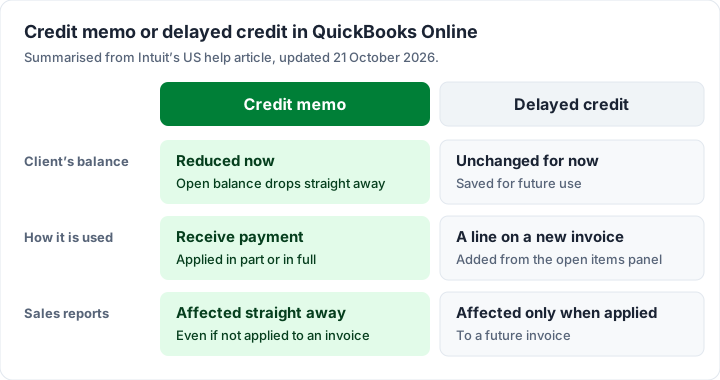
To use a delayed credit, start a new invoice for the customer. QuickBooks opens a panel of their open transactions; select Add on the delayed credit and it becomes a line on the invoice. Intuit warns: “Remember, adding a delayed credit to an invoice from a previous accounting period will affect the balances for that period.” If your books for that period are closed, talk to whoever closed them first.
The name changes by country, so search terms differ. The US help article says “credit memo”; QuickBooks editions for other countries may use “credit note” for the same idea. If a guide’s menu names do not match yours, check you are reading your own country’s Intuit article.
How to import invoices into QuickBooks Online#
Intuit’s US help article Import multiple invoices at once (updated 1 October 2026) is short, and its limits come first. Read them before you build the spreadsheet:
- Sales tax blocks it. “Important: If you have set up sales tax in your account, you can’t import invoices this way.”
- Size limits. “Each imported spreadsheet can contain up to 1,000 rows.” and “You can import a maximum of 100 invoices at a time.”
- No negatives. “You can't add negative charges, such as discounts or credit memos.” A discount or credit has to be added in QuickBooks after the import.
- Plans. The article is listed for QuickBooks Online Essentials, Plus and Advanced (and Intuit Enterprise Suite). Simple Start is not on that list, so check your plan before you prepare a file.
The file must be a .csv with these columns, and every line item row needs all of them: Invoice number, Customer, Invoice date, Due date and Item amount. If you are moving from another tool, keep your old numbers in the Invoice number column so your sequence carries on; our guide to invoice numbers: formats, gaps and examples explains why that matters.
The steps:
- Add any new products or services, customers and vendors to QuickBooks first.
- Go to Settings, then Import data, then Invoices. (A sample file is under Download sample csv.)
- Select Upload a file to import data, and optionally tick the box to add new customers that do not exist yet.
- Select Browse, choose your file, then Next.
- Map your column headers to QuickBooks’ invoice fields. Fields with an asterisk are required; choose Not applicable for any you do not have.
- Choose the date format your file uses, then Next.
- Review the summary and select Start import. If some invoices fail, note why before you select Done.
Two notes from the article that save a second attempt. On currency: “If you have new imported customers without setting its proper currency, QuickBooks assumes the currency is USD.” And on missing items: “QuickBooks populates with a generic item called "sales" for missing products and services.” If your reports by product matter, set the products up before importing.
The “can’t match customers” error#
If an import reports that it cannot match a customer, or says a customer already exists when you tick “add new customers”, the import article itself does not cover the message. Practical things to check: that the Customer column matches the customer’s display name exactly, punctuation included, and that there are no stray spaces in the cell.
Importing a design is a different thing#
People often say “import” when they mean bringing their own invoice layout into QuickBooks. The invoice import above brings in data, not a design. If the layout is what you want to change, our QuickBooks invoice guide covers what the standard and Modernized templates let you change.
Batch invoicing in QuickBooks Online#
Batch invoicing is a plan question first. Intuit’s US help article Create and send multiple invoices (updated 3 August 2026) opens: “QuickBooks Online Advanced lets you create and send multiple invoices at the same time.” If you are on another plan and cannot find the screen, that is why.
On Advanced, the steps are:
- Select + Create, then Batch transactions.
- In Select transaction type, choose Invoices; in Actions, choose Create.
- Fill in one row per invoice. To add more than one product or service to an invoice, select + in the Product/Service field.
- To send the same invoice to several customers, right-click its row and select Duplicate invoice for multiple customers, choose the customers, then Next.
- Select Save, or Save and send to email them.
The article notes that duplicated invoices copy everything, including line items, but that customer-specific terms or sales tax preferences still apply to each copy. It also says “Some fields aren't available yet, like deposits or multi-currency.” You can modify or delete several invoices at once from the same screen’s Action dropdown.
On a lower plan, your options are to create invoices one at a time, to use a recurring template for invoices that repeat, or to look at the bulk invoice creation Intuit lists for Essentials on its pricing page (our QuickBooks invoice guide has the plan table, checked 22 October 2026). Which of these your plan includes is worth confirming with Intuit before you upgrade for one feature.
QuickBooks invoices not sending, or not arriving#
When a client says the invoice never came, start with Intuit’s global help article Fix undelivered invoices in QuickBooks. It is Intuit’s global version, read on 28 October 2026, when we could not find a US edition of it, so a menu name in your edition may differ. Its explanation of the cause:
An email bounces or doesn't reach the person who got it if the email address is wrong or the email server is having a temporary problem.
Intuit’s checklist, in order:
- Check the status. Go to Sales & Get Paid, then Invoices, and read the Status column. The Needs attention filter shows undelivered invoices.
- Ask the client to check junk and spam folders, if the address is right.
- Check both addresses: the customer’s email under Customers & leads, and your own under Settings, Account and settings, Company, Customer contact info. Then resend.
- If it still fails, in Intuit’s words: “you may need to set up your server to accept QuickBooks Online mail server host names and IP addresses.” That is a job for whoever runs your client’s email, or yours.
“Delivery issue” with several recipients. Intuit says: “If you sent the invoice to multiple recipients, we can’t specify which one failed. This means if the invoice failed to deliver for 1 of 3 recipients, the status will say Delivery issue.” So if an invoice goes to three people and one address is wrong, you cannot tell which from the status. When you are troubleshooting, send to one address at a time.
If you need it there today, download the invoice and send it from your own email, or share its link. Our guide to what to write in an invoice email has wording that gets opened.
Why the email does not come from your own address#
That mail-server step tells you something else: the invoice email goes out through QuickBooks’ servers, not your own mailbox. This is common among invoicing apps that email invoices for you: the app’s servers send on your behalf. Charming does not email invoices at all (see below). If your client needs the email to come from your address, download the invoice and send it from your own mailbox.
When your client cannot pay a QuickBooks invoice online#
If a client says there is no way to pay, or the payment fails, Intuit’s US article Fix payment errors when your customers pay invoices online (updated 5 August 2026) lists what has to be in place on your side:
- “An active QuickBooks Payments account. (subject to eligibility and credit approval)”
- Online invoice turned on: Settings, Account and settings, Sales, Online delivery, then choose Online invoice in Additional email options for invoices, and Save.
If those are right, the article’s fixes for the client are:
- The link errors: copy the Review and pay link from the invoice email into the browser’s address bar, or try a different browser.
- “Unknown Merchant Account”: the card or bank account is not active.
- “Invalid Amount”: the amount was typed wrongly; Intuit notes the $ symbol should not be included.
- The payment is too large for the card: Intuit suggests breaking it into partial payments.
- An ACH bank transfer is rejected: the client receives an email with an “R##” code that identifies the reason.
What QuickBooks Payments costs per card or ACH payment is in how QuickBooks invoicing works, and our invoice payment fees compared sets those rates beside Square, PayPal and Stripe. If online payment keeps failing, you can always put your bank details on the invoice as a fallback and record the payment yourself with Receive payment.
How an invoice-only tool handles the same tasks#
Most of the steps above exist because QuickBooks is accounting software: credits, imports and batches all have to keep the books right. If your accountant works in QuickBooks, that is a good reason to stay and do them there. If you only use QuickBooks to send invoices, an invoice-only tool handles some of these tasks differently, and does not offer others at all.
Here is how Charming Invoices handles the tasks in this guide, with its limits.
| Task | In Charming |
|---|---|
| Credit memos and delayed credits | No credit note feature. Line prices cannot go below zero. A draft or issued invoice with no recorded payments can be voided (owners and admins; cannot be undone), and Duplicate copies an invoice into a new draft. Refunds are not recorded |
| Importing invoices | No import of invoices or clients, and no QuickBooks sync. You start fresh; the “Next number” setting can carry on from your last QuickBooks number (it can be raised, never lowered, and raising it leaves a deliberate gap) |
| Batch invoicing | No batch creation. Recurring invoices on paid plans create a draft each cycle for you to review and issue |
| Emails that do not arrive | Charming does not send invoice emails. You issue the invoice, download the PDF or copy its private link, and send it from your own mailbox, so it comes from your address and any bounce lands in your inbox. You see “Viewed by the client” when the private link is opened |
| Clients paying online | No card payments through Charming. Your client pays you directly, by bank transfer or through a payment link you print on the invoice, and you mark it paid by hand |
What it does offer: 60 templates, your logo, colours and fonts on every plan, a free plan with no invoice or client cap for 1 business, and a CSV export of your invoices for whoever does your books. Free invoices carry a small “Sent with Charming Invoices” line, which paid plans hide by default. Paid plans are Individual at $29 once, Team at $79 once (up to 5 teammates) and Pro at $12 a month or $99 a year; lifetime plans are final sale. The pricing page has the details.
If your accountant needs every invoice in QuickBooks, Charming adds a manual step: someone enters each invoice there, or works from the CSV export. For alternatives that are accounting software too, see how invoicing works in Xero and how Wave invoicing works, or the wider list of invoicing apps for small business compared. If you only need to send invoices and see who has paid, you can create a free invoice in Charming and compare.
QuickBooks invoice questions#
Can you import credit memos into QuickBooks Online?#
Not through the invoice import. Intuit’s import article says “You can't add negative charges, such as discounts or credit memos.” Import the invoices, then create and apply the credit memos in QuickBooks.
Can you batch invoice on QuickBooks Simple Start?#
Not with Batch transactions: Intuit’s article says that is a QuickBooks Online Advanced feature. On Simple Start, create invoices one by one, and check Intuit’s pricing page for what your plan includes before upgrading.
Why does QuickBooks say “Delivery issue”?#
At least one recipient did not get the email, usually because the address is wrong or a mail server had a temporary problem. With several recipients, QuickBooks does not say which one failed, so check each address and resend.
How do I find a deleted invoice in QuickBooks?#
Look in the audit log. Intuit’s US article Void or delete transactions (updated 7 September 2026) says “You remove a transaction everywhere except the audit log when you delete it.” and “You can use the audit log to re-enter a deleted transaction.” A deleted invoice is not restored with one click: you use the record to enter it again.
How do I pay a QuickBooks invoice?#
If you are the one paying, the invoice email usually has a Review and pay link, if the business that sent it takes online payments. If it does not, pay by the method printed on the invoice and ask the sender for a receipt. If you are the business and a client cannot pay, see the section above.
The short version#
Use a credit memo to reduce what a client owes now, a delayed credit to save it for a later invoice, and check whether Automatically apply credits is on, so you know which invoice a credit will go to. Invoice imports stop at 100 invoices and 1,000 rows, do not take discounts or credits, and do not work at all once sales tax is set up. Batch invoicing needs Advanced. When an invoice does not arrive, check both email addresses, spam and the status, and send to one address at a time while you troubleshoot. If you use QuickBooks only to send invoices, an invoice-only tool is worth comparing, with its own limits in mind.