Blank invoice template: printable PDF, Word and Excel

Nnabuike Okoroafor ·
On this page · 11 sections
Sometimes you do not want software. You want a blank invoice: a clean page with the right boxes on it, to print and fill in with a pen at the end of a job, or to type into once and send as a PDF. The question is which blank file to use, and how to fill it in so the invoice is complete and gets paid.
This guide covers every free blank invoice template we offer and what is actually in each one: 12 printable PDFs laid out for different trades, two Word files and two Excel files. Then it covers the practical steps: printing an A4 form on US Letter paper, filling one in by hand, typing onto a PDF without printing it, and saving any invoice as a PDF.
Nothing here needs an account. Every file below is a direct download.
In short#
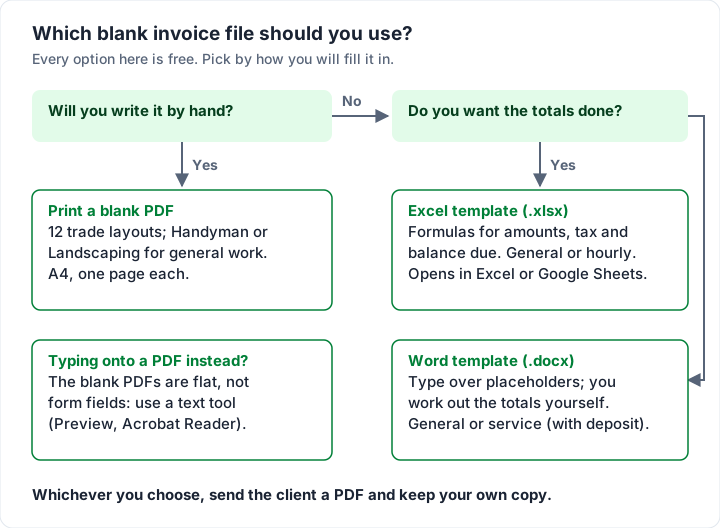
- Writing by hand? Print a blank PDF. Handyman and Landscaping are the plainest general layouts; ten more are laid out for specific trades.
- Want the totals worked out? Use the Excel template: amounts, tax and balance due are formulas.
- Want to type, not use cells? Use the Word template, and add up the totals yourself.
- Typing onto a PDF? The blank PDFs are flat pages, not fillable forms, so use a text tool such as the one in Preview or Adobe Acrobat Reader.
- Whatever you use, send a PDF and keep a copy.
Free blank invoice templates to download#
These are the files, with what each one really contains. The two spreadsheets and two Word documents also have their own page, free Word and Excel invoice templates, with step-by-step filling instructions; this table is the side-by-side view.
| File | Format | Best for | Calculates totals? | Page |
|---|---|---|---|---|
| invoice-template.xlsx | Excel | Products, services or a mix, by quantity and rate | Yes: amount, subtotal, tax, total, balance due, due date | Print area fitted to one page |
| hourly-invoice-template.xlsx | Excel | Time billed by the hour, one line per day or task | Yes, plus total hours | Print area fitted to one page |
| invoice-template.docx | Word | Typing an invoice with a few lines | No: you type the totals | A4 page |
| service-invoice-template.docx | Word | A job with a description of the work and a deposit | No: you type the totals | A4 page |
| 12 trade blank PDFs (below) | Printing and filling in by pen | No | A4, one page each |
A few honest details about the four Word and Excel files, read from the files themselves:
- The Excel files have 15 line rows, a fixed-amount discount, one tax rate rounded to the cent, an amount-paid cell and the balance due. The due date is the invoice date plus your payment terms in days (30 to start with). A second sheet, “How to use”, repeats the instructions inside the file.
- The general Word file has a 10-row item table (Description, Qty, Rate, Amount) and a totals block to fill in. The service Word file adds a description-of-work box (job, site address, dates of work, work performed), a 6-row labour and materials table and a “Less deposit paid” line before the balance due.
- Neither Word file calculates. Each has a short italic note under the totals with the arithmetic to follow, which you delete before sending.
- All four open with placeholder text (“Your business name”, “Client name” and so on) for you to type over. If you print one to fill in by hand, delete the placeholders first or they print too.
- Each file ends with one small line reading “Made with a free Charming Invoices template · charminginvoices.com · Free to use and share, not for resale.”, which you can delete.
For what is in each file, cell by cell, see our guides to the Word invoice template, the Excel invoice template and opening them in Google Docs and Sheets. If you have settled on one program, our guides to making an invoice in Word, creating an invoice in Excel and making an invoice in Google Docs cover building and adjusting a layout in each.
Printable blank invoices for 12 trades#
Each of our 12 trade invoice templates comes with a blank, one-page PDF to print and fill in by hand. They are A4 pages, empty apart from their labels, laid out with the sections that trade usually bills. Every one has a From box for your own details, a Bill to box, and Invoice no., Issued and Due labels. Every link below opens the PDF itself.
| Blank PDF | Sections printed on it | Worth knowing |
|---|---|---|
| Handyman | From; Bill to; Description, Qty, Unit price, Amount; payment details; notes; terms | The plainest layout and the lightest on ink |
| Landscaping | From; Bill to; Description, Qty, Unit price, Amount; payment details; notes; terms | A general layout. Solid colour bands use more ink |
| Hourly | From; Bill to; timesheet invoice: Task, Time, Unit, Rate, Amount; weekly subtotals; expenses; total hours; PO number | Two week headings with a blank for the dates (“Week of ________”) |
| Plumbing | From; Bill to; work performed: labour, materials and fixtures, permit, each with a subtotal; total hours; customer acceptance line | Groups labour and parts so each can be checked |
| Electrician | From; Bill to; labour, materials, permit and inspection; total hours; deposit received; customer acceptance | Has a deposit line above the total due |
| HVAC | From; Bill to; labour, refrigerant, parts, maintenance agreement; total hours; customer acceptance | Separate refrigerant section |
| Auto repair | From; Bill to; labour, parts; total hours; customer acceptance | Labour and parts kept apart |
| Roofing | From; Bill to; labour, materials, dumpster and permit; deposit received; customer acceptance | Has a deposit line |
| Painting | From; Bill to; Description, Qty, Unit price, Amount; deposit received; notes; terms | Has a deposit line |
| DJ | From; Bill to; Description, Qty, Unit price, Amount; deposit received; notes; terms | Has a deposit line |
| Trucking | From; Bill to; Description, Qty, Unit price, Amount; PO number; amount in words; authorised signature | Has a PO number and a signature line |
| Towing | From; Bill to; Description, Qty, Amount; subtotal; payment details; notes; terms | No Unit price column: write each line's amount straight in. A narrow, centred layout |
All 12 are headed “Invoice”, the towing sheet included. If you are paid on the spot, at the roadside or at the end of a job, the client may want a receipt instead: a receipt confirms a payment already made, while an invoice asks for one. Our guide to invoice vs receipt explains the difference and when one document can do both jobs. For a receipt layout to copy, see our invoice receipt template.
Here is the Handyman blank as it prints, to show how much room the plain layout gives you:
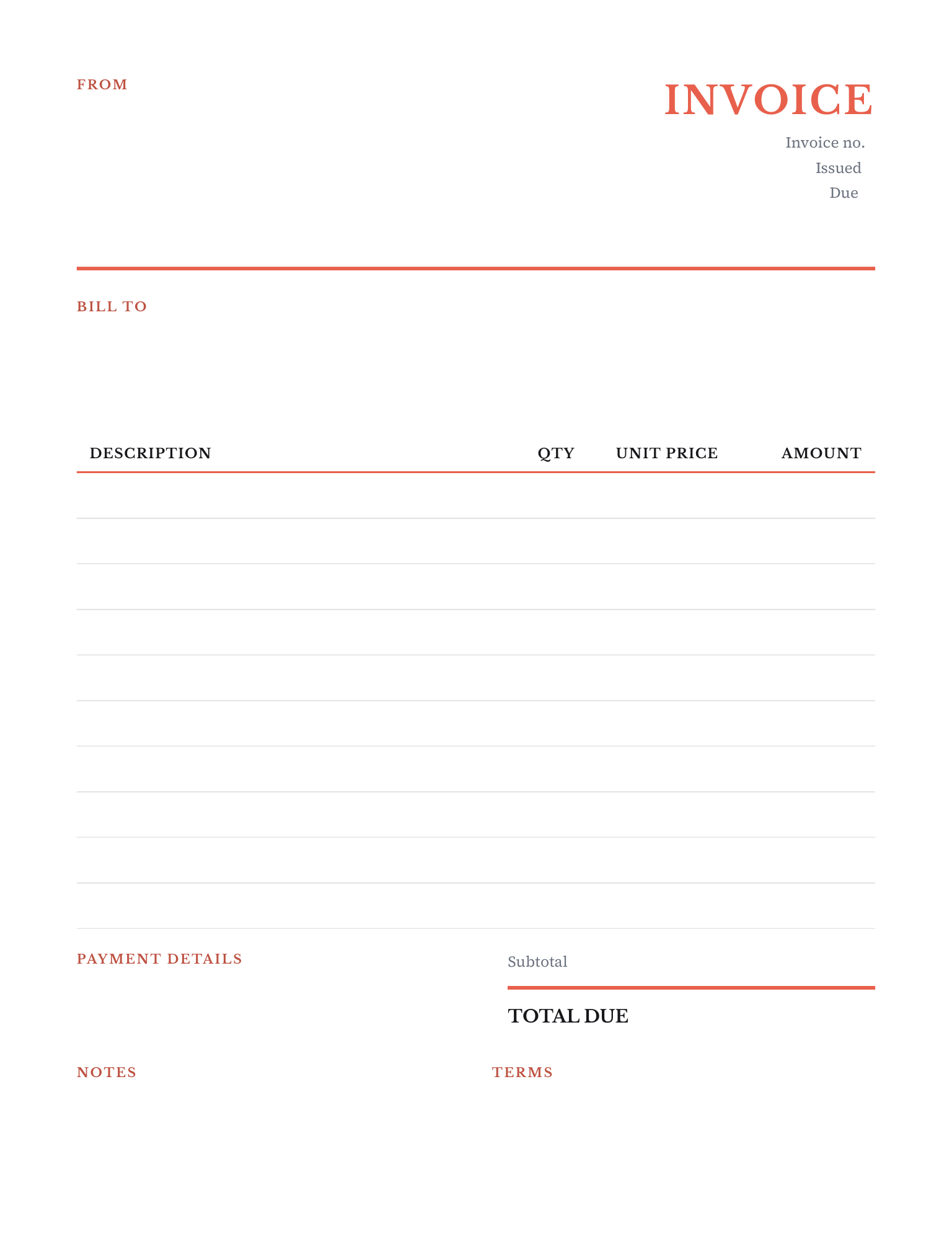
Each trade page, such as the handyman invoice template, also shows the same layout filled in as a worked sample, with typical line items for that trade.
How to print a blank invoice on Letter or A4 paper#
All 12 blank PDFs are A4 (210 × 297 mm), the standard paper size in most of the world. US Letter is 216 × 279 mm: slightly wider, and 18 mm shorter. The blanks leave that bottom strip empty: on all 12, everything printed, down to the notes, terms and any signature line, ends more than half an inch above where a Letter page ends. So an A4 blank printed on Letter at 100% keeps the whole form.
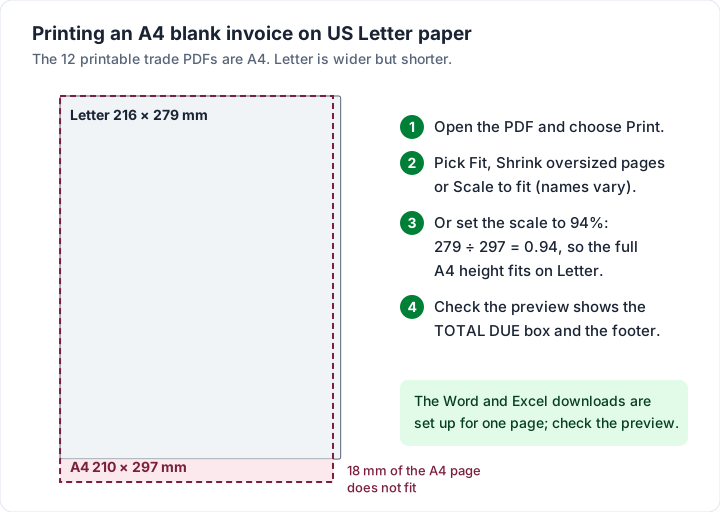
Scaling is optional, but it gives even margins, and it helps if your printer centres the page or leaves a wide unprintable edge. It is one setting in the print dialog: choose the option that fits the page to the paper (it is called Fit, Shrink oversized pages or Scale to fit, depending on the program), or set the scale to 94%, which is 279 ÷ 297 rounded. Check the print preview before you print a stack.
Three more printing habits that help:
- Print a few, not a ream. A blank form you have printed 200 of is a form you cannot change when your bank details or prices change.
- Plain white paper is fine. Nothing about an invoice needs special stock. What matters is that the numbers are legible.
- Plan for your copy. If you hand the original to the client, you still need a record. Photograph or photocopy every filled-in invoice before it leaves you.
How to fill out a blank invoice#
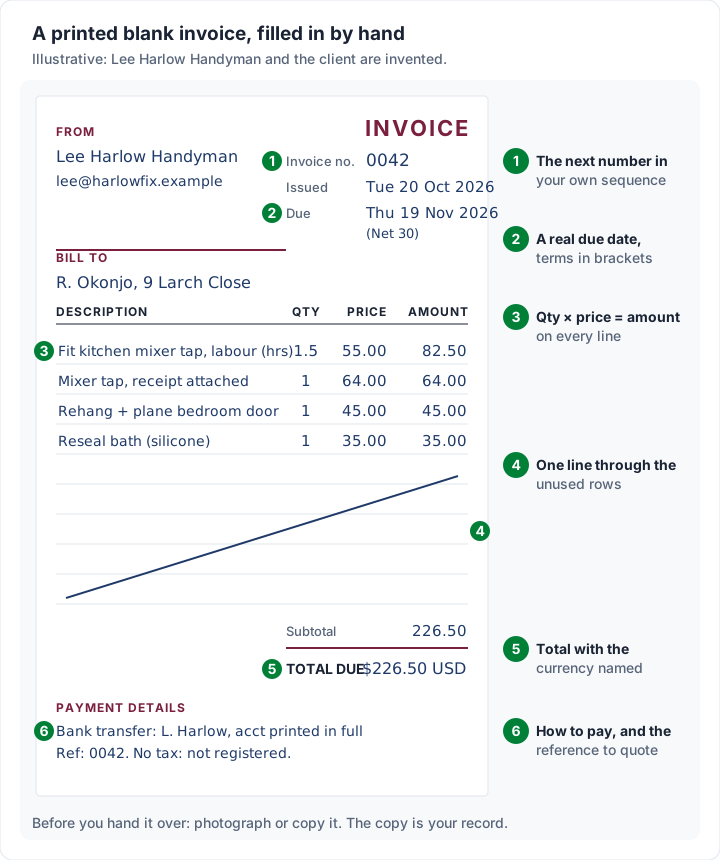
A printed blank invoice has the boxes; the order you fill them in is what makes it complete. This order matches the way the page is laid out, top to bottom.
- Your details. Your business name, or your own name if you trade under it, and how to reach you. Add a tax or business registration number only if you hold one.
- The invoice number. The next number in your own sequence: 0041, 0042, 0043. Never reuse one, even after a mistake. How to number invoices covers schemes that work on paper.
- The dates. The issue date, and the due date as a real date with the terms beside it: “19 Nov 2026 (Net 30)”.
- Bill to. The name of the person or company paying, and their address. If the client gave you a purchase order number, write it here.
- The line items. One line per thing you charge for: what it was, the quantity, the price each and the amount. Check that quantity × price = amount on every line.
- Rule off the unused lines. One diagonal line through the empty rows, so nothing can be added after the invoice leaves you.
- The totals. Add the amounts to a subtotal, then any tax you charge, with its rate, then the total due with the currency written out.
- How to pay. Your bank details in full, or the payment link, and the reference you want quoted (the invoice number is the usual choice).
- Notes and terms. Anything agreed in advance, such as late-payment terms, and a thank-you if you like.
- Copy it. Photograph or photocopy the finished invoice before you hand it over or post it.
Here is what that looks like on a printed form:
For a fuller explanation of each field and what to leave off, read what actually belongs on an invoice. If you want to see filled-in invoices for other kinds of work (hourly, deposits, retainers, progress billing), our invoice examples has nine of them.
What the rules ask for, whether typed or handwritten#
This is general information, not legal or tax advice. In the UK, GOV.UK's page on what an invoice must include (as of 23 October 2026) lists “a unique identification number”, your company name, address and contact information, the client's company name and address, “a clear description of what you’re charging for”, the supply date, the invoice date, the amounts charged, “VAT amount if applicable” and “the total amount owed”. The list does not say whether an invoice has to be typed or can be handwritten. The same page says: “You must use VAT invoices if you and your customer are VAT registered.” If you charge VAT, check HMRC's VAT invoice guidance or ask an accountant before relying on a paper form. Rules elsewhere differ and change.
In the US, the IRS says you “should keep supporting documents that show the amounts and sources of your gross receipts”, and lists invoices among them, on its page on what kind of records to keep. That is the reason for step 10: your copy of a paper invoice is part of your records. The IRS page on how long to keep records says, as of 23 October 2026: “The length of time you should keep a document depends on the action, expense, or event which the document records.” Read the page, or ask your accountant, for the period that applies to you.
Whether an invoice needs a signature is a separate question, answered in do invoices need to be signed.
Blank invoice vs invoice form vs invoice book#
People search for all of these, and they overlap. The real difference is how the copy gets made and whether anything is numbered for you.
| Option | What it is | Numbering | Your copy | Best for |
|---|---|---|---|---|
| Blank invoice (printed PDF or Word page) | A single page you print and fill in | You write it | A photo or photocopy | Occasional jobs, filling in on site |
| Fillable PDF form | A PDF with typed-in fields | You type it | The saved PDF | Typing without Word or Excel |
| Invoice book (carbon copy) | A pad of pre-numbered, duplicate pages | Pre-printed | The carbon copy left in the book | Many jobs a week, paid or billed on site |
| Word or Excel template | An editable file you save a copy of each time | You type it | The saved file and its PDF | Sending invoices by email |
Our 12 blank PDFs are the first kind: flat pages to print, not fillable forms. If you fill in a lot of paper invoices on site, a pre-numbered carbon book does the copying for you; how to fill out an invoice book goes through one box by box.
How to type onto a blank PDF invoice without printing it#
You can fill in a flat PDF on screen; you just need a tool that adds text on top of the page.
- On a Mac, in Preview: Apple's Preview guide says, “If a PDF won't allow you to type directly into the form, you can add a text box instead.” Show the form-filling toolbar and choose the Text Box tool, as described in fill out and sign PDF forms in Preview.
- In Adobe Acrobat Reader: use the Fill & Sign tools. The exact buttons change between versions, so follow Adobe's current help page on filling and signing PDF forms.
It works, though every line needs its own text box, the totals do not add themselves up, and you redo the layout for each invoice. A flat PDF also does not track payments or send reminders.
If you are typing anyway, the Word or Excel template is usually quicker than typing onto a PDF, because it has real cells and lines to type into. Online fill-in templates are another route; check whether saving or downloading needs an account or a paid plan.
How to save any invoice as a PDF#
Whichever template you fill in on screen, send the client a PDF, not the editable file. A PDF looks the same on every device and cannot be changed by accident.
These are the menu paths, from Microsoft's page on saving or converting to PDF, Google's page on downloading a file and Apple's guide to saving a document as a PDF on Mac, checked on 22 October 2026:
| Program | How to save as PDF |
|---|---|
| Word on Windows | File > Save a Copy (or Save As), choose where, then pick PDF in the file type list |
| Word on a Mac | File > Save As (or Save a Copy) > File Format > PDF |
| Word for the web | File > Print, then Save as PDF under Printer |
| Excel on Windows | File > Save As (or Save a Copy) > Save as type > PDF (*.pdf) |
| Google Docs or Sheets | File > Download, then choose PDF |
| Any app on a Mac | File > Print, then the PDF button (or its menu) > Save as PDF |
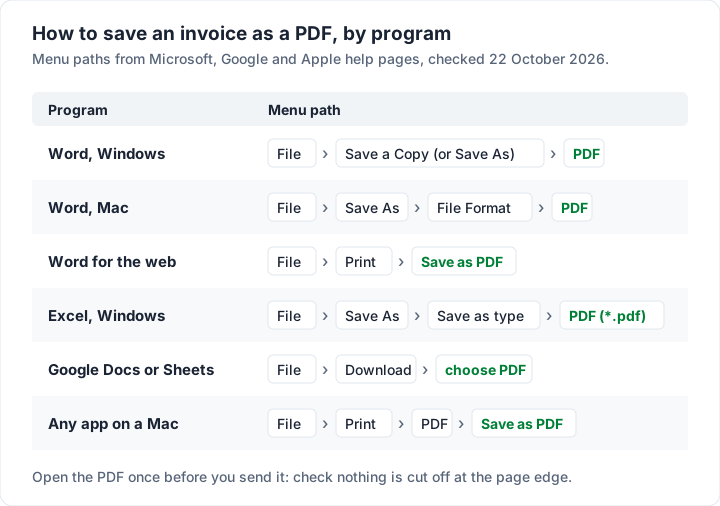
Then open the PDF once. Check that nothing is cut off at the page edge, the totals are where you expect, and the file name says what it is: “Invoice 0042 Lee Harlow Handyman.pdf”. For what to write in the email that carries it, see how to send invoices by email.
When a blank invoice template stops being enough#
A blank template is a perfectly good way to invoice. It starts to cost you time in three places:
- Numbering. On loose pages, nothing stops two invoices getting the same number, or a number being skipped.
- Copies. Every invoice needs a photo, a photocopy or a saved file, and they need to be findable later.
- Knowing who has paid. A blank page cannot tell you which invoices are still open, or flag one when it is overdue.
That is the gap an invoicing app fills. Charming Invoices numbers each invoice for you in a gapless sequence per business when you issue it, works out the totals as you type, and keeps every invoice you have issued. You download the PDF or copy a private link your client can open without an account, and send it however you like. It tracks what is paid and what is still owed, and flags overdue invoices; it does not send reminders, so set a calendar reminder or use your own email. It has 60 invoice templates, all on the free plan.
The catches, plainly: Charming does not print paper books or carbon copies, and its 60 templates are designs inside the app, not files to download. Clients cannot pay by card through Charming, so your bank details or your own payment link go on the invoice. Payment tracking is manual: you record a payment or mark it paid. The free plan covers 1 business with unlimited invoices and clients, and free-plan invoices carry a small “Sent with Charming Invoices” line. There is no mobile app.
If paper or a file still suits you, download the free Excel and Word templates or print a blank PDF from the table above. If you would rather stop copying files, sign up free for the 60 in-app templates.
Questions people ask about blank invoices#
Is there a free printable invoice?#
Yes. Each of the 12 blank PDFs in the table above is free to download and print, with no sign-up. Handyman and Landscaping are the most general layouts. The Word and Excel templates can be printed too, once you delete the placeholder text.
What is the simplest invoice template?#
For printing, the Handyman blank PDF: a From box, a Bill to box, one table of description, quantity, unit price and amount, and the totals. For typing, the general Word template. If you want the arithmetic done for you, the Excel template is simpler in practice, because you never add anything up.
Can I handwrite an invoice?#
Many small businesses do. What matters to a client is what the invoice says: a number, dates, who it is from and to, what it is for, the amounts and how to pay. GOV.UK's list of what an invoice must include does not say it has to be typed; if you are VAT or sales-tax registered, check your tax authority's rules or ask an accountant. Write clearly, rule off unused lines and keep a copy.
What is the difference between a blank invoice and an invoice form?#
Usually nothing: both mean an invoice layout with empty boxes. Some people use “invoice form” for a fillable PDF with typed-in fields; our blank PDFs are flat pages for printing, so to type onto one you need a text tool such as Preview or Acrobat Reader.
Should I send the client the blank template file I filled in?#
Send a PDF of it, not the Word or Excel file. A PDF cannot be edited by accident and looks the same everywhere. Keep the filled-in file yourself.
The short version#
For pen and paper, print a blank PDF (Handyman or Landscaping for general work, or your trade's layout) on A4 or Letter paper; on Letter, scaling it to fit is optional. For typing, use the Word template; for totals that add themselves up, use Excel. Fill the boxes top to bottom, rule off the unused lines, send a PDF and keep a copy. When the copying and chasing start taking longer than the work, that is the point to try an app.