WooCommerce invoices: send, print and automate them

Nnabuike Okoroafor ·
On this page · 11 sections
We make Charming Invoices, an invoicing app with no connection to WooCommerce or WordPress: it has no plugin, does not import orders, and takes no payments. It appears only in the section on billing that happens outside your store. Every WooCommerce step and quote below comes from WooCommerce’s own documentation and from WordPress.org plugin listings, read on 28 October 2026. Plugins update often, so check the linked page if a setting has moved.
A café wants to order by phone, a wholesale buyer asks for “an invoice”, or a customer emails to say they need a PDF for their accounts. You run your shop on WooCommerce, so you look in the order screen for a button marked Invoice. There is not one, at least not by that name.
WooCommerce can already email a customer their order details with a link to pay, without any plugin. What it does not do on its own is make a PDF invoice. This guide covers both: the built-in pay link for phone and manual orders, the free PDF invoice plugins that are current on WordPress.org today (and two listings that are now closed), how business customers can pay by invoice, and when the invoice belongs outside the store.
WooCommerce invoices in short#
- To ask a customer to pay, create the order in WooCommerce > Orders, set it to Pending payment, then choose Send order details to customer. They get an email with a link to pay.
- To give customers a PDF invoice, install a plugin. The most installed free one on WordPress.org is PDF Invoices & Packing Slips for WooCommerce by WP Overnight.
- To print invoices from the Orders page, the same plugins add print and bulk actions.
- Each order takes one payment. Extra items after payment need a new order.
- For work that is not a store order (a commission, a workshop, a wholesale client on Net 30 by bank transfer), a separate invoice may fit better. More on that below.
What WooCommerce does without a plugin#
WooCommerce’s Paying for Orders page starts with a rule worth knowing before anything else: “In WooCommerce, each order can only accept one payment.”
Orders in the Draft or Pending payment status can be paid in three ways besides the normal checkout, per that page:
| Route | Where it comes from | Who uses it |
|---|---|---|
| Pay for this order link | The email you send with Order actions > Send order details to customer | Any customer you email |
| Pay button | The Orders tab of the customer’s My Account area | Registered customers only |
| Customer payment page → link | The order’s page in your admin; you copy and share it | You, by message or order note |
The email has two names in WooCommerce’s docs. The payments page calls it the “Order Invoice email”. The email settings page lists it as Order Details, an email you send by hand from the Edit Order screen “to share invoice details and a payment link with customers.” It has settings for paid and unpaid orders, and because it is sent manually it cannot be disabled.
What none of these give you is a PDF document. WooCommerce’s own pages describe an email with order details and a pay link, not a numbered PDF, which is the gap the plugins below fill.
How to send an invoice for a phone or manual order#
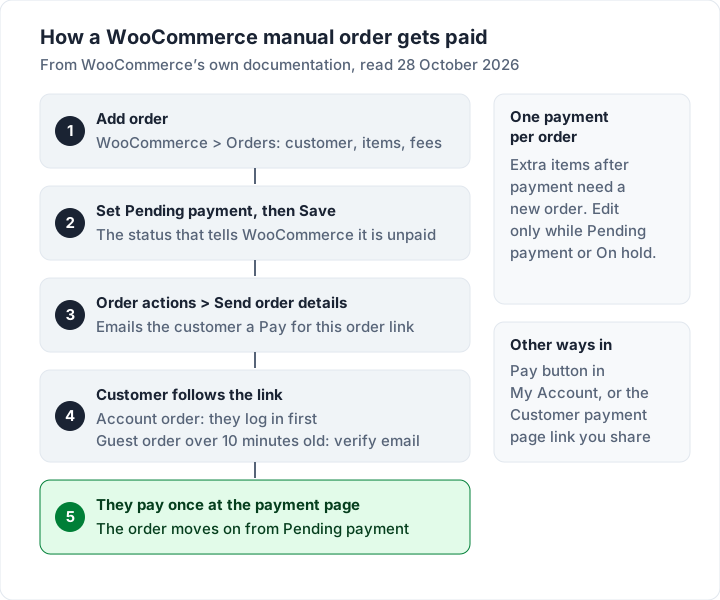
WooCommerce’s Single Order Page and Manually Adding an Order article covers phone orders and orders you create for a customer. Its steps, read on 28 October 2026:
- Go to WooCommerce > Orders.
- Select Add order at the top of the page.
- Enter customer details, add line items, apply coupons and fees, and calculate totals.
- Set a status. If the customer needs to pay, select Pending payment.
- Select Save.
- Open the Order actions dropdown and select Send order details to customer. WooCommerce emails a link to the order payment page.
Guest order or customer account?#
Who you assign the order to changes who can open the link. From the same article:
- Assigned to a customer account: “Only the assigned customer can pay for the order, and they must log in first.” Anyone else, including you as the store admin, sees: “This order cannot be paid for. Please contact us if you need assistance.” That message is expected, not a broken gateway.
- Guest order: the link does not need a login. The Paying for Orders page adds that anyone who opens it “more than 10 minutes after the order was created will be prompted to verify the email address on the order”.
That second point catches people out. If the café’s owner forwards your email to their bookkeeper, the bookkeeper will need to type the billing email on the order before they can pay. Use the address of whoever will actually pay.
Editing an order you have already sent#
You can change items, fees, coupons and shipping only while the order is Pending payment or On hold. Once it is paid, the article is clear: “If an order has already been paid and the customer needs additional items, create a new order instead of adding the items to the existing order.” Then send that order’s details the same way.
Free WooCommerce PDF invoice plugins compared#
To get a PDF invoice, you need a plugin. These are three free ones with current listings on WordPress.org. Versions, update dates and install counts are WordPress.org’s own figures (it rounds installs), read from its plugin directory on 28 October 2026.
| Plugin (author) | Version, last updated | Active installs | What the free listing includes |
|---|---|---|---|
| PDF Invoices & Packing Slips for WooCommerce (WP Overnight) | 5.16.6, 22 October 2026 | 300,000+ | PDF or XML invoice attached to the emails you choose; packing slips; bulk; sequential numbers; e-document formats |
| WebToffee WooCommerce PDF Invoices, Packing Slips, Delivery Notes & Shipping Labels (WebToffee) | 5.0.4, 20 October 2026 | 50,000+ | Invoices, packing slips, delivery notes, dispatch and shipping labels from the Orders page; credit notes are Pro |
| Print Invoice & Delivery Notes for WooCommerce (tychesoftwares) | 7.3.0, 4 August 2026 | 30,000+ | Invoices, delivery notes, receipts, credit notes and packing slips; print links in order emails; two built-in invoice layouts |
All three list WooCommerce as a required plugin. Paid upgrades exist for each; we have not listed their prices, so check the maker’s own site before you buy.
Two plugin listings that are now closed#
You may still see these two named in older articles. Both listings are closed on WordPress.org as of 28 October 2026:
- YITH WooCommerce PDF Invoice and Shipping List (the free version): WordPress.org shows it as closed since 14 September 2021.
- Invoices for WooCommerce: WordPress.org shows it as closed since 26 July 2023.
A closed listing cannot be downloaded from WordPress.org, so it gets no updates there. If either is still on your site, check with its maker or plan a move to a current plugin.
Setting up PDF Invoices & Packing Slips#
The WP Overnight plugin is the one most guides walk through, so here is what its listing says it does. Its description: “This WooCommerce extension automatically adds a PDF or XML invoice (e-invoicing) to the order confirmation emails sent out to your customers.”
Once installed and activated (Plugins > Add New, search for it, Install Now, then activate), these are the things to set, all named on the listing:
- Shop details: shop name, address, a header logo, and the footer or disclaimer text.
- Which emails carry it: “Automatically attach invoice PDF or XML to WooCommerce emails of your choice”.
- Paper size: Letter or A4.
- Numbering: sequential invoice numbers.
- Where you get it: download the PDF or XML invoice and packing slip from the order admin page, in bulk from the order list, and let customers download invoices from their My Account page.
The free version “Includes a basic template (additional templates are available from WP Overnight)”. Proforma invoices and credit notes need its paid Professional extension, per the FAQ on the same page.
Invoice numbers, templates and e-invoice formats#
Numbers. WooCommerce order numbers are not the same as invoice numbers. A plugin with sequential numbering gives your invoices their own unbroken series, separate from your order numbers. Our guide on how to number invoices covers prefixes, resets and gaps.
Templates. WP Overnight says its templates are “Fully customizable HTML/CSS invoice templates”, and that if you copy them to your theme folder, plugin updates will not overwrite your changes. WebToffee’s FAQ says multiple templates and code-editor changes need its Pro version. Tyche’s listing says it includes “two built-in invoice layouts and a live preview option”.
E-invoice formats. The WP Overnight listing names: “UBL 2.1, Peppol BIS 3.0, CII D16B, Factur‑X 1.0, ZUGFeRD 1.0, and ZUGFeRD 2.0.” Whether you need any of them depends on where you and your customers are, and the rules vary by country. Check your tax authority’s official page and ask an accountant. Our explainer on what counts as an e-invoice sets out the general idea. This is general information, not legal or tax advice.
Letting business customers pay by invoice#
“Pay by invoice” usually means a business customer gets the goods and pays later, often by bank transfer. Our guide to what pay by invoice means covers it in general; in WooCommerce there are two common routes.
Route 1: send the pay link. Create the order as above, set it to Pending payment and email the order details. The customer pays through your checkout when they are ready. This works for any customer and needs no extra plugin.
Route 2: an offline payment method. WooCommerce’s order statuses page says an order paid by an offline method with no immediate confirmation, such as the BACS gateway, generally goes to On hold. It adds: “Offline payment methods require you to manually verify the payment was processed.” So you check your bank, then change the status yourself.
The WooCommerce pages we read do not describe setting a due date such as Net 30 on an order. If you agree terms, put them in writing; here is what Net 30 actually means, and our guide on how to invoice a company covers the purchase order numbers and accounts contacts a business buyer will expect.
When the invoice belongs outside WooCommerce#
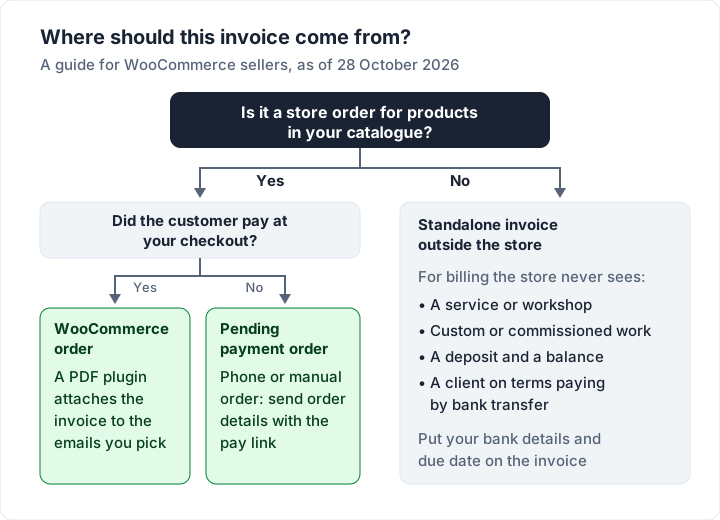
Store orders should be invoiced in the store. Your stock, taxes, order history and checkout all live there, and customers already trust that checkout. Some sellers go further and give wholesale buyers their own way to order and pay in the store, which is exactly what WooCommerce does well. But some billing never touches your store:
- Custom or commissioned work priced after a conversation.
- Services you sell alongside products: workshops, installation, repairs, consulting.
- Wholesale clients on terms who want one formal invoice with your bank details, not a checkout link.
- Deposits and balances on a big order, since each WooCommerce order takes one payment. See deposit and balance invoices for how to word each.
For these, any proper invoice works: a spreadsheet, a template or an invoicing app. Our guide on how to list bank details on an invoice covers the payment section. If you sell on Shopify as well, Shopify invoices work differently and have their own guide.
Where Charming fits, and where it does not#
Charming Invoices is one option for that outside-the-store billing. To be clear first: it has no WooCommerce integration. There is no plugin, no order import, no checkout and no card payments, and it never knows when a client has paid. Never use it to move a store order off your WooCommerce checkout.
What it does, checked in our code on 28 October 2026:
- Unlimited invoices and clients on the free plan, for 1 business, with your logo, colours and fonts across all 60 templates.
- Sequential invoice numbers with your own prefix (the default is INV-).
- Bank details and one payment link per business printed on every invoice, so a client can pay by transfer or through a link you already have.
- Part payments and deposit and balance invoices, each tracked to its balance due.
- A PDF and a private link you send however you like, with overdue invoices flagged once the due date passes.
The catches: payment tracking is manual, so you record each payment and mark it paid yourself; Charming does not email invoices or send reminders; free invoices carry a small “Sent with Charming Invoices” line; recurring invoice drafts and more than 1 business need a paid plan. Paid plans hide that line by default: Individual is $29 once, Team is $79 once with up to 5 teammates, and Pro is $12 a month or $99 a year. The lifetime plans are final sale; see the pricing page. If it fits, create a free invoice, or start from our free invoice templates if you prefer a file.
Worked example: a café’s phone order and a workshop#
Here is an illustrative order for a sample tea shop that sells through WooCommerce. A café phones in a wholesale order and also books a staff tasting workshop.
| Line item | Qty | Rate | Amount |
|---|---|---|---|
| Loose-leaf tea tin, 100 g | 30 | $12.50 | $375.00 |
| Ceramic teapot, 1 litre | 6 | $38.00 | $228.00 |
| Subtotal | $603.00 | ||
| Shipping, flat rate | $20.00 | ||
| Store order total | $623.00 |
Tax is left out to keep the arithmetic clear; your store adds whatever tax you have set up.
Inside WooCommerce: create the order for the tea and teapots ($375.00 + $228.00 + $20.00 = $623.00), set it to Pending payment and send the order details. The café pays once through the link, and your PDF plugin attaches the invoice to the email you chose.
Outside WooCommerce: the 2-hour tasting workshop at $180.00 is a service, not a catalogue product, and the café wants to pay it by bank transfer on Net 30. That is a separate invoice for $180.00 with your bank details and due date. Together the café owes $623.00 + $180.00 = $803.00 across the two documents.
If the café instead wants everything on one invoice on Net 30, you could bill the full $803.00 outside the store. In that case WooCommerce does not know about the sale, so adjust your stock by hand.
Questions about WooCommerce invoices#
Does WooCommerce create invoices automatically?#
Not as a PDF. Without a plugin, WooCommerce sends its order emails and lets you email order details with a pay link. A plugin such as WP Overnight’s attaches a PDF or XML invoice to the emails you pick.
Can I edit a WooCommerce invoice after sending it?#
Only while the order is Pending payment or On hold. Edit it, then send the order details again. After payment, WooCommerce’s docs say to create a new order for any extra items.
How do I issue a credit note for a refund?#
WP Overnight’s credit notes are in its paid Professional extension, and WebToffee lists credit notes as Pro. Tyche’s free listing names credit notes among its documents. Here is when to issue a credit note and what it should show.
Can a WooCommerce plugin make a proforma invoice?#
WP Overnight lists PDF proforma invoices in its Professional extension. If you are not sure you need one, see what a proforma invoice is.
Is a WooCommerce receipt the same as an invoice?#
No. An invoice asks for payment; a receipt confirms it. Tyche’s plugin prints both. Our guide to invoice vs receipt explains which a customer usually needs.
Can I make a GST or VAT invoice in WooCommerce?#
What a tax invoice must show depends on where you and your customer are, and the rules vary. Check your tax authority’s own pages and ask an accountant, then set your invoice plugin’s template to match. Our guide to what a tax invoice is explains the general idea. This is general information, not legal or tax advice.
The short version#
WooCommerce can already ask for payment: create the order, set it to Pending payment, and send the order details with the pay link. Each order takes one payment. For PDF invoices, add a current free plugin; as of 28 October 2026, WP Overnight’s PDF Invoices & Packing Slips has 300,000+ active installs on WordPress.org, and two older plugin listings are closed. Keep store orders in WooCommerce, and use a standalone invoice only for the work your checkout never sees.
Sources, all read 28 October 2026: WooCommerce: Paying for Orders; WooCommerce: Single Order Page and Manually Adding an Order; WooCommerce: Emails; WooCommerce: Order statuses; WooCommerce: Managing orders; WordPress.org: PDF Invoices & Packing Slips for WooCommerce; WordPress.org: WebToffee WooCommerce PDF Invoices, Packing Slips, Delivery Notes & Shipping Labels; WordPress.org: Print Invoice & Delivery Notes for WooCommerce; WordPress.org: YITH WooCommerce PDF Invoice and Shipping List (closed); WordPress.org: Invoices for WooCommerce (closed).