Automatic invoicing: what to automate and what to check

Nnabuike Okoroafor ·
On this page · 11 sections
You bill the same clients every month, you type the same lines into the same invoice, and you spend the third week of every month writing “just checking in” emails. So you search for an automatic invoice, and the phrase turns out to cover several different jobs.
An automatic invoice can be one that numbers and totals itself, one that is raised for you every month, one that is sent without you, one that chases itself, or one that charges your client’s card on file. Some of those save you real time at almost no risk. One of them can send a wrong amount to your best client while you sleep.
This guide separates the six kinds of automatic invoicing, says which to switch on first, which deserve a human check, and walks through one monthly retainer invoice on real November 2026 dates. We make Charming Invoices, an invoicing app, so we also say exactly what it automates and, just as plainly, what it deliberately does not. Where rules on recurring charges come up, this is general information, not legal advice.
In short#
- “Automatic invoicing” is six separate automations: numbering and dates, totals, recurring creation, reminders and overdue status, automatic sending, and charging or matching payments.
- Automate the first four without worry. They do arithmetic and polite chasing, and a mistake is cheap and easy to spot.
- Keep a human check on the last two. Sending and charging act on money and on the client relationship.
- A drafted recurring invoice plus automatic reminders covers most of the work for a business with repeat clients, and leaves you two small jobs a month: check and send, then record the payment.
- Auto-charging a card is a different arrangement from invoicing: the client agrees in advance to be charged, so check the rules on recurring charges with your processor first.
- Charming automates numbering, totals, overdue status and recurring drafts (paid plans). It does not email invoices or reminders to your client, and it cannot charge a card.
What an automatic invoice can mean#
When people say they want to automate invoicing, they usually mean one of three wishes:
- “I never want to type this invoice again.” That is recurring creation: the software raises the same invoice every cycle.
- “I never want to chase a payment again.” That is automatic reminders: emails that go before, on and after the due date.
- “I never want to think about billing at all.” That is automatic sending plus automatic charging: the invoice goes out and the money comes in with nobody involved.
The first two are reasonable goals for almost any small business. The third is how subscription businesses work, and it suits fixed, predictable charges much better than service work, where the amount, the hours or the scope change from month to month.
One more meaning to set aside: if you searched for automatic invoice processing, that usually refers to accounts payable software that reads the supplier invoices you receive, which is a different job from billing your own clients and is not covered here.
The six things invoicing software can automate#
Here are the six automations side by side, from the safest to the riskiest.
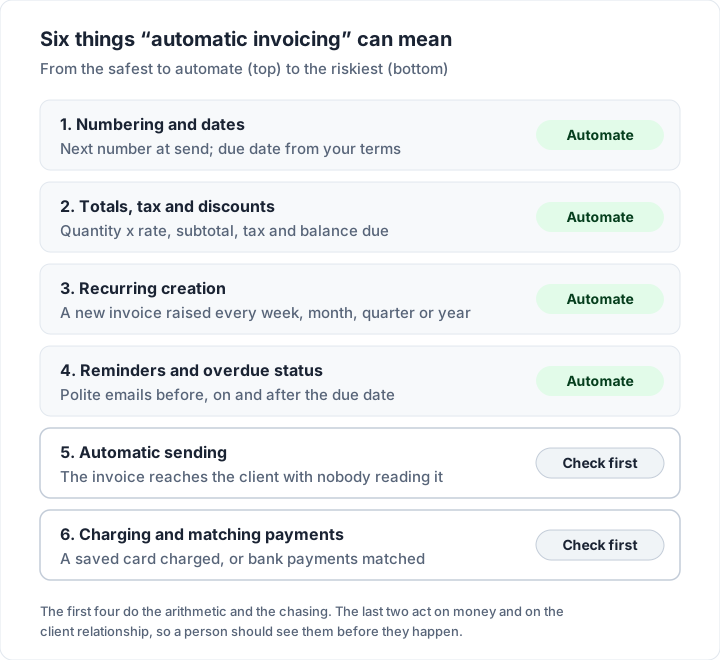
What each one does, what it saves you and what can go wrong:
| Automation | What it does | What it saves you | What can go wrong | Keep a human check? |
|---|---|---|---|---|
| Numbering and dates | Assigns the next invoice number and works out the due date from your terms | Gaps, duplicates and date arithmetic | Very little, if the numbering is set up once | No |
| Totals, tax and discounts | Multiplies quantity by rate, adds tax, subtracts deposits and payments | Arithmetic errors | A wrong tax rate repeated on every invoice | Check the setup once |
| Recurring creation | Raises the same invoice every week, month, quarter or year | Retyping the same invoice | Last month’s amount repeated after the price changed | Yes, if the amount ever varies |
| Reminders and overdue status | Emails the client before, on and after the due date; flags late invoices | The most awkward part of billing | A reminder to a client who already paid you yesterday | Record payments promptly |
| Automatic sending | Sends the invoice with no one reading it | One click a cycle | A wrong amount, client or date goes out under your name | Yes |
| Charging and matching payments | Charges a saved card, or matches bank payments to invoices | Collecting and reconciling | A charge after a cancelled job; a payment matched to the wrong invoice | Yes |
Note the pattern in the last column. The automations that only produce numbers can run unattended. The ones that send or take money should pass in front of a person, even if that person only spends ten seconds on them.
What to automate first#
If you are starting from a spreadsheet or a Word template, switch these on in this order. Each one removes a job you do on every invoice.
- Numbering. A gapless, automatic sequence ends the “what number was the last one?” search and the duplicate that confuses a client’s accounts team. Our guide to how to number invoices covers formats and how to continue from an old sequence.
- Totals. Software that calculates line totals, tax and balance due removes the most common invoice error: the sum that does not add up. If you stay in a spreadsheet, the formulas in our Excel invoice guide do the same job.
- Reminders. Late payment is mostly forgetfulness, and a reminder that arrives three days before the due date catches it early. Automatic reminders also take the awkwardness out of chasing, because the email is the same for every client. If an invoice is already late, our follow-up sequence for unpaid invoices gives you wording for each stage.
- Recurring creation, for any client you bill on a fixed cycle: a monthly retainer, a weekly cleaning contract, a quarterly maintenance plan. Our guide on how recurring invoices work explains the difference between an invoice raised on a schedule and a subscription that charges itself, and how to bill each type of retainer covers retainer invoices line by line.
- Payment links. Not an automation in itself, but putting your bank details or a payment link on every invoice automatically removes the client’s “how do I pay you?” email. Our guide to the payment methods to offer on an invoice compares the options and their fees.
What to keep a human check on#
Automation is good at repeating things exactly. That is also its weakness: it repeats mistakes exactly, on schedule, to every client at once.
Two questions sort any billing task. How often does it happen, and what does a mistake cost?
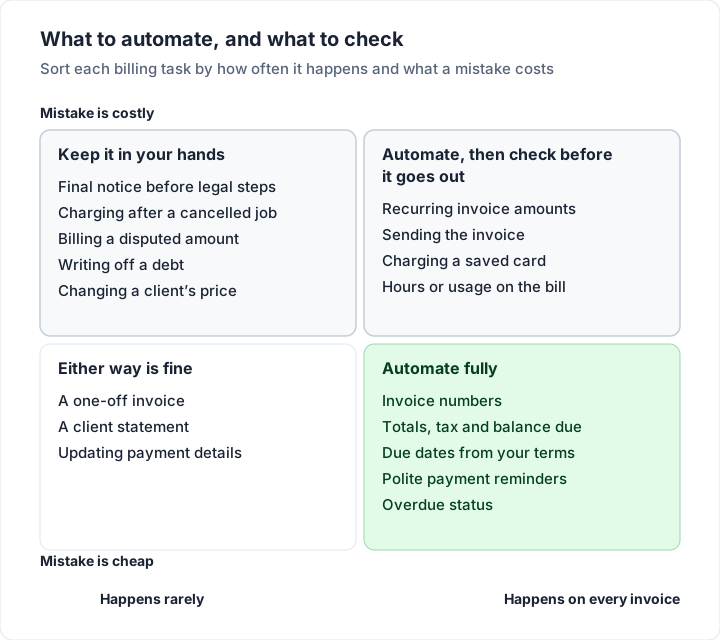
The tasks in the top-right box are where fully automatic billing most often goes wrong:
- The amount changed. You raised your rate in January, added a second service in March, or agreed a discount for one month. A recurring invoice that sends itself repeats the old amount.
- The work did not happen. The client paused the project, you took a week off, or the job was cancelled. A schedule does not know.
- The hours vary. If the invoice depends on hours worked, usage or materials, someone has to enter them. Automation can only carry over last month’s figures. If retyping lines is what slows you down, how our AI drafting works explains turning one sentence into line items.
- The client changed. A new billing contact, a new purchase order number, a new company name. An invoice that reaches the wrong inbox, or lacks the PO number the client asked for, tends to sit unpaid until someone notices.
A ten-second check before each recurring invoice goes out catches all four. That is the trade we recommend: let software do the typing and the chasing, and keep the decision to send.
Automatic invoicing vs auto-charging a card#
These two are often sold under the same word, but they are different arrangements with different rules.
| Question | Automatic invoicing | Auto-charging a card on file |
|---|---|---|
| Who acts to pay | The client pays each invoice | Nobody: the card is charged on schedule |
| What the client agreed to | Your terms, then each invoice | A standing permission to charge a stored card |
| If the amount is wrong | The client queries it before paying | The money has moved; you refund it |
| If the job was cancelled | The client does not pay, or you void the invoice | You must remember to stop the charge |
| Fees | Whatever the payment method costs | The card processor’s fee on every charge |
| Best for | Service work where amounts vary | Fixed, predictable subscriptions |
Many invoicing products offer both. As of 22 October 2026, Invoice Ninja’s pricing page lists “Auto-Billing & Recurring Invoices” on its free plan, and Stripe’s Billing page describes “automated payment collection and reconciliation” and recurring invoices. Square’s invoice pricing page lists recurring invoices on its free plan and automatic payment reminders “that send before, on, or after the payment due date”, and PayPal’s invoicing page says you can “set up recurring invoices and automatic reminders”. If Stripe is the processor you already use, our Stripe invoice guide covers its invoice side: recurring invoices through Billing subscriptions, automatic reminders and what each paid invoice costs.
Rules on recurring charges, especially to consumers, differ by place and change. In the US, one official starting point is the Federal Trade Commission’s Negative Option Rule page. If you plan to charge cards on a schedule, ask your payment processor or a lawyer what applies where your clients are.
Charming does not auto-charge cards and cannot store them: it does not process payments at all. Your client pays you directly, through your bank details or your own payment link, and you record the payment.
A worked example: a monthly retainer on autopilot (almost)#
Here is one illustrative monthly retainer, with the dates a real schedule would produce. A designer bills a client $1,500.00 on the 2nd of each month, due 14 days after issue, in an invoicing tool with automatic payment reminders set to a common schedule: 3 days before the due date, on the due date, then every 7 days while overdue, up to 3 overdue reminders. (Charming does not send reminders; in Charming those steps would be calendar reminders and emails you send yourself.)
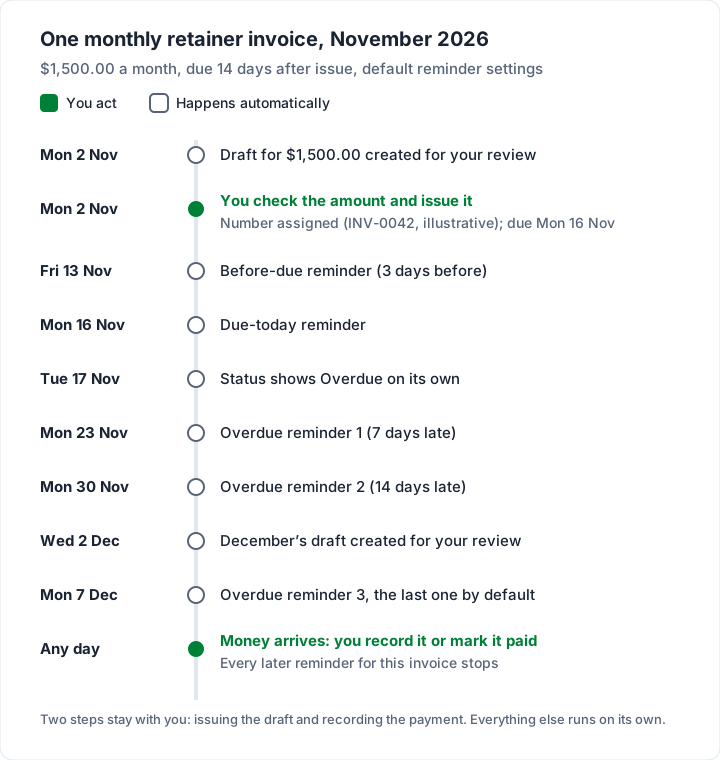
The same schedule as a table, assuming the client has not paid yet:
| Date (2026) | What happens | Who does it |
|---|---|---|
| Monday 2 November | Draft invoice for $1,500.00 created for review | Automatic |
| Monday 2 November | You check the amount and issue it; it is numbered and due Monday 16 November | You |
| Friday 13 November | Reminder: due in 3 days | Automatic |
| Monday 16 November | Reminder: due today | Automatic |
| Tuesday 17 November | Invoice shows as Overdue | Automatic |
| Monday 23 November | Overdue reminder 1 | Automatic |
| Monday 30 November | Overdue reminder 2 | Automatic |
| Wednesday 2 December | December’s draft created | Automatic |
| Monday 7 December | Overdue reminder 3, the last at the default setting | Automatic |
Here is the same month as a calendar, so you can see how the reminders space out.
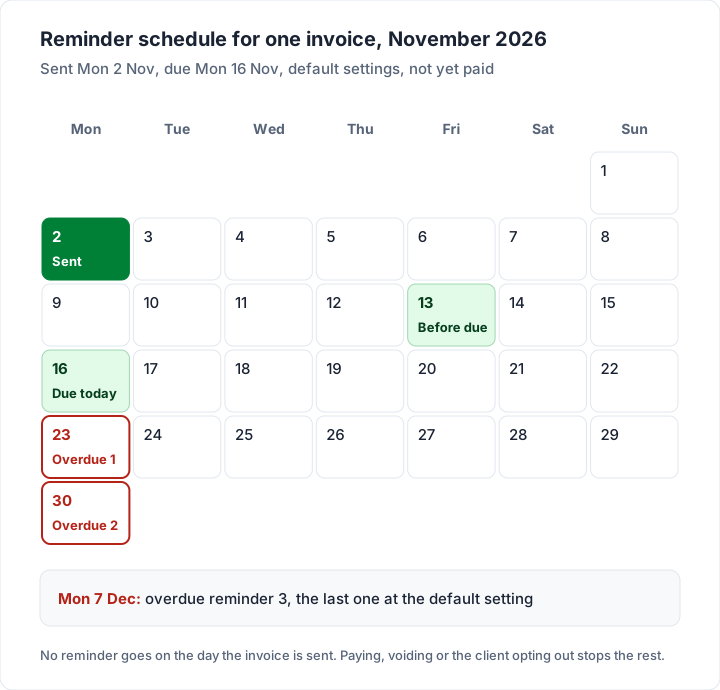
Now suppose the client pays in full on Friday 20 November and you record the payment that day. The overdue reminder planned for Monday 23 November does not go, and neither does anything after it. The client received two reminders in total, the before-due note and the due-today note, and you wrote neither of them by hand.
That is the “almost” in the heading. Two jobs stay with you each month: a short check before sending, and recording the money when it lands in your bank. Neither takes long, and both are the steps where a mistake costs real money.
How automatic invoicing works in Charming#
Here is exactly what Charming automates, checked against our code on 22 October 2026, with the plan each part needs and its limit.
| What Charming does automatically | Plan | The limit |
|---|---|---|
| Assigns the next invoice number when you issue it: gapless, per business, with your prefix | All plans | You can raise the next number to continue an old sequence, never lower it |
| Calculates line totals, tax, discount and balance due | All plans | One invoice-level tax rate and one fixed-amount discount per invoice |
| Raises a recurring invoice as a draft each week, month, quarter or year, with an optional end date | Individual, Team and Pro | Drafts are never issued or sent automatically; the due date is set at 14 days after issue, and you can change it before you issue the invoice |
| Shows an invoice as Overdue, or Partially paid, without you changing its status | All plans | An invoice only becomes Paid when you record payments that cover it, or mark it paid |
| Puts a button to your own payment link on the invoice page while the invoice is unpaid | All plans | Charming does not process the payment; the link goes to your own provider |
| Drafts line items from one sentence with AI | Individual, Team and Pro | 6 a minute and 60 a day; unknown prices are left at 0.00; it never sends anything |
Reminders. Charming does not send payment reminders, or any email, to your client. It shows an issued invoice as Overdue once the due date passes, so you can see at a glance who to follow up with. Set a calendar reminder for the due date and send the nudge from your own email; our guide to invoice reminders has wording you can copy.
Recurring invoices in detail. On a paid plan you set up a recurring invoice once, with its lines, client and cycle. On each cycle date Charming creates a draft in your invoices list. You open the draft, change anything that changed, and issue it, then download the PDF or copy its private link and send it however you like. If nothing has changed, that is one check and one click before you send it. This is the deliberate catch: there is no setting to issue them unattended, and Charming never sends them to your client.
What is still yours to do: issuing each recurring draft and sending it to your client, recording payments as they arrive (payment tracking is manual), and following up on anything overdue from your own email.
Free covers 1 business, does not include recurring invoices, and prints a small “Sent with Charming Invoices” line on invoices. Individual is $29 once, Team $79 once with up to 5 teammates, and Pro $12 a month or $99 a year; lifetime plans are final sale, with no refunds. The full list is on the pricing page.
What Charming deliberately does not automate#
Some of these are choices, and some are features we simply do not have. Both are worth knowing before you decide.
- Sending without review. Recurring invoices always arrive as drafts. We think the ten-second check is worth more than the click it saves, for the reasons in the section on human checks above.
- Sending and reminders. Charming does not email invoices or reminders to your client. You issue the invoice, download the PDF or copy its private link, and send it however you like; for reminders, set a calendar reminder for the due date.
- Charging cards. Charming takes no card payments, stores no cards and processes no payments. If you need auto-billing, Invoice Ninja, Stripe Billing or Square are built for it.
- Matching payments from your bank. There is no bank feed and no automatic reconciliation. You record each payment, including part payments, with a method label for your own records.
- Late fees. Nothing adds a fee to an overdue invoice by itself. If your terms allow one, add it as a line; our guide to late fees on invoices covers how to do it fairly.
- Accounting. No integrations with accounting software. You can export your invoices as a CSV for whoever keeps your books.
If those gaps matter to you, our guide to what to look for in invoicing software helps you test any app. For trade businesses that also need quotes and scheduling, see invoicing software for contractors; for solo work, the best invoicing software for freelancers.
Questions people ask about automatic invoicing#
Can invoices be sent automatically?#
Yes, in many apps, either as recurring invoices that send themselves or as invoices charged to a card on file. Whether you should depends on how fixed the amount is. For a fixed subscription, automatic sending works well; for service work where hours or scope change, a draft you check first is safer. Charming only creates drafts, and it never sends them: you issue each one and send it yourself.
What is an automatic invoice system?#
Software that does some or all of the repetitive parts of billing: numbering, totals, recurring creation, reminders, sending and collecting payment. Most small businesses need the first four; the last two are optional and carry more risk.
How do automatic payment reminders work?#
You choose a schedule once, for example 3 days before the due date, on the due date, and every 7 days after it. The software checks each sent, unpaid invoice daily and emails the client when a reminder is due. Recording the payment stops the rest. For timing and wording you can copy, see our guide to invoice reminders.
Is automatic invoicing the same as recurring billing?#
Not quite. Recurring billing usually means charging the same amount on a schedule, often to a stored card. Automatic invoicing is the wider idea and includes reminders and numbering, which apply to one-off invoices too. Recurring invoice software compares which tools only draft, which send and which charge a card.
Do automatic reminders annoy clients?#
They can, if they are frequent or cold. Keep the schedule sparse, write the wording yourself, and record payments promptly so nobody is reminded about an invoice they have already paid.
The short version#
Automate the arithmetic and the chasing: numbering, totals, recurring drafts and reminders. Keep a person in front of anything that sends an invoice or moves money, because that is where automation repeats a mistake at scale. If that split suits you, you can create a free invoice on Charming, download the PDF and send it your way, and add recurring drafts on a paid plan when a client becomes a regular. Charming does not send reminders, so set a calendar reminder for each due date.