Squarespace and Wix invoices: fees, features and setup

Nnabuike Okoroafor ·
On this page · 11 sections
We make Charming Invoices, a separate invoicing app, so we compete with the invoicing built into Squarespace and Wix. Charming has no connection to either platform: it does not sync with your site, import orders or take card payments. Every Squarespace and Wix fact below comes from their own help and pricing pages, read on 28 October 2026. Both platforms change their dashboards and rates, so check the linked page before you rely on a number.
You already pay for a Squarespace or Wix site. A client has just said yes to a shoot, a logo or a block of coaching sessions, and you need to bill them. Your website builder has an invoicing panel, so the obvious questions are how it works and what it costs.
This guide covers how each works, what a payment costs, the settings to know, and a $1,200.00 worked example. Not Square? Square is a different company; see how Square invoices work.
Squarespace and Wix invoices in short#
- Both are free to send. Squarespace's pricing page says invoicing is “included for free on all plans”. Its fee help page adds: “There are no transaction fees for invoices.”
- Payment processing still costs money. When a client pays by card or ACH, the processor charges its fee. On a $1,200.00 card payment that is $35.10 at the standard US rate on either platform's own payments service.
- Wix needs a plan with payments. As of October 2026, Wix's plans page lists “Accept payments” on Core, Business and Business Elite, but not on Light.
- The settings differ. Squarespace numbers invoices with random characters by default (sequential numbering is a setting) and sends up to four reminders on a fixed schedule. Wix numbers invoices in sequence from 0000001 and lets you customize the info and logo.
- Use a separate app if your clients pay by bank transfer, you invoice for more than one business, or you want your billing kept separate from your website plan.
How Squarespace invoicing works#
Squarespace's help article Invoicing clients and wholesalers (updated 20 October 2026) lists four things to do before you begin: “Connect a payment processor to your site.”, keep your business information and reply-to email valid (“If it's not, invoices won't send.”), set up tax rates, and add flat rate or local pickup shipping if you invoice for physical items.
The processor can be Squarespace Payments, Stripe or PayPal, per Squarespace's payment processor article. Square connects only for in-person point of sale. The same article says: “To accept payments, upgrade to paid service.”
Then, on a computer:
- Open the Invoices panel and click Create invoice, or Recurring invoice for a scheduled series.
- Add the client by email, or add a new client.
- Optionally add client details such as a billing address and a tax ID.
- Add the invoice details: name, memo, due date, up to 6 custom fields (Squarespace's examples are a PO number or VAT details), line items, sales tax and any discount.
- Style the invoice email under Settings > Styles to match your site.
- Send now, or switch on Send later and pick a date and time.
- Leave Send reminders on (it is on by default) or switch it off.
- Click PDF to preview, then Send.
Your client gets an email titled “Invoice from [your site title]”, sent from [email protected], with a Pay invoice button. When they pay, Squarespace marks the invoice Paid and the payment appears in your Orders panel.
Deposits. There is no deposit field. Squarespace's instruction is to “create one invoice for the deposit, and a second invoice for the remaining balance after they’ve paid the deposit.” Our guide to deposit and balance invoices shows how to word each one.
Recurring invoices. You set a start date, frequency and end date, and Squarespace's invoicing page pitches them for clients “on retainer or for ongoing work”. If you are deciding between that and a subscription product, see how recurring invoices work.
What Squarespace invoices cost#
The invoice itself is free. The help article puts it plainly: “Invoice payments have no transaction fee, but are subject to payment processor fees, which vary by payment solution.”
If you use Squarespace Payments in the US, the rates come from its fee help page (updated 19 October 2026). Here are the rows that matter for invoices, as of October 2026:
| Payment method | Basic | Core | Plus | Advanced |
|---|---|---|---|---|
| Standard cards | 2.9% + $0.30 | 2.9% + $0.30 | 2.7% + $0.30 | 2.5% + $0.30 |
| Premium cards (Amex and some business cards) | 3.2% + $0.30 | 3.2% + $0.30 | 3.2% + $0.30 | 3.2% + $0.30 |
| ACH Direct Debit | 1.5% | 1% | 1% | 1% ($10 maximum fee) |
| International cards surcharge | +1.5% | +1.5% | +1.5% | +1.5% |
| Currency conversion | +1% | +1% | +1% | +1% |
The fee page lists a Plus plan that the US pricing page does not show; Squarespace notes that “The Plus website plan may not be available to you on the pricing page based on your country.”
Also note:
- ACH has a floor. The pricing page lists ACH payments with a “$250 minimum transaction amount on all plans, available only in the US”.
- Refunds do not return the fee. “Invoice transactions are subject to payment processing fees, which are nonrefundable.”
- Stripe or PayPal set their own rates. See how a Stripe invoice works and what card payments on an invoice cost for those.
And the site plan itself: as of October 2026, Squarespace's pricing page lists Basic at $19 a month, Core at $27 and Advanced at $36 on monthly billing, or $12, $17 and $25 a month when you pay annually.
Squarespace invoice settings to know first#
All of these are in the help article. Here they are in one table, quoted where the wording matters.
| Topic | What the help article says |
|---|---|
| Invoice numbers | “By default, invoice numbers are a random string of characters.” You can switch to a prefix and sequential numbers in Invoice settings |
| Editing a number | Set the format before you start; the article lists “Edit the invoice number.” among actions that are not available |
| Editing a sent invoice | “Editing a sent, unpaid invoice cancels the original invoice and sends a new one to your client.” |
| Deleting | You can delete drafts only, not invoices you have sent or cancelled |
| Changing the client | Cancel or delete the invoice and start again with the new client |
| Quantities | Must be “a round number” |
| Discounts | “the invoice total must remain above $0.50 after the discount is applied, so it's not possible to apply a 100% discount” |
| Reminders | Up to four, at 3, 7, 14 and 30 days past due. “You can’t customize these emails or change when they’re sent.” |
| Marking paid | “You can mark an invoice as paid on the computer only.” The amount “matches the invoice amount, doesn't include taxes, and can't be edited.” |
| “You can only download sent invoices as PDF files.” | |
| Shipping | “Carrier calculated and weight-dependent shipping aren't supported for invoices.” |
Set the numbering on day one. Sequential numbers are easy to read out on the phone and for a client's accounts team to file. Go to Invoice settings, choose Prefix and sequential numbers, and set a prefix and starting number before your first invoice. Our guide on how to number invoices explains what makes a good scheme.
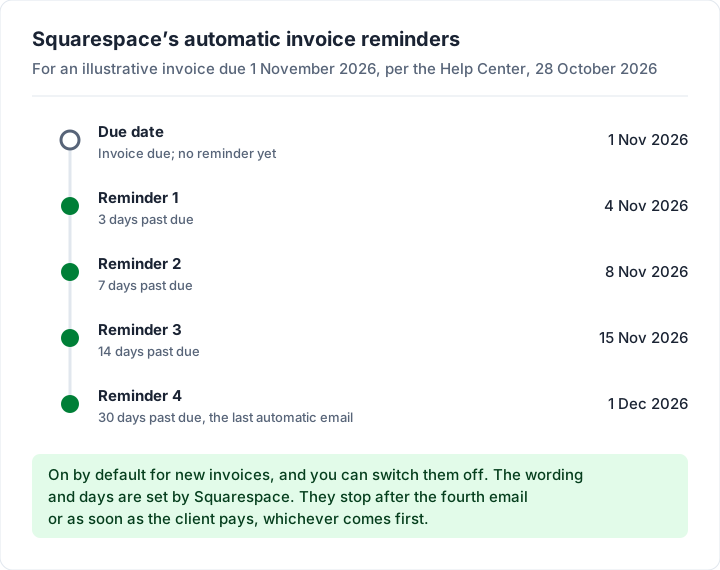
For a client who is a month late, a personal email can help alongside the automatic reminders; here is what to write in an overdue invoice email.
How Wix Invoices works#
Wix describes it in its About Wix Invoices article: “Wix Invoices is a payment request system which allows business owners to create, send, track and manage invoices (requests for payment), as well as receive payments online.”
The same article includes this note from Wix:
Please note that Wix Invoices is an online payment request system and not an accounting service. You are solely responsible for ensuring that the invoices you issue conform to the legal requirements applicable to you and your customers.
Per Wix's creating an invoice article, read on 28 October 2026:
- Set up a payment method first, from Invoices > More Actions > Accept payments. If you already take payments for Wix Stores, Bookings or Events, you do not need to do it again.
- The first time, enter your business name, email and logo.
- Click Create New > Invoice. Choose Invoice & Order instead if you want a Wix Stores order created when the invoice is paid.
- Set the issue date, due date, customer (one per invoice) and title.
- Add items, quantities and prices, tax (inclusive or exclusive) and an optional percentage discount.
- Optionally click + Request Deposit for a partial payment up front, and add notes and terms.
- Preview, save, or click Send Invoice to review the email and send it.
What Wix Invoices includes, per its help pages:
- Built-in deposits. One invoice can ask for a deposit first, instead of two separate invoices.
- Sequential numbering by default. “The number automatically assigned to your first invoice is 0000001”, and you can edit the starting number. Wix also notes: “It is not possible to reset the invoice number”.
- Editing after sending. You can edit an invoice “as long as it hasn't been marked as Paid or Void.”
- Quotes. You can convert a price quote into an invoice. If you want quotes in a separate tool, see our list of tools that do quotes and invoices.
- Automations. Recurring invoices run weekly, bi-weekly, monthly or yearly, and Wix Automations can email your client when an invoice is sent, paid or overdue.
Wix also runs a free Invoice Generator that needs no account to fill in, though “You must have a Wix account and be signed in to email invoices directly to clients.”
Wix Stores order invoices#
Per the store invoices article, you can invoice paid orders singly or several at once, or switch on automatic invoices in Checkout settings. “This toggle is turned off by default, so you need to enable it manually.” The article also notes: “If you issue a partial or complete refund on a store order, the invoice doesn't update to reflect the refund amount.”
For an unpaid order, open it and choose Collect Payment > Charge with invoice. If the customer pays offline, you mark the order “Paid” yourself.
Wix Invoices costs and settings#
Wix Payments' US rates, from its service fees page as of October 2026:
| Payment method | Wix Payments fee (US) |
|---|---|
| Credit or debit card (excl. American Express) | 2.9% + 0.30 USD |
| American Express | 3.7% + 0.30 USD |
Wix's page adds that for a refund “the original processing fee of $2.90 (2.9%) + $0.30 for that customer's purchase will not be paid back”, using a $100 refund as its example.
Which plan you need. Wix's creating-an-invoice article tells you to confirm “that you've upgraded your site with a plan that allows this feature”, and the plans page lists “Accept payments” on Core, Business and Business Elite, not on Light. We have left out Wix's plan prices: the page we loaded showed prices for another country, and Wix notes that “Prices and currency vary by location.” Check the page in your own browser.
Three more points from Wix's own FAQ:
- VAT ID. “Currently, Wix Invoices does not come with a VAT ID field.” Wix's workaround is a custom contact field.
- One customer per invoice. To reach someone else, download the PDF or share the invoice link.
- Design. “Currently, you can only customize the info and logo on your invoices.”
What a tax invoice must show depends on where you and your client are, and the rules vary. Check your tax authority's official page and ask an accountant. General information, not legal or tax advice.
Squarespace vs Wix invoicing at a glance#
The two side by side, from the help pages above, as of October 2026:
| Squarespace | Wix | |
|---|---|---|
| Cost to send | Free on all plans | Needs a plan listing “Accept payments” |
| Default numbering | Random characters (sequential optional) | Sequential from 0000001 |
| Deposits | Two separate invoices | Built in |
| Reminders | Fixed: 3, 7, 14 and 30 days past due | Through Wix Automations |
| Editing a sent invoice | Cancels it and sends a new one | Allowed until Paid or Void |
| Design | Follows your email styles | Info and logo only |
Worked example: what a $1,200.00 invoice costs to collect#
Say you bill a US client $1,200.00 for a brand photography session. Here is what each payment route costs at the rates above, as of 28 October 2026. The figures are illustrative and leave out tax, international surcharges and currency conversion.
| How the client pays | Platform and plan | Processing cost | You receive |
|---|---|---|---|
| Standard card | Squarespace Payments, Basic or Core (2.9% + $0.30) | $35.10 | $1,164.90 |
| Standard card | Squarespace Payments, Advanced (2.5% + $0.30) | $30.30 | $1,169.70 |
| Premium card, such as Amex | Squarespace Payments, any plan (3.2% + $0.30) | $38.70 | $1,161.30 |
| ACH Direct Debit | Squarespace Payments, Basic (1.5%) | $18.00 | $1,182.00 |
| ACH Direct Debit | Squarespace Payments, Core (1%) | $12.00 | $1,188.00 |
| ACH Direct Debit | Squarespace Payments, Advanced (1%, $10 maximum) | $10.00 | $1,190.00 |
| Card, excluding Amex | Wix Payments (2.9% + 0.30 USD) | $35.10 | $1,164.90 |
| American Express | Wix Payments (3.7% + 0.30 USD) | $44.70 | $1,155.30 |
| Bank transfer, marked paid | Either platform, or any invoicing app | $0.00 to the platform | $1,200.00, before any bank charges |
For the first row, 2.9% of $1,200.00 is $34.80, plus $0.30 makes $35.10. On Advanced, 1% ACH would be $12.00, but the $10 maximum applies.
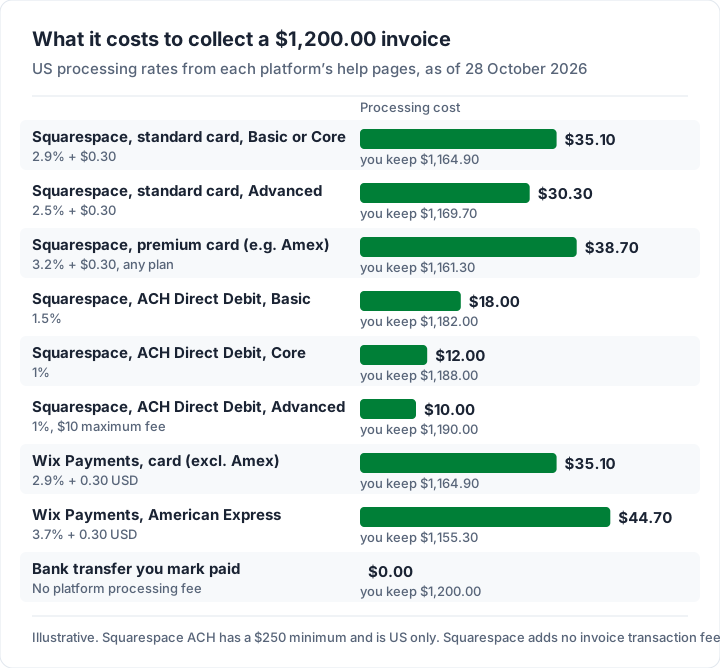
Card fees on the two platforms are close, so neither is a reason to switch on cost alone. ACH, or a plain bank transfer, keeps more of a large invoice; here is how to list bank details on an invoice.
When a separate invoicing app fits better#
If your clients pay by card and your business lives on your Squarespace or Wix site, the built-in tool is the sensible choice. Payment and invoice sit in one place, and you pay nothing extra to send. Some businesses prefer everything in one platform; others keep the website and the billing apart.
A separate app tends to fit better when:
- Clients pay by bank transfer, so the card checkout adds nothing and the invoice mostly needs your bank details.
- You want numbering you set up yourself from the first invoice, in a format you choose.
- You run more than one business, each with its own branding, from one login.
- You need client statements showing everything a client owes across several invoices.
- Your billing should not depend on your website plan, for example if you might move to another site builder.
Photographers weighing this up may also find our guide on how photographers should invoice useful. If you sell products too, the same question comes up with Shopify invoices and when you send an invoice on eBay.
Where Charming fits, and where it does not#
Charming Invoices is one of those separate apps. First, what it does not do: it has no Squarespace or Wix integration, does not email invoices or send reminders, takes no card payments and has no mobile app. It will not read your site's orders, and it cannot tell when a client has paid, so you mark each invoice paid yourself. If card checkout matters most, stay with your platform's invoicing.
What it does, checked in our code on 28 October 2026:
- Unlimited invoices and clients on the free plan, for 1 business, with all 60 templates and your logo, colours and fonts.
- Sequential numbering with your own prefix, which defaults to “INV-”.
- Bank details and one payment link per business on every invoice, so you can paste in a Stripe or PayPal link if a client wants to pay by card; that provider's fees apply.
- Partial payments and deposit invoices, recorded by hand.
- A PDF and a private link for each invoice. You issue the invoice, then download the PDF, print it or copy the link and send it however you like. An issued invoice past its due date shows as Overdue.
- Client statements and a CSV export for your accountant. There is no import and no accounting integration.
The catches, plainly: free invoices carry a small “Sent with Charming Invoices” line, hidden by default on paid plans. Recurring invoices and more than 1 business need a paid plan: Individual at $29 once, Team at $79 once, or Pro at $12 a month or $99 a year, with the lifetime plans sold as final sale. Recurring invoices arrive as drafts for you to review, and nothing is charged automatically. See the pricing page for the full list, or create a free invoice, download the PDF and send it your way, next to your website rather than through it.
Questions about Squarespace and Wix invoices#
Is Squarespace invoicing free?#
Sending invoices is free on all Squarespace plans, as of October 2026, and there is no invoice transaction fee. You still pay processing fees when a client pays by card or ACH, and you need a paid site plan with a payment processor connected.
Can I customize a Squarespace invoice template?#
Not as a template. Squarespace invoices follow your site's email styles (Settings > Styles), and you can add up to 6 custom fields such as a PO number. Wix lets you change the business info and logo only.
Where do I find the invoice Squarespace or Wix sends me?#
That is your bill for the site plan, not a client invoice. Squarespace has a separate help page on reviewing your account invoices; Wix points to your Billing History page.
Can a client pay a Squarespace invoice by bank transfer?#
Not through the invoice. A client can pay you outside Squarespace, and you then mark the invoice paid on a computer, choosing the payment method and date. Note that the marked amount “doesn't include taxes, and can't be edited”, and marking it paid creates a new pending order in your Orders panel.
Does Wix invoicing need a premium plan?#
Wix's own article says your site must be set up to accept payments on a plan that allows the feature, and its plans page lists “Accept payments” from Core upwards, as of October 2026. Wix's free Invoice Generator does not need a plan, but you need a Wix account to email invoices from it.
The short version#
Both platforms let you invoice from your website dashboard at no extra charge, with processing at about 2.9% + 30 cents on a standard US card. Squarespace sends invoices free on all plans with a fixed reminder schedule; Wix has built-in deposits and needs a plan with payments. If clients pay by card, use them. If they pay by bank transfer, or your invoices should stand on their own, a separate app fits better.
Sources, all read 28 October 2026: Squarespace, Invoicing clients and wholesalers; Squarespace, Transaction fees and payment processing rates; Squarespace, Connect a payment processor; Squarespace, Managing projects; Squarespace pricing; Squarespace invoicing; Wix, About Wix Invoices; Wix, Creating an invoice; Wix Stores, Creating invoices for store orders; Wix Payments, Service fees; Wix plans; Wix Invoice Generator.