How to invoice for hours worked: from timesheet to invoice

Nnabuike Okoroafor ·
On this page · 10 sections
An invoice for hours worked is the simplest kind of invoice to describe and one of the easiest to get slightly wrong. Hours times rate sounds like one multiplication. In practice there is a week of raw minutes to convert, a rounding choice that moves the total, admin time that should not be on the bill, and a timesheet whose totals the invoice has to match to the cent.
This guide takes one invented week of work from the time log to a sent invoice, with every figure checked by script, using a pair of free files: a weekly timesheet and an hourly invoice template that are built to agree with each other.
How to invoice for hours worked, in short#
- Log the time as you work, one entry per task, with the date.
- Convert minutes to decimal hours: divide the minutes by 60.
- Round each entry, not the total, using the method you agreed with the client.
- Split billable from non-billable time, and bill only the first.
- Copy the billable entries onto the invoice, one line each, so its totals match the timesheet.
- Check and send: total hours, the rounding note, the client's reference, and the timesheet if they ask for it.
What an invoice for hours worked shows#
Beyond the details every invoice carries (your details, the client's, an invoice number, the invoice date, the due date and how to pay), an hourly invoice has a line for each piece of work. This is what each line and the totals below them show:
| Part | What it says | Example |
|---|---|---|
| Date | The day the work was done | Wed 11 Nov 2026 |
| Description | The task, in the client's words | Email series: 3 emails, draft |
| Hours | Decimal hours, after rounding | 3.25 |
| Hourly rate | Your agreed rate | 62.00 |
| Amount | Hours times rate, to the cent | 201.50 |
| Total hours | All the lines' hours added up | 9.50 |
| Rounding note | How the hours were rounded | Time rounded to the nearest 15 minutes, each entry |
The Total hours line is what lets a client's approver tick the invoice against their own records quickly. The rounding note answers the question before it is asked. If the client gave you a purchase order or a cost-centre code, it goes in the reference field; where a PO number goes on an invoice covers that.
Step 1: log the time#
Any log works, as long as each entry has a date, a task and a start-to-finish duration: a notebook, your calendar, a timer app or a spreadsheet. Simple is fine. One commenter in a public videography forum (not a Charming customer, like everyone quoted on this page), listing the tools they use to run their business, began with:
Google Sheets for timesheet/invoice (rinse and reuse the same custom template)
If you want a spreadsheet that does the arithmetic below for you, the free weekly timesheet for hourly work has 30 entry rows per week. You set the Monday the week starts on, the client, your hourly rate and a rounding setting, then type the entries. It works out each entry's rounded hours and amount, and a summary of the week. Use one tab per client per week: the file holds one client and one rate per tab.
We built the timesheet and the hourly invoice template and checked every formula by script; we have not opened them in Excel or Google Sheets.
Here is the week this guide follows. Brindlecote Copywriting and its client, Wexcombe Outdoor Ltd, are invented, and the 62.00 rate is an example, not a market rate. The week starts on Monday 9 November 2026:
| Date | Task | Billable | Logged |
|---|---|---|---|
| Mon 9 Nov | Product page copy: 6 pages, draft | Yes | 2 h 50 min |
| Mon 9 Nov | Client call: brief for email series | Yes | 35 min |
| Tue 10 Nov | Product page copy: revisions | Yes | 1 h 20 min |
| Tue 10 Nov | Invoicing and admin | No | 45 min |
| Wed 11 Nov | Email series: 3 emails, draft | Yes | 3 h 10 min |
| Thu 12 Nov | Email series: edits after review | Yes | 1 h 5 min |
| Fri 13 Nov | Pitch for another client | No | 1 h 30 min |
| Fri 13 Nov | Final proof and handoff | Yes | 40 min |
Step 2: convert minutes to decimal hours#
Invoices multiply hours by a rate, so the hours need to be a decimal number, not hours and minutes. To convert, divide the minutes by 60 and add them to the whole hours. The timesheet's own instructions give the example: “2 hours 41 minutes is 2 + 41 ÷ 60 = 2.68.” These are the minute values that come up most:
| Minutes | Decimal hours |
|---|---|
| 6 | 0.1 |
| 15 | 0.25 |
| 20 | 0.33 |
| 30 | 0.5 |
| 35 | 0.58 |
| 40 | 0.67 |
| 45 | 0.75 |
| 50 | 0.83 |
So Brindlecote's 2 h 50 min becomes 2.83, 35 min becomes 0.58, and 3 h 10 min becomes 3.17, each to two decimal places.
Watch out: do not type 1:30 into a spreadsheet. Excel reads 1:30 as a time of day and stores it as a fraction of 24 hours, 0.0625. The timesheet's instructions spell out the result: “Excel stores 1:30 as a fraction of a day (0.0625), so the sheet would read it as 0.06 hours.” Under nearest-quarter-hour rounding, that entry then rounds to 0, and an hour and a half disappears from the bill. The timesheet's red check line warns you when any entry is under 0.1 hours, which is almost always this mistake. Type 1.5 instead.
Step 3: round each entry, not the total#
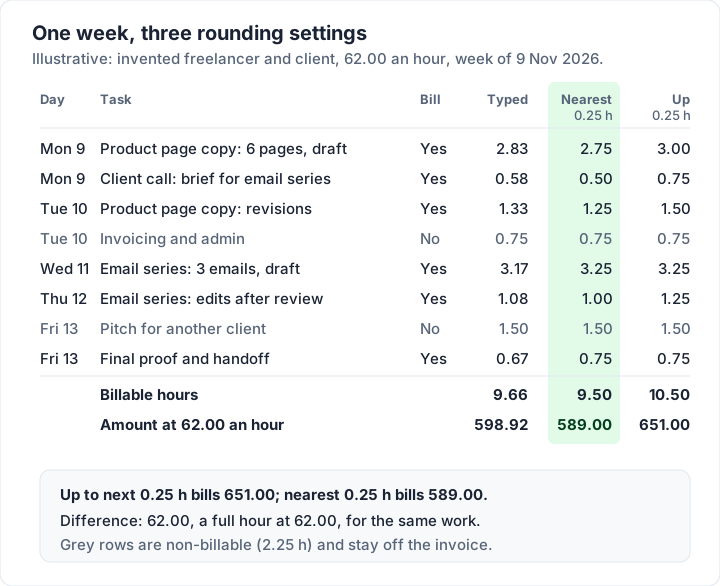
You can bill the exact time, or round each entry to an agreed step such as a quarter of an hour. The timesheet offers three settings, and it rounds each entry first, then adds them up:
- None keeps the hours as typed.
- Nearest 0.25 h rounds to the nearest quarter hour, halves going up: 2.83 becomes 2.75, and 0.58 becomes 0.5.
- Up to next 0.25 h always rounds up: 2.83 becomes 3, and 0.58 becomes 0.75.
Here is what each setting does to Brindlecote's week, at 62.00 an hour:
| Setting | Week total | Hours to invoice | Non-billable | Amount to invoice |
|---|---|---|---|---|
| None (decimals to 2 places) | 11.91 | 9.66 | 2.25 | 598.92 |
| Nearest 0.25 h | 11.75 | 9.50 | 2.25 | 589.00 |
| Up to next 0.25 h | 12.75 | 10.50 | 2.25 | 651.00 |
Three things stand out:
- The setting moves the bill by 62.00 in one week, a full hour, from 589.00 to 651.00, on exactly the same work.
- Rounding up on every entry adds up fast. Under that setting, all six billable entries gain 5 or 10 minutes over the time logged. The more short entries in a week, the bigger the gap.
- Even no rounding is a choice. The exact billable time is 9 hours 40 minutes, which is 9.6667 hours, or 599.33. Typing two-decimal hours gives 9.66 hours and 598.92. Small, but it is why the method is agreed, not improvised.
Whichever you choose, agree it with the client before the first invoice and print it on every invoice. The timesheet suggests wording: “Time rounded to the nearest 15 minutes”. For 6-minute (tenth of an hour) steps, the file says to round the hours yourself, type them and choose None.
Step 4: split billable from non-billable#
Not every logged hour goes on the invoice. Brindlecote's week has two entries that do not: 0.75 hours of invoicing and admin, and 1.5 hours pitching another client. In the timesheet, each entry gets Yes or No under Billable, and the sheet keeps them apart: Hours to invoice adds up the Yes entries, Non-billable hours the No entries, and Billable share divides the first by the week total. With nearest-quarter rounding, 9.50 of 11.75 hours are billable, 80.85%.
Leave non-billable time off the invoice entirely rather than listing it at 0.00. It is worth keeping in the log, though: it is how you know what your week really costs. Why that number matters when you set your rate is covered in time tracking and invoicing, along with the trackers that log time for you.
If an entry has hours but no Yes or No, the timesheet counts it in the week total only, and its red check line says so.
Step 5: copy the timesheet onto the invoice#
Now the hours become invoice lines. The free hourly invoice template for Excel has the matching columns: Date, Description of work, Hours, Hourly rate and Amount, with a Total hours line under the Hours column. The timesheet's instructions give the method:
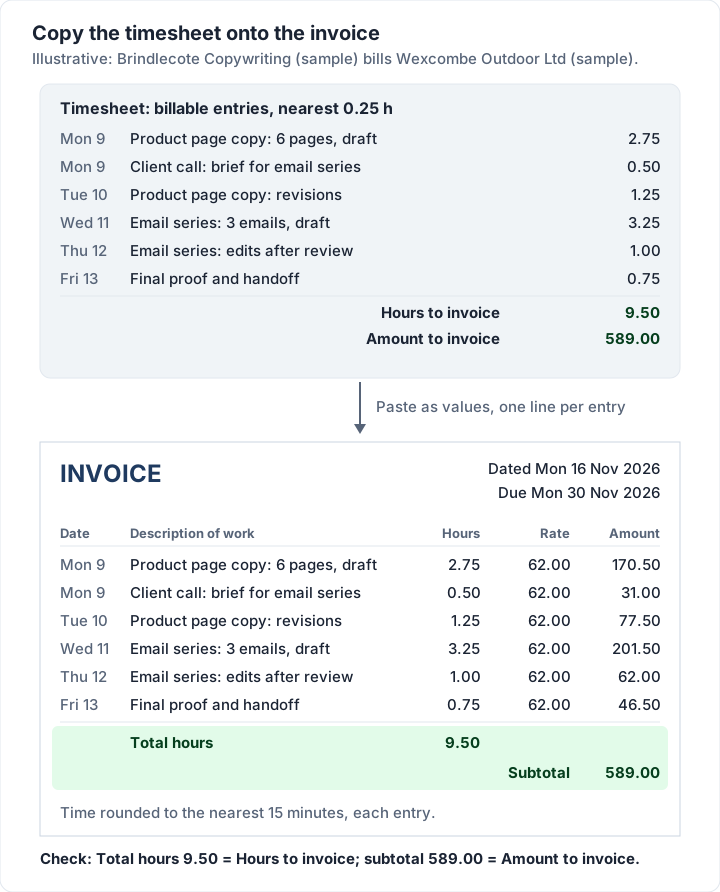
- Copy each billable entry onto the invoice as one line, with the date, the task, the rounded hours and your rate.
- Paste them as values (Paste Special, then Values), so no formulas come across with them.
- Check two numbers: the invoice's Total hours should equal the timesheet's Hours to invoice, and its subtotal should equal Amount to invoice.
They match because both files work the same way: each line's amount is rounded to the cent first, and then the lines are added up. Here is Brindlecote's invoice, with nearest-quarter rounding, dated Monday 16 November 2026 with 14-day terms, so due Monday 30 November 2026:
| Date | Description of work | Hours | Hourly rate | Amount |
|---|---|---|---|---|
| Mon 9 Nov | Product page copy: 6 pages, draft | 2.75 | 62.00 | 170.50 |
| Mon 9 Nov | Client call: brief for email series | 0.50 | 62.00 | 31.00 |
| Tue 10 Nov | Product page copy: revisions | 1.25 | 62.00 | 77.50 |
| Wed 11 Nov | Email series: 3 emails, draft | 3.25 | 62.00 | 201.50 |
| Thu 12 Nov | Email series: edits after review | 1.00 | 62.00 | 62.00 |
| Fri 13 Nov | Final proof and handoff | 0.75 | 62.00 | 46.50 |
| Total hours | 9.50 | |||
| Subtotal | 589.00 |
Terms line: “Time rounded to the nearest 15 minutes, each entry.” There is no tax line in this example to keep it simple; whether you charge tax on your services depends on where you work, so check with your tax agency or an accountant.
For how the Excel invoice template itself works, cell by cell, see the hourly invoice template section of our Excel guide.
Step 6: check and send#
Before it goes, read the invoice the way the client's approver will:
- Total hours matches your timesheet, and matches what the client expected for the week.
- Every line has a date and a task a stranger could understand. “Edits after review” beats “Work”.
- The rounding note is there, worded the same on every invoice.
- The client's reference is there, if they gave you one, and the approver's name if they asked for it.
- A real due date is printed, such as Monday 30 November 2026, beside the terms. See payment terms such as Net 30 for how terms and due dates fit together.
- The timesheet is attached if the client asks for it. Some clients, often larger ones, do. Otherwise a dated line per task is usually enough, with the log kept in case anyone queries an hour.
If a client wants a separate time report page, the timesheet tab saved as a PDF is that page. For hourly work with a cap on hours or a minimum charge, the hours-worked invoice sample shows how to word both.
Invoicing for hours worked in Charming#
Charming Invoices does not track time and does not import timesheets: you type the hours from your log, or from the timesheet file, onto the invoice. Once they are there, this is what it does with them, checked in the code on 28 October 2026 and available on every plan, including Free:
- Hours as the quantity, up to 3 decimal places, so 2.75 or 0.583 go in as they are.
- A unit on each line. The unit field suggests “hrs”, or takes your own up to 20 characters.
- A Total hours line. Lines whose unit is an hour unit (h, hr, hrs, hour or hours) add up into it. A line in any other unit, such as an expense marked “each”, stays out.
- The Timesheet template. One of 60 templates, all free: “Time entries grouped by week or project, with hours per group and a total hours line,” titled “Timesheet Invoice”.
- Sections, such as “Week of 9 November 2026” (up to 80 characters), to group the lines.
- A starter kit. On a new invoice with no lines yet, “Start from a kit” has an “Hours worked” kit under Trades: day-by-day lines in hrs under Week 1 and Week 2 sections, plus a minimum-charge line and an expense line, all priced at 0.00 for your own rates.
- Line amounts rounded once, to the cent, then added up, the same way as the timesheet and the Excel template, so all three agree.
The catches, plainly: no timer and no import; no email sending, so you issue the invoice, download the PDF or copy its link and send it yourself; no card payments, so your bank details or payment link go on the invoice and you mark it paid yourself; and free invoices carry a small “Sent with Charming Invoices” line in the footer, which paid plans hide by default. On paid plans, recurring invoices create a draft each week or month for you to fill with that period's hours; they are never issued or sent automatically.
Create a free invoice, choose the Timesheet template and type in Brindlecote's six lines with the unit hrs: the Total hours line should read 9.5 and the total 589.00.
Questions about invoicing for hours worked#
How do I write hours worked on an invoice?#
One line per task or per day, with the date, a short description, the hours as a decimal (1.5, not 1:30), your hourly rate and the amount. Add a Total hours line and a note saying how the time was rounded.
Should I attach a timesheet?#
If the client asks for one, yes; some clients, often larger ones, want it to approve the invoice. If they do not, a dated line per task usually does the same job, and you keep the log in case of questions.
15 minutes or 6 minutes?#
Either can work if the client agrees it in advance and you apply it to every entry. Quarter hours are simpler to read; tenths of an hour (6 minutes) track short tasks more closely. The free timesheet rounds to quarter hours or not at all; for tenths, round the hours yourself and choose None.
Can I invoice part-hours?#
Yes. Type the hours as a decimal: 0.25 is 15 minutes, 0.5 is 30 and 0.75 is 45. Both the hourly template and Charming accept fractions of an hour on any line.
What if the client disputes the hours?#
Start with your log: dates, tasks and times, kept as you worked, are the clearest answer you have. Send the timesheet for the period, point to the rounding method you agreed, and offer to go through any entry they query. If it does not resolve, our guide to a disputed invoice covers the next steps.
Free downloads
No sign-up and no email address. More on the free templates page.
- Download .xlsx: Weekly timesheet for hourly work
Weekly timesheet for hourly work
Excel .xlsxFor anyone who bills by the hour: log a week of time, split billable from non-billable, and get the hours and amount to put on the invoice.
- Download .xlsx: Hourly invoice template for Excel
Hourly invoice template for Excel
Excel .xlsxFor time-based work: one line per day or task, billed by the hour.